Quick answer: if you cannot click or select text in PowerPoint, the words are usually not a text box you own. They sit on the slide master or a layout, the file is read-only or in Protected View, the object is locked, the text is really a picture, or the deck is in compatibility mode. Each cause has a different fix, and one of them — a picture — cannot be unlocked at all.
You click the heading, and nothing happens. Or the whole block selects as a single rectangle. Or the text highlights but refuses a keystroke. Something about where those words live is stopping you. Here are the causes in the order worth checking, with the steps Microsoft publishes for each. If the cause turns out to be a picture, how to make an image editable in PowerPoint lists every way to get editable objects back.
Which cause is it?
| What you see | Likely cause | Where to go |
|---|---|---|
| Text repeats on several slides and will not move or restyle | Slide master or layout | Cause 1 |
| A yellow or red bar above the slide; typing does nothing | Read-only, Protected View or Mark as Final | Cause 2 |
| The whole area selects as one box with picture handles | The text is an image | Cause 3 |
| One object ignores clicks while others work | Locked or hidden object | Cause 4 |
| The title bar says Compatibility Mode | Older .ppt format | Cause 5 |
| A command is missing in the browser | PowerPoint for the web | Cause 6 |
1. The text lives on the slide master or a layout
A placeholder is a pre-formatted container for text, graphics or video. Microsoft's guide to placeholders says you format a placeholder in Slide Master view and add content to it in Normal view. Text typed into the master, such as a company name or section label, is edited on the master, not on your slide, which is why clicking it does nothing there.
- On the View tab, select Slide Master.
- In the thumbnail pane, select the master or the layout that holds the text.
- Edit the text, then select Close Master View on the Slide Master tab.
Footers have their own rule. Microsoft's page on footer text says that if you cannot edit the footer directly, its placeholder has probably been turned off in Slide Master view. Select the master or layout, select the Footers check box on the Slide Master tab, and repeat for each layout that needs it.
If you changed a layout rather than the master, reapply it: select the affected slides, choose Home > Layout, and pick the layout you edited.
2. The file is read-only, protected, or marked final
Protected View is a read-only mode where most editing functions are disabled, according to Microsoft's Protected View page. Files from the internet, another person's OneDrive, an unsafe folder or an email attachment can open this way, and the message bar tells you which.
- Yellow bar: select Enable Editing.
- Red bar: select File > Edit Anyway, but only if you trust the source and the content looks right.
- "Marked as Final" banner: open File > Info > Protect Presentation > Mark as Final and select it again. Microsoft's Mark as Final page says typing and editing commands are disabled while it is on, and that it is not a security feature.
- Nothing works and no bar appears: an administrator may be forcing Protected View. Microsoft says to speak to your administrator if you cannot leave it.
3. The text is actually a picture
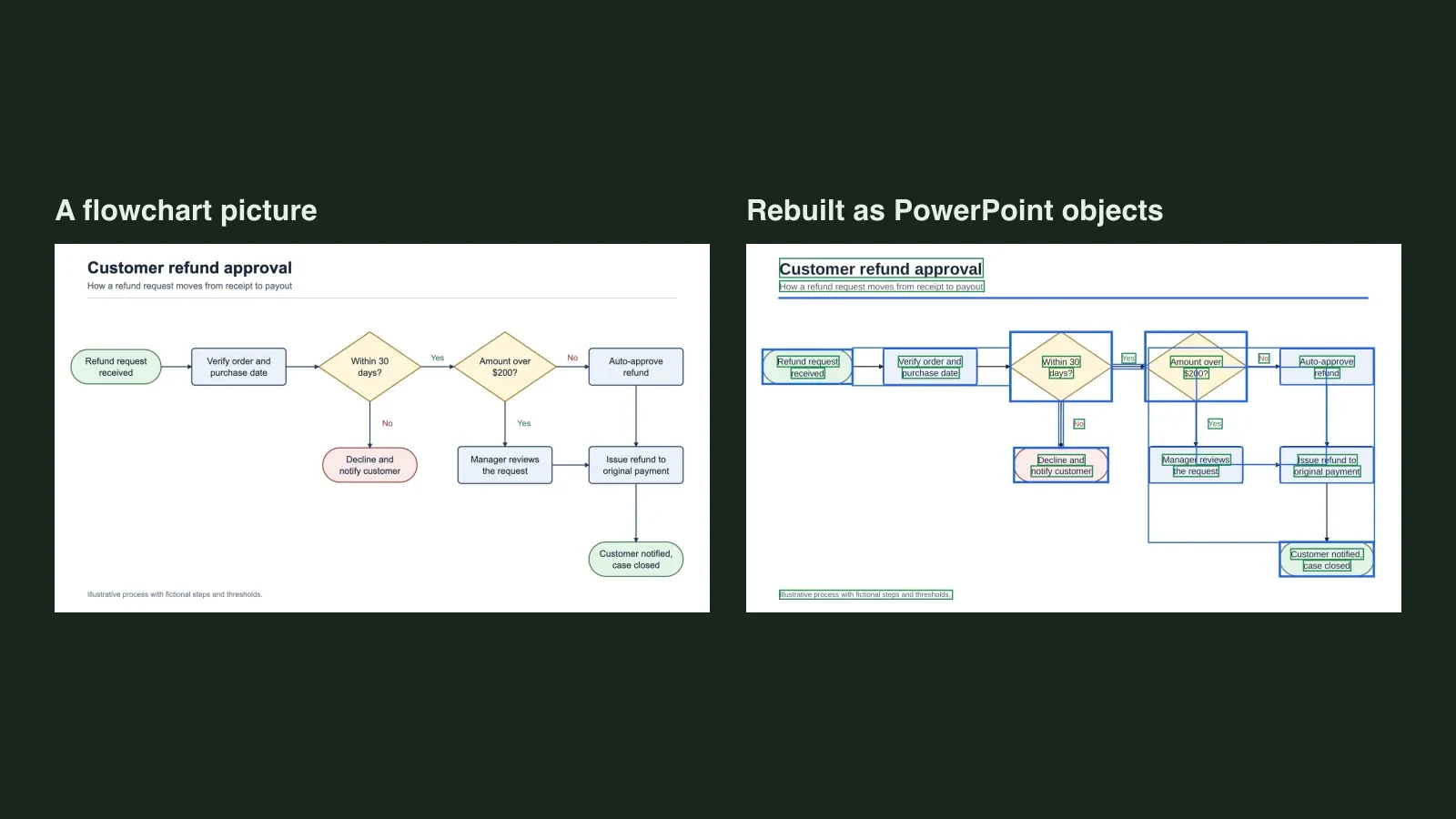
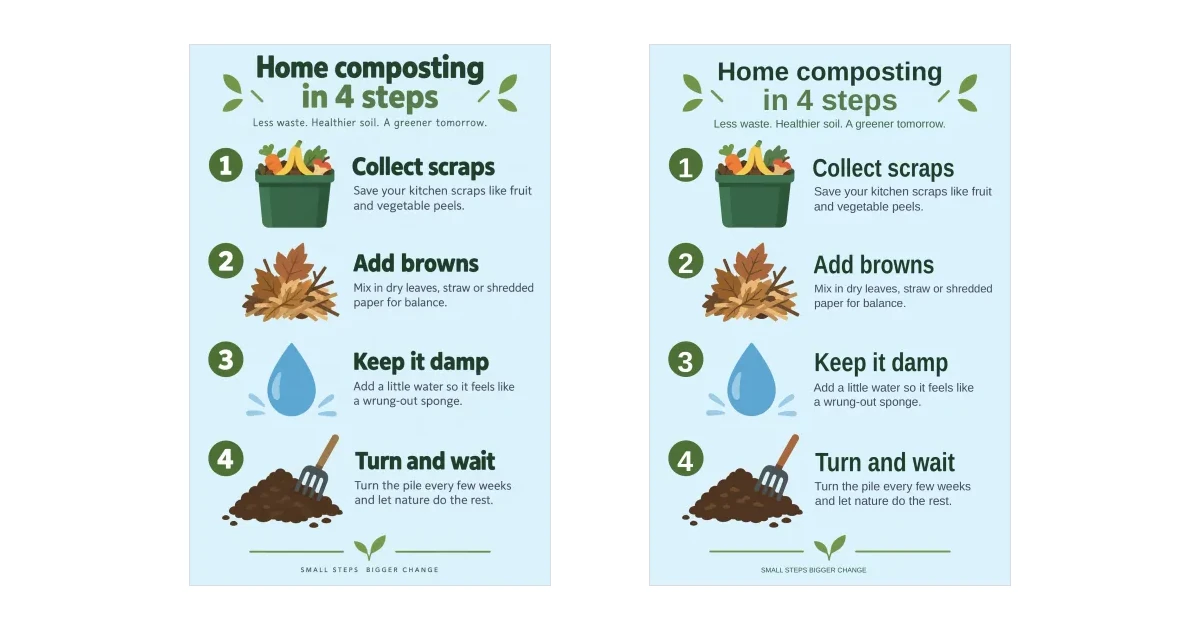
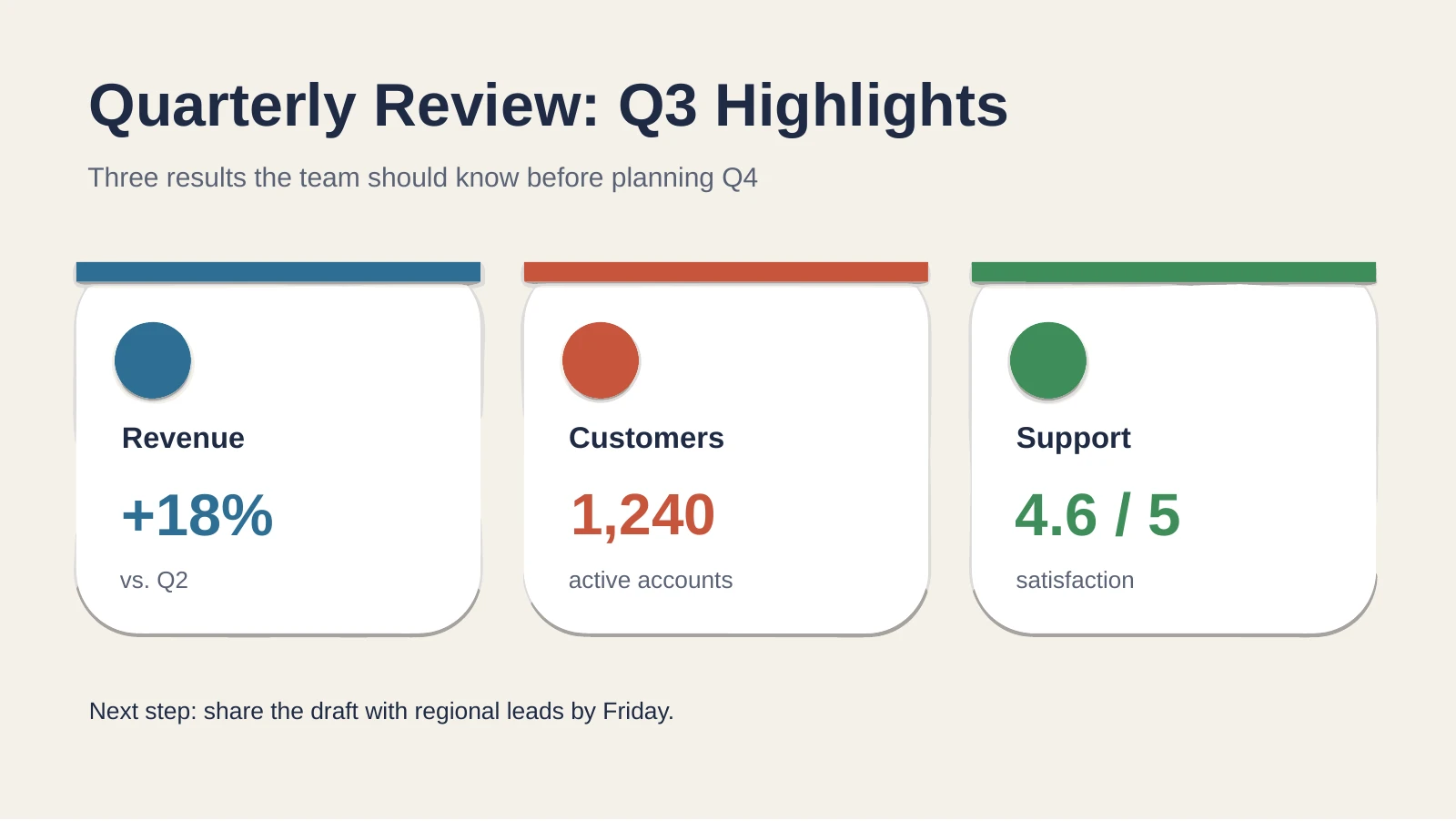
This is the cause that no setting fixes. Save a deck as images, paste screenshots onto blank slides, or receive a deck whose slides were pasted in as pictures, and the words become coloured pixels. Click once and the whole area selects as one object with picture handles; the Picture Format tab appears instead of a text cursor. There is no hidden text layer to unlock.
Two honest routes out:
- Change one word: use Edit Picture if your build has it. Microsoft's Edit pictures page lists Add text, Erase, Move and Effects, and you finish with Update. The result is still a picture, and Microsoft notes that after updating you can only undo all the changes together.
- Rebuild the slide: if you need to restyle, translate or animate the content, the words have to become text boxes again. Our page on slides that are only images covers that case. Unraster takes a PNG, JPG or WebP of the slide and returns a .pptx with native text boxes and separate shapes. It is a rebuild, not a recovery: fonts are substituted with similar ones, very small lettering can stay a shape, and a chart comes back as shapes rather than a chart with a data sheet. Check the free preview before paying.
If you only need the words, copying them out with OCR is faster than either route; our guide to making an image editable in PowerPoint compares that with the other options.
4. The object is locked, hidden, or inside a group
PowerPoint can lock an object so it cannot be moved or changed, and the lock is easy to forget. Open the Selection Pane with Home > Select > Selection Pane or Alt+F10. Microsoft's Selection pane guide says a locked object can't be modified; select the lock icon beside its name to unlock it. Microsoft also lists Ctrl+Shift+L as a shortcut for locking and unlocking.
While the pane is open, check two other things:
- Hidden objects. Microsoft says a hidden object remains in the file but is no longer visible. Use the pane's unhide button to show it again.
- Groups. If the item sits inside a group, expand the group in the pane and select the inner object. Microsoft notes that an object in a group can only be moved within the group.
If an object is buried under others, Microsoft suggests temporarily hiding the object on top to reach the one underneath.
5. The file is in compatibility mode
A .ppt file opens with Compatibility Mode in the title bar. The mode exists so the file stays usable in earlier versions of PowerPoint, so some newer text and design commands can be unavailable.
To leave it, open File > Info and, next to Compatibility Mode, select Convert, which Microsoft says saves the presentation as a .pptx. Saving in PowerPoint (.pptx) format also turns the mode off, per Microsoft's compatibility mode steps. Compatibility mode changes which features are available; it does not turn a text box into a picture or lock it. If you cannot even select the box, the cause is one of the others above.
6. You are editing in the browser
PowerPoint for the web is fine for typing, but it is not the desktop app. Microsoft's page Where's the slide master? states that PowerPoint for the web doesn't have a slide master, and tells you to use Editing > Open in Desktop App near your profile picture. If the text sits on a master and you are in a browser, the command you need is not there.
Open the file in the desktop app, make the master change, and save.
A short order of attack
- Check the message bar and title bar: read-only, Protected View and Compatibility Mode all announce themselves there.
- Click the text once, then again. A text cursor means it is editable; one big rectangle means a picture.
- If other objects select normally, open the Selection Pane and look for a lock icon or a hidden item.
- If the text repeats across slides, go to Slide Master view.
- Save a copy before converting formats or rebuilding anything.
Bottom line: text you cannot edit is not one problem. Check the message bar, the title bar, the Selection Pane and the slide master before you retype anything. If the whole slide is one picture, stop looking for an unlock button: the text is pixels, and your choice is to paint over it or rebuild the slide as real text boxes.