Image to stencil. With bridges, so nothing falls out.
Make a one-colour stencil from a PNG, JPG or WebP. Bridges keep the centres of letters like O, A, B and 8 attached. Download SVG, DXF or PNG.
or drop an image ·
PNG, JPG or WebP · up to 20 MB · paste works tooFree · runs in your browser · your image is not uploaded
The centres stay put.
A real run of this tool on self-made lettering. Without bridges the centres of B, A, 9 and 0 would drop out; with them, every piece stays attached.
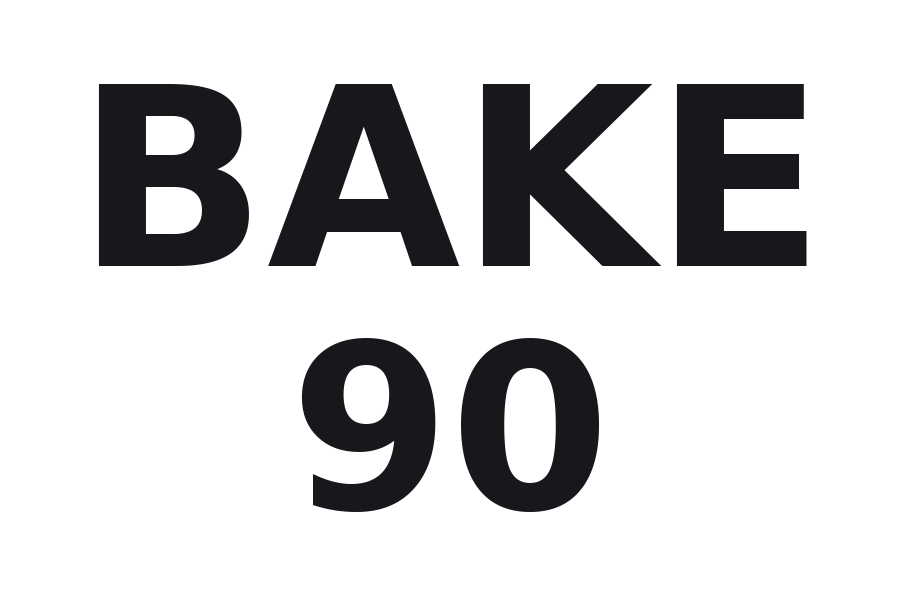
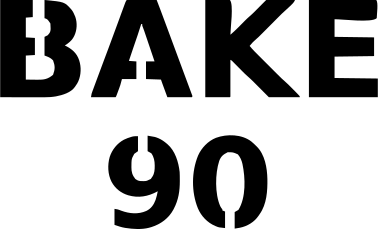
Black is cut away, white stays as material. Each bridge is a short bar of material across the cut. Download the sample DXF
How to make a stencil from an image
- Choose your image
Pick, drop or paste a PNG, JPG or WebP up to 20 MB. It stays on your device.
- Set the threshold
Black in the preview is the part that will be cut away. Move the threshold or switch on Invert until the shape is right.
- Add bridges
Choose a bridge width in millimetres, one or two bridges per piece, and the direction. Turn on the highlight to see which pieces were enclosed.
- Download
Take the SVG, DXF or PNG, and test a cut on scrap before the real material.
What works best
Good fits
- Bold lettering, numbers and simple logos
- Black shapes on a light background, or a clear silhouette
- Shapes with thick strokes that survive cutting and spraying
Keep in mind
- Photos and busy images do not make good stencils; the result is a one-colour approximation
- Colour images are reduced to two tones, so choose the threshold that separates what you need
- Thin strokes and tiny details may tear or clog; test with your material
Questions
Anything else? Email us.
What are stencil bridges?
Bridges are the small bars of material that connect the middle of a letter such as O, A, B or 8 to the rest of the stencil. Without them the centre has nothing holding it, and it falls out when you cut.
How wide should the bridges be?
It depends on your material and how you will use the stencil. Thicker, stiffer material can carry narrower bridges. Start around 2 mm at 100 mm wide, cut a test on scrap, and adjust.
Should I use one bridge or two per piece?
One bridge looks cleaner. Two hold a piece more firmly and split the cut shape into more parts. Try both and compare the preview.
Can I choose where the bridges go?
You choose the width, the number per piece, and whether bridges run vertically or horizontally. They are placed automatically where they cross the stroke at its thinnest point, near the middle of each piece. Placing them by hand is not supported.
Is black the part that gets cut?
Yes. In the result, black shapes are the openings cut out of the stencil and white is the material that stays. If your image is the other way round, switch on Invert.
Which download should I use: SVG, DXF or PNG?
SVG suits design software and many cutters that import it. DXF, sized in millimetres, suits laser and CNC software. PNG is a plain black and white picture for printing. Import behaviour differs between programs, so check the size after opening.
Will it work with any image?
Any PNG, JPG or WebP up to 20 MB, but it works best on high-contrast artwork. Colour images become one colour at your threshold, and photos rarely make a usable stencil.
Is my image uploaded?
No. The stencil is made in your browser and the image is not sent anywhere. There is no account, no credits and no watermark.
Make your stencil, bridges included.
Choose imageFree, in your browser, no sign-in.