Quick answer: look at what is in your picture first. Words on a photo (a sign, a package, a T-shirt) need an image editor: Photoshop or Canva's Grab Text. A scanned document goes through Acrobat's Edit PDF. A screenshot, slide, chart or infographic with clean text on flat colour is best rebuilt as real text boxes, so you type over the words instead of repainting them. Just need the words out? Copy them with OCR.
"Edit text in a picture" sounds like one job, but it is at least three. The words in a photo of a shop window, the words in a scanned contract and the words in a screenshot of a slide are stored in the same way (as coloured pixels) but are very different to fix. When we looked at the pages ranking for this search, most were single-tool landing pages that did not separate these cases.
This guide starts with the decision, then covers six methods with the limits their own makers publish, and finishes with one real before-and-after edit that shows what to check. Unraster is our product, so we cover it in detail, and we say plainly where it does not help. Unraster is not affiliated with Adobe, Canva or Microsoft.
Which method fits your picture?
| What is in your picture | Method | What you get |
|---|---|---|
| Words on a photo: a sign, package, T-shirt, poster on a wall | Photoshop | The same picture, with the old letters removed and new type added |
| Words on a photo or image you are using in a Canva design | Canva Grab Text | Editable text boxes on your design, over the image |
| A scanned document or a PDF made from a scan | Acrobat Edit PDF | A PDF with editable text |
| A screenshot, slide, chart or infographic with clean text on flat colour | Rebuild it as editable text | A PowerPoint slide with real text boxes and shapes |
| You only want the words out of the picture | Copy the text with OCR | Plain text you can paste anywhere |
| One word on a picture that is already in PowerPoint | PowerPoint Edit Picture | The picture with that word changed |
If you are not sure which row you are in, ask one question: is the background a photo or a flat design? A photo has texture, lighting and perspective that a new word has to match. A flat design is made of solid colours and clean shapes, which can be redrawn.
Two different jobs: painting over and rebuilding
Every method below does one of two things, and the difference decides what you can do next.
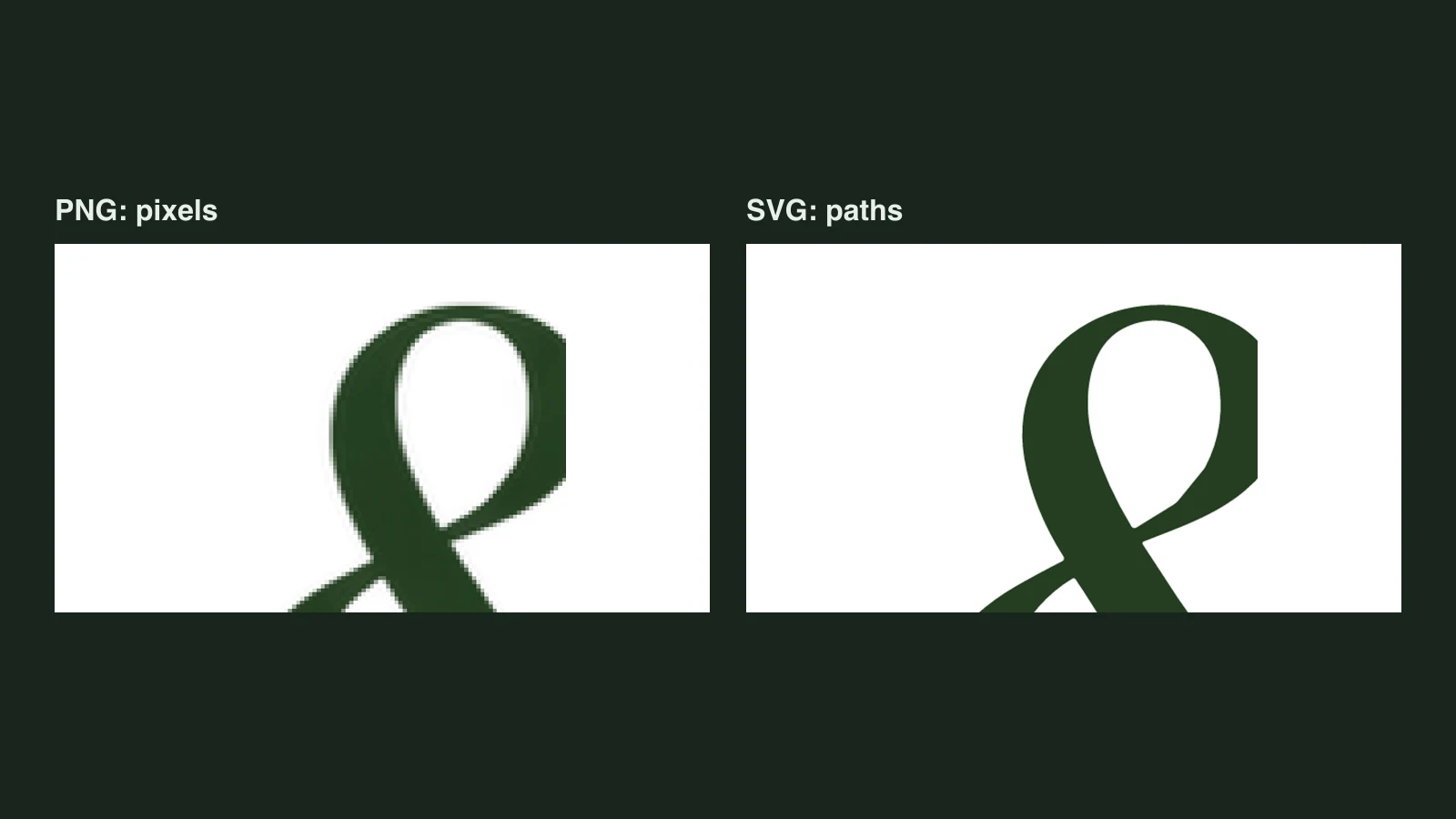
Painting over keeps the picture as a picture. The tool removes the old letters, fills the gap so the background looks continuous, and draws new letters on top of the pixels. You get the same image back with different words. The price is that you have to match the background fill, the font, the size and the angle yourself or with help from the tool. Once you flatten the file or export it as a JPG or PNG, the new word is just pixels again, and changing it later means repeating the work.
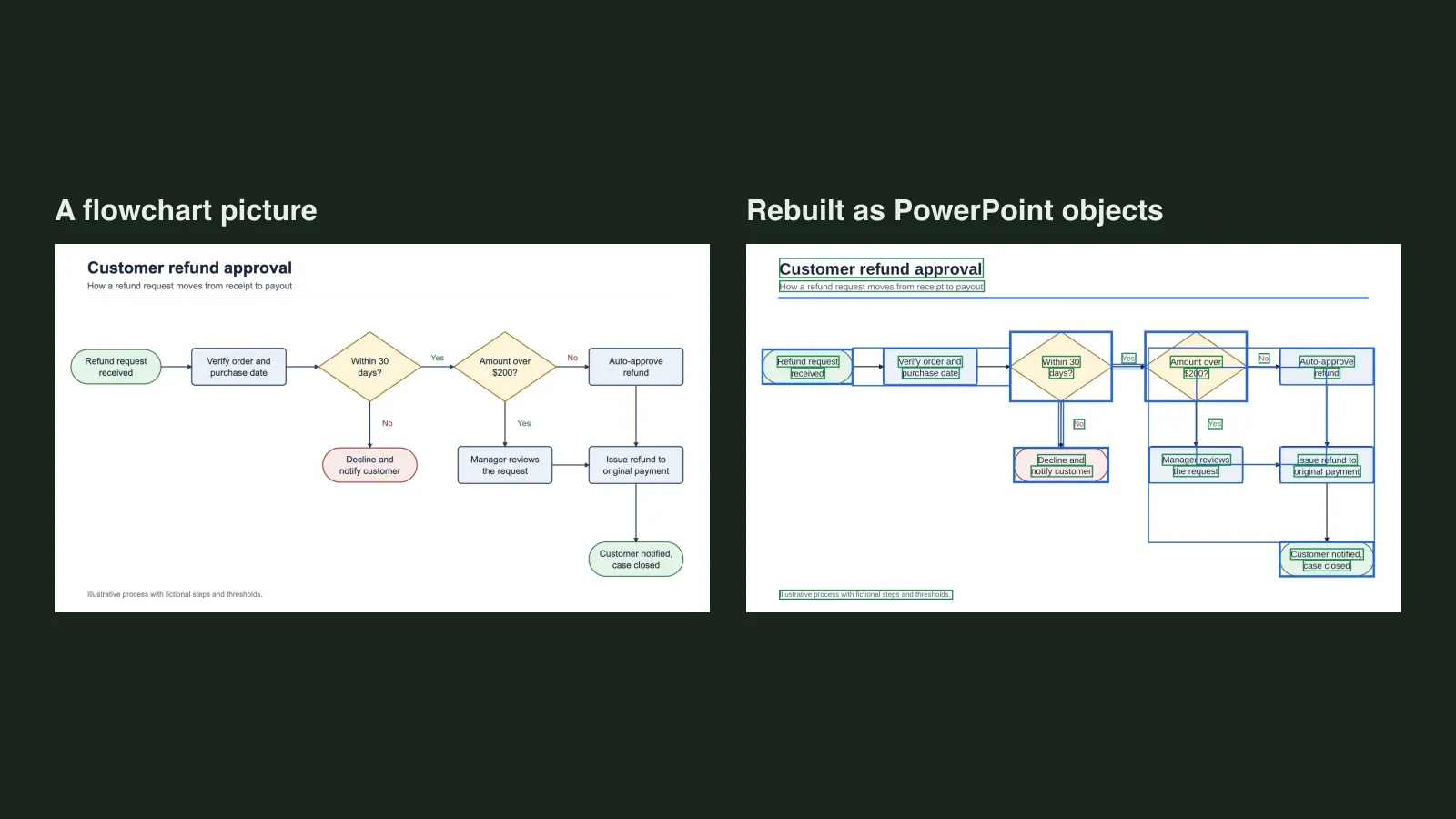
Rebuilding throws the picture away as the working file. The words become real text boxes, and the background, boxes and lines are redrawn as shapes. There is nothing to erase or fill, because the old letters were never painted over: you change the text box. You can edit it again tomorrow. The price is that the result is a redrawn version, not your original, and the fonts are close matches rather than the originals. It only works when the picture is simple enough to redraw, which rules out photos.
Canva's Grab Text sits between the two: it removes the old words from the image and gives you editable text boxes on top. For photos you need one of these painting-over tools. For flat designs, rebuilding is usually the better choice. The sections below follow that split.
Photoshop for text in photos
Two Adobe help pages cover the two parts: removing the old text, then adding and matching new text. These steps follow Adobe's pages for the Remove tool (page last updated Aug 18, 2026) and Match Font (published Mar 29, 2025).
- Choose File > Open and open the photo.
- In the Tools panel, select the Remove tool.
- In the Options bar, set the brush slightly larger than the area you want to remove.
- Draw a loop around the old text. Adobe's page describes the Remove tool for unwanted objects and distractions; using it on lettering is our application of it, so check the result closely.
- To find a similar font, use the Rectangular Marquee tool to select the area that contains the text, then choose Type > Match Font.
- Pick a match from the fonts already installed on your computer, or click the cloud icon to download one from Adobe Fonts.
- Use the Type tool to add the new words.
What to check:
- Generative AI setting. The Options bar has a Mode setting with three choices: Auto (May use generative AI), Generative AI is on, and Generative AI is off. Adobe also provides a Create new layer option, which applies the removal to a new layer for non-destructive editing. Pick the mode on purpose, and check your company's policy if the picture is for work.
- The filled area. Zoom in on the spot where the old letters were. Check that textures, edges and lighting continue naturally.
- Font and perspective. Match Font finds a similar font, not necessarily the same one. A sign photographed at an angle will need the new text rotated or transformed to fit.
We do not list prices or credit numbers for Photoshop because Adobe's plans change. Check Adobe's site for current terms.
Canva Grab Text for photos and designs
Canva's Grab Text recognises the words in an image and turns them into editable text boxes in your design. Canva's help page (checked October 2026) gives the steps:
- Open your design and select the image.
- In the editor toolbar, click Edit.
- Choose Tools, then See all, and scroll to the bottom to select Grab Text.
- Select the text you want to work with. You can drag across several areas.
- Click Grab.
Canva says Grab Text is "available on eligible plans and in supported design types", so check whether your account and design type qualify. It is not supported in China, in Canva Docs, in Video, or in the Photo Editor outside the editor.
Canva lists these limits, which are the most useful part of its page:
- Formatting such as bold, italic and underline is not available yet.
- Some text may not be recognised.
- Rotated or curved text, languages that do not use Latin letters and multi-page files are not supported.
- Images whose transparency has been adjusted can give strange results.
- Grab Text tries to match a similar font and position, which is sometimes not perfect.
- It can leave little artifacts of the old text behind, which you can clean up with Magic Eraser.
- It can sometimes create made-up text from patterns or line drawings.
Canva's advice for best results is to use text that is straight and to take photos from directly above, to reduce perspective. What to check after using it: compare each recognised word with the original (especially names and numbers), and look at the area where the old text was for leftover marks.
Acrobat for scanned documents
A scan is a picture of a page, and Acrobat can turn its words back into text. Adobe's page on editing scanned PDFs (last updated Oct 30, 2023) describes the steps:
- Open the scanned PDF in Acrobat.
- Choose Tools > Edit PDF. Acrobat automatically runs text recognition in the background and converts the current page into editable text and images. By default, it converts one page at a time.
- Click the text you want to change and type. Adobe says the new text matches the look of the original fonts in your scanned image.
- Choose File > Save As to save a copy.
In the settings you can choose the recognition language, turn on "Use available system font" (which shows the text in the closest font installed on your computer), and turn on "Make all the pages editable", which is slower.
Adobe's page covers scanned PDFs, so a phone photo of a page needs to become a PDF before this method applies. What to check: read every number, date and name after recognition. A character read wrongly looks just as clean as one read correctly. Also check that line breaks and the spacing around edited text still look natural.
Rebuild a screenshot, slide or infographic as editable text
This is the case where repainting is the wrong approach. If the picture is a screenshot, a slide, a chart or an infographic with clean text on flat colour, there is no photo texture to protect. You can rebuild it instead, and then change the words by typing.
Unraster takes a PNG, JPG or WebP and rebuilds it as one PowerPoint slide: words become text boxes, and boxes, lines, badges and the background become shapes. Then you edit the .pptx in PowerPoint.
How to do it:
- Upload your picture on the image to editable PPT page. Screenshots of slides fit screenshot to slides and infographics fit infographic to editable PowerPoint; the process is the same.
- Look at the preview. It shows the rebuilt slide with an outline around every text box and shape, so you can see what is editable. Each account gets one free PowerPoint preview.
- If it looks right, download the .pptx. That download is 2 credits, and each later PowerPoint is 2 credits; the price is on the button before you click, and credits are charged only when a file is delivered.
- Open the file in PowerPoint, click a piece of text and type.
- If you need a picture again, export or save the slide as a picture.
A real edit, start to finish
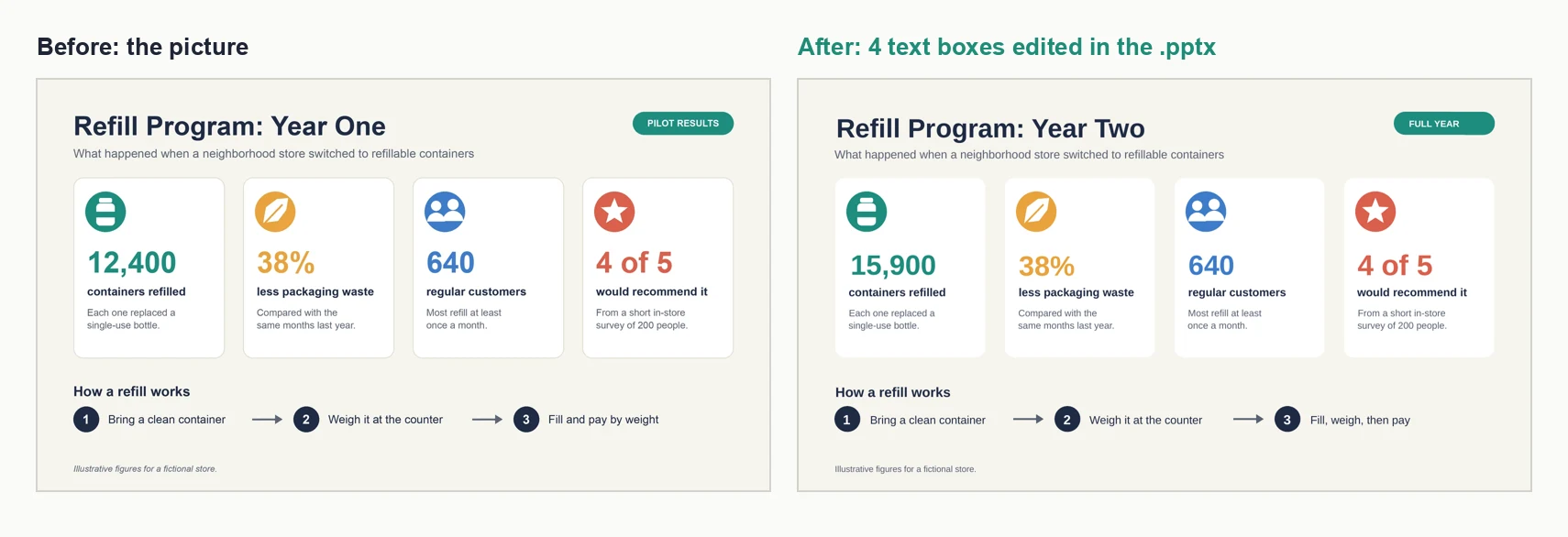
To see what this looks like in practice, we drew an infographic of a made-up refill store (no real brand; made with a Python script), converted it with Unraster's PowerPoint conversion, and edited the result. This is one conversion of one image, not a benchmark.
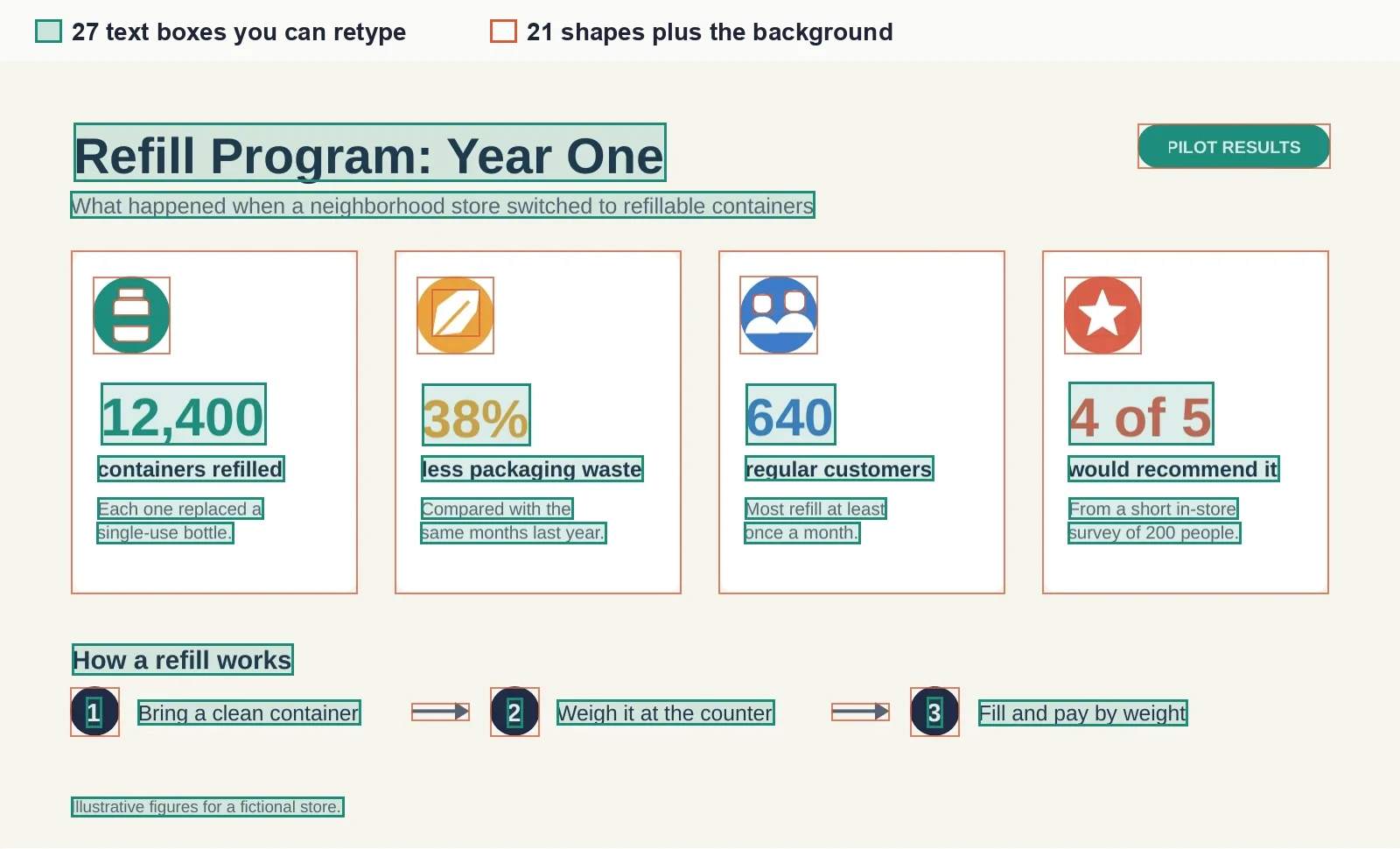
The converted file contained 27 editable text boxes and 21 shapes on a background. All the words were spelled correctly, with no outlined letters and no pictures. We then changed four text boxes directly in the .pptx: the title "Year One" to "Year Two", the figure "12,400" to "15,900", the badge "PILOT RESULTS" to "FULL YEAR", and step 3, "Fill and pay by weight", to "Fill, weigh, then pay". We did not erase anything or patch a background. The right-hand picture below was rendered from the same edited file.
The reason it works is on the next image. The green outlines mark the 27 text boxes you can click and retype, and the orange outlines mark the 21 shapes, with the background as a further layer.
It was not perfect, and the differences are the part to check on your own picture.
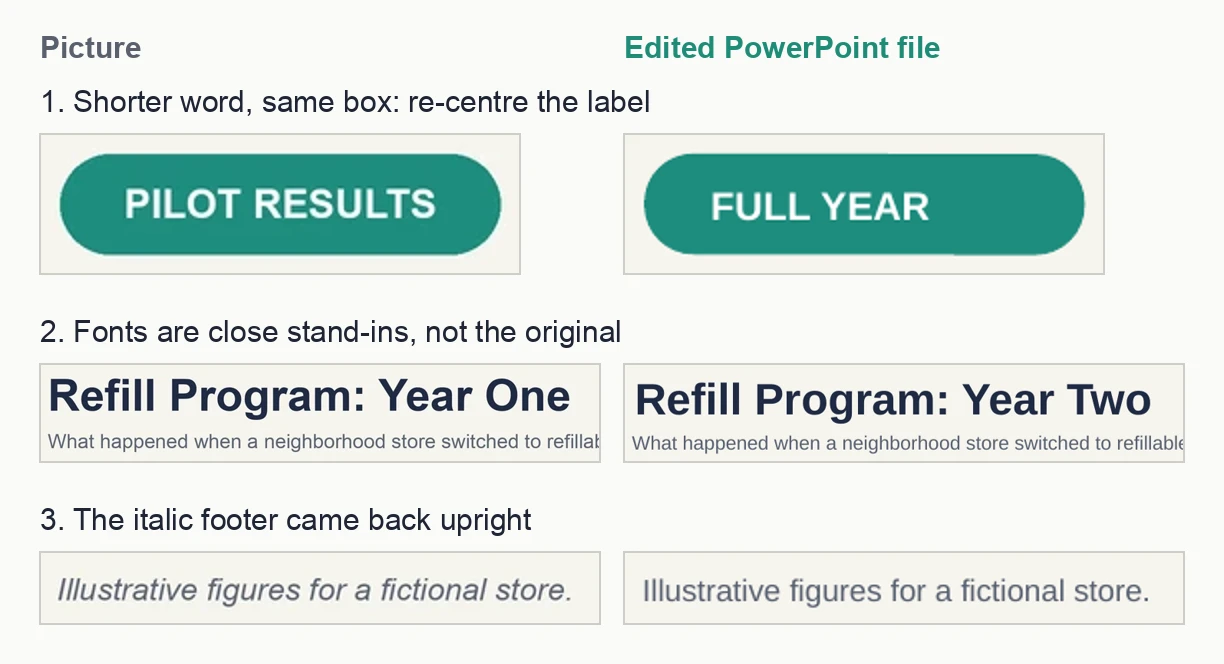
What to check, from this example:
- Alignment of shorter words. When we replaced a word with a shorter one, the new text stayed left-aligned inside its original text box. In the badge, you would need to re-centre it yourself.
- Fonts. The fonts in the rebuilt file are similar to the originals, not the same. If your picture uses a brand typeface, change the font yourself.
- Italics. The footer was italic in the original and came out upright. Set it back to italic if it matters.
- Two-line captions. Each line of the two-line card captions came back as its own text box. If your new wording is longer or shorter, you may need to move text between the two boxes or merge them.
- Thin borders. The thin grey card borders were dropped. Add an outline to the cards if you want them back.
What Unraster can't do
Before you spend any credits, here is where this method stops:
- It does not edit text in photos. A photo background has texture and lighting, and it is not redrawn. Use Photoshop or Canva for photos.
- It does not keep the original fonts. It chooses similar fonts, so spacing can shift slightly.
- The output is a PowerPoint file, not an image. To get a picture back, export or save the slide as a picture from PowerPoint.
- One image makes one slide. It does not convert PDFs or multi-page files.
- Complex pictures may need checking and fixing. Small lettering, decorative artwork and unusual layouts can come back as shapes rather than text, or slightly different from the original. Use the preview with its outlines to see this before downloading.
- It is a redrawn version. Because the picture is rebuilt, it will not be an untouched copy of your original.
Our guide to making an image editable in PowerPoint shows three more real conversions (a flowchart, a chart and a table) with their own lists of what to check.
When you only need the words, or one word in PowerPoint
Two jobs are smaller than the ones above, and our other guide already covers them step by step, so we will not repeat the steps here.
- You only need the words out of a picture. OCR (optical character recognition) reads the letters and gives you text to paste. Windows and Mac both have a built-in way to do it. See Method 2 in our PowerPoint guide. You get plain text without layout, and you should proofread numbers.
- One word on a picture already in PowerPoint. PowerPoint for Microsoft 365 has an Edit Picture tool for small fixes. See Method 1 in the same guide, including its limits: the result is still a picture, and the fill is generated.
A short check before you share the picture
Whichever method you used, a quick review catches most mistakes.
- Put the original and the edited version side by side and compare at normal size and zoomed in.
- Read every number, name and date aloud. Recognition and rebuilding can both misread a character without looking wrong.
- Look at the spot where the old words were, for ghosting, patches or mismatched texture.
- Check the font, weight, size and alignment of the new words against their neighbours.
- If the edit changes a fact (a price, a date, a name), make sure you are allowed to change that picture, and do not present an altered document or photo as the original.
Bottom line: the right tool depends on the picture, not on the job title. Use Photoshop or Canva for photos, Acrobat for scans, and rebuild screenshots, slides and infographics so the words become real text. If that is your picture, try Unraster's image to editable PPT and check the preview first, and read our guide to making an image editable in PowerPoint for the shorter fixes.