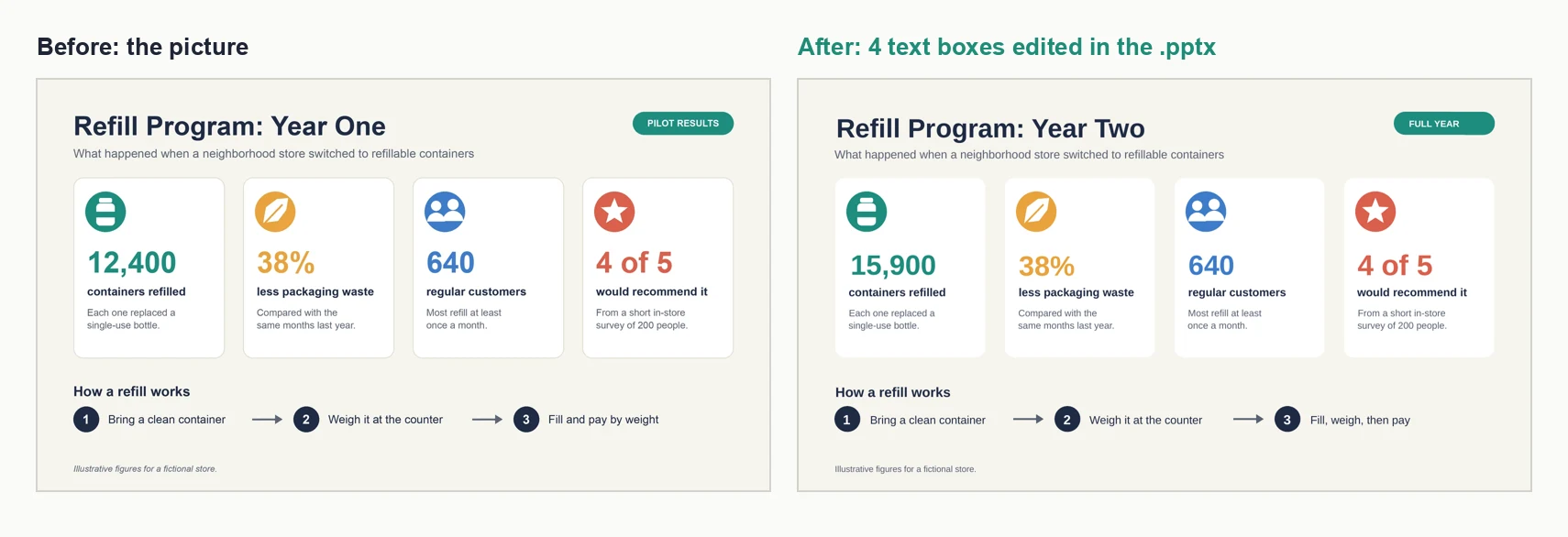
Quick answer: to change one word or remove a detail, use Edit Picture in PowerPoint for Microsoft 365. To reuse the words, copy them out with OCR (Snipping Tool on Windows, Live Text on a Mac). To restyle, move or animate the parts of a slide, you need them rebuilt as real text boxes and shapes, either by hand or with a converter.
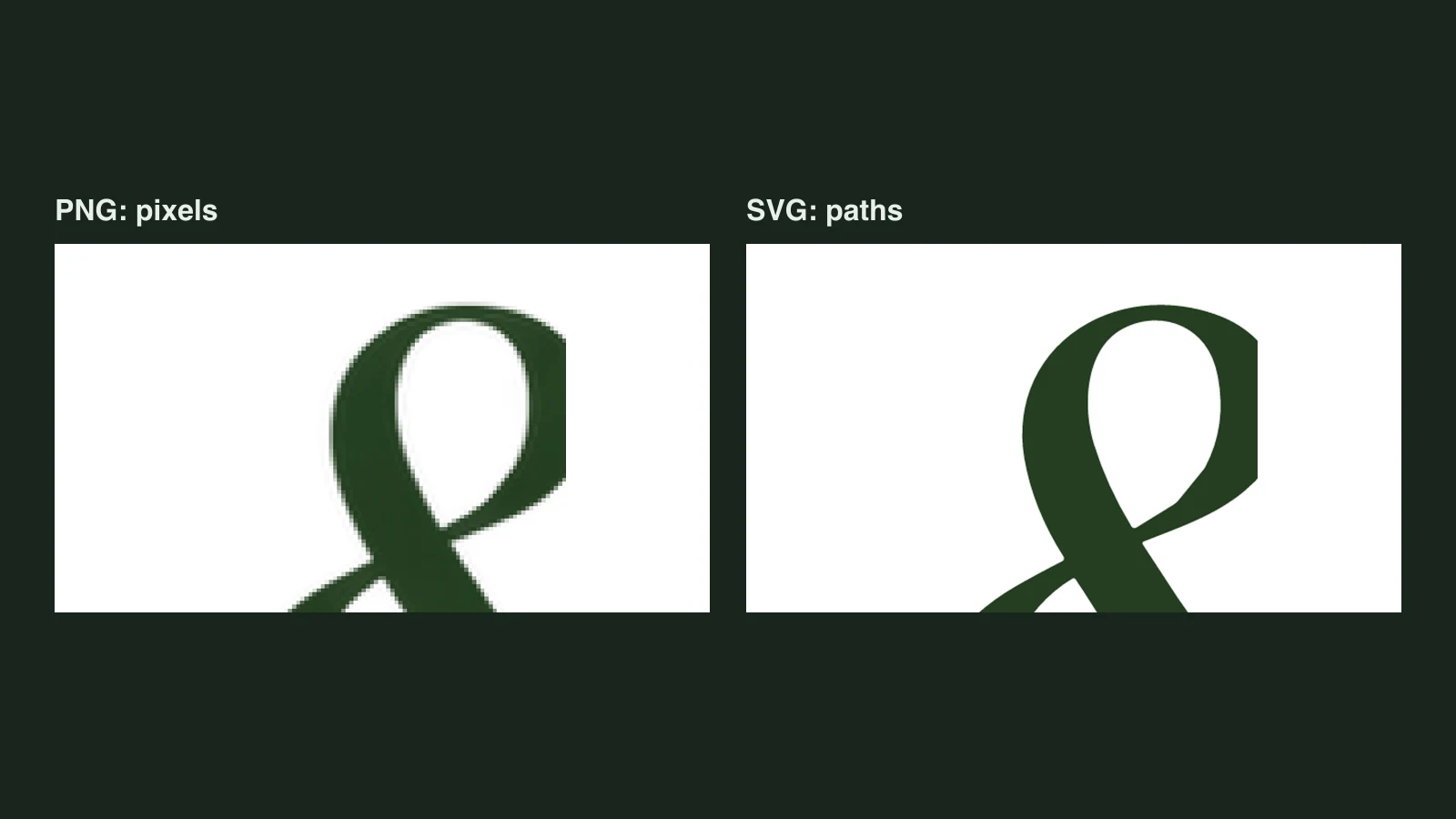
You have a screenshot of a slide, a diagram someone sent as a PNG, or a chart lifted from a PDF. You click it in PowerPoint and the whole thing selects as one rectangle. That is not a setting you can switch off. A picture stores colours, not words or boxes, so there is nothing inside it to select.
What you should do depends on what you need to change. Pick your row first, then jump to the method.
| What you need | Fastest route | What you end up with |
|---|---|---|
| Fix one word, hide a logo, remove a stray mark | Edit Picture | Still a picture, with the change painted in |
| Reuse the words in your own slide | Copy the text with OCR | Plain text you paste into text boxes |
| A simple slide with a few boxes | Redraw it by hand | Native shapes and text, built by you |
| A dense diagram, table or slide you need to restyle, reword or animate | Rebuild it as objects | Separate text boxes and shapes you can edit |
| A chart whose numbers will change | Insert > Chart, using the picture as a guide | A live chart with a data sheet |
| The source is an SVG file | Convert to Shape | Separate vector shapes |
Method 1: Edit Picture in PowerPoint
Since its rollout between December 2025 and March 2026, PowerPoint for Microsoft 365 has an Edit Picture tool that works inside the picture itself. Microsoft's Edit pictures support page lists Add text, Erase, Move, Upscale, Remove background, Auto enhance and Effects. Microsoft's message center notice MC1187787 also describes Edit Text, which recognises text already in the image so you can change it.
- Select the picture.
- Right-click it and choose Edit Picture, or go to Picture Format and click Edit Picture at the left end of the ribbon.
- Pick a tool: Erase to paint out an element, Move to reposition one, or the text tools to add or change words.
- Review the result and choose whether to keep it, then update the picture.
This is the right tool when the picture is basically fine and you need a small fix: a typo in a label, an old date, a logo that should not be there.
Know what you are getting, though:
- It is still a picture. The edited word is painted pixels, not a text box. You cannot change its font later, spell-check it, translate it or animate it on its own.
- The fill is generated. When you erase or move something, PowerPoint draws new pixels to cover the gap. Zoom in and check backgrounds and nearby edges before you present.
- It uses AI credits. The notice says free and Basic consumer accounts get 15 credits a month and Personal and Family get 60, while Microsoft 365 Premium, Copilot Pro and commercial Copilot plans get fair use.
- Undo is all or nothing. Microsoft's page notes that once the picture has been updated, you can only undo all of the changes together.
Method 2: Copy the text out with OCR
If what you need is the words, not the layout, let your computer read them. OCR (optical character recognition) turns the letters in an image into text you can paste.
On Windows 11: open the image in Snipping Tool, click Text actions in the toolbar, then Copy all text, or select part of the text and copy it. Text actions arrived in Snipping Tool version 11.2308.33.0, so update the app from the Microsoft Store if you do not see the button.
On a Mac: open the image in Preview, drag across the text to select it, Control-click the selection and choose Copy Text. Apple's Preview guide notes that if text will not select, you need to turn on the Text Selection tool from the Tools menu.
Then paste the text into PowerPoint text boxes and rebuild the layout around it. OCR saves typing, not layout work: you still recreate every box, line and colour yourself. Proofread numbers carefully, because a misread 8 or 0 looks perfectly confident.
Method 3: Redraw it by hand
For a slide with a handful of elements, redrawing is often the quickest way to a clean result, and you control every detail.
- Put the picture on a blank slide as a guide and lock it in place, or send it to the back.
- Draw the shapes with Insert > Shapes: rectangles, rounded rectangles, diamonds and arrows. For flowcharts, use connector lines so arrows follow the boxes when you move them.
- Add text with Insert > Text Box, or type straight into a shape.
- Build one box with the right fill, outline and font, then copy it. Format Painter copies a style from one object to another.
- Select rows of objects and use Align and Distribute so spacing matches.
- Delete the guide picture and group finished sections.
Redrawing pays off when you would change the design anyway. It gets slow on dense material: a flowchart with a dozen boxes, or a table with thirty cells, is a long, fiddly job, and that is where rebuilding automatically makes sense.
Method 4: Rebuild it as PowerPoint objects with Unraster
Unraster takes one PNG, JPG or WebP and rebuilds it as a PowerPoint slide. The words come back as native text boxes, and boxes, lines, bars and fills come back as separate shapes. You download a .pptx file and edit it like any other slide.
How it works:
- Upload the image on the image to editable PPT page. You see a free SVG preview straight away.
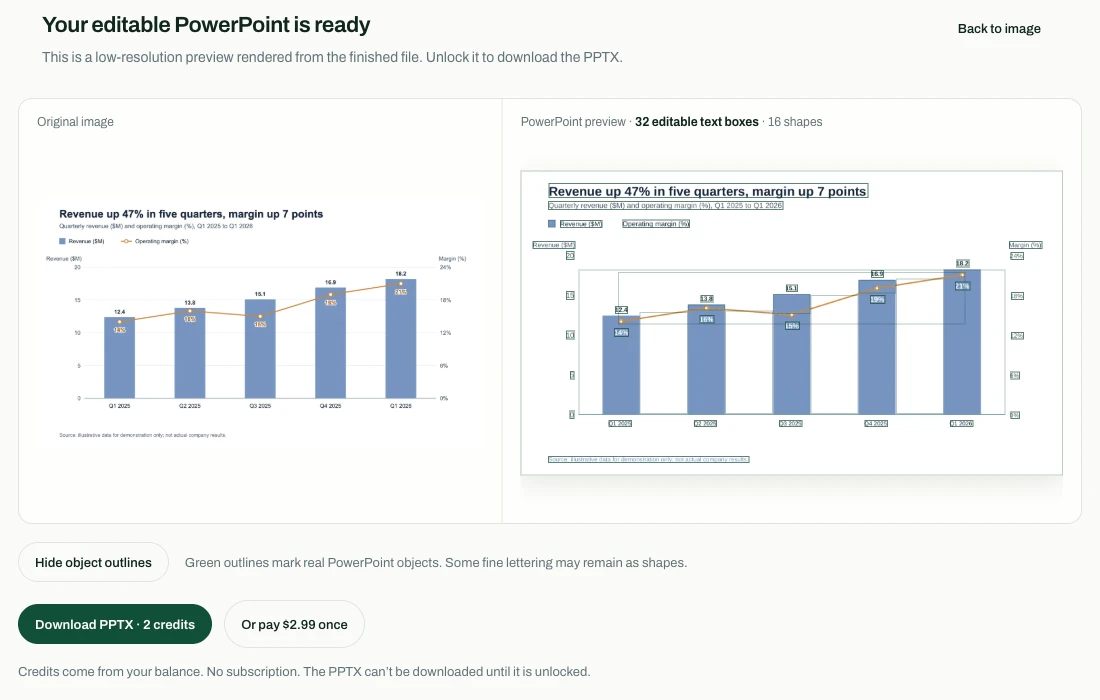
- Click Preview PowerPoint. After you sign in, your first PowerPoint preview is free. It is a low-resolution render of the finished file, with outlines on every real PowerPoint object.
- If the preview looks right, download the .pptx. That costs 2 credits, and the price is on the button before you click.
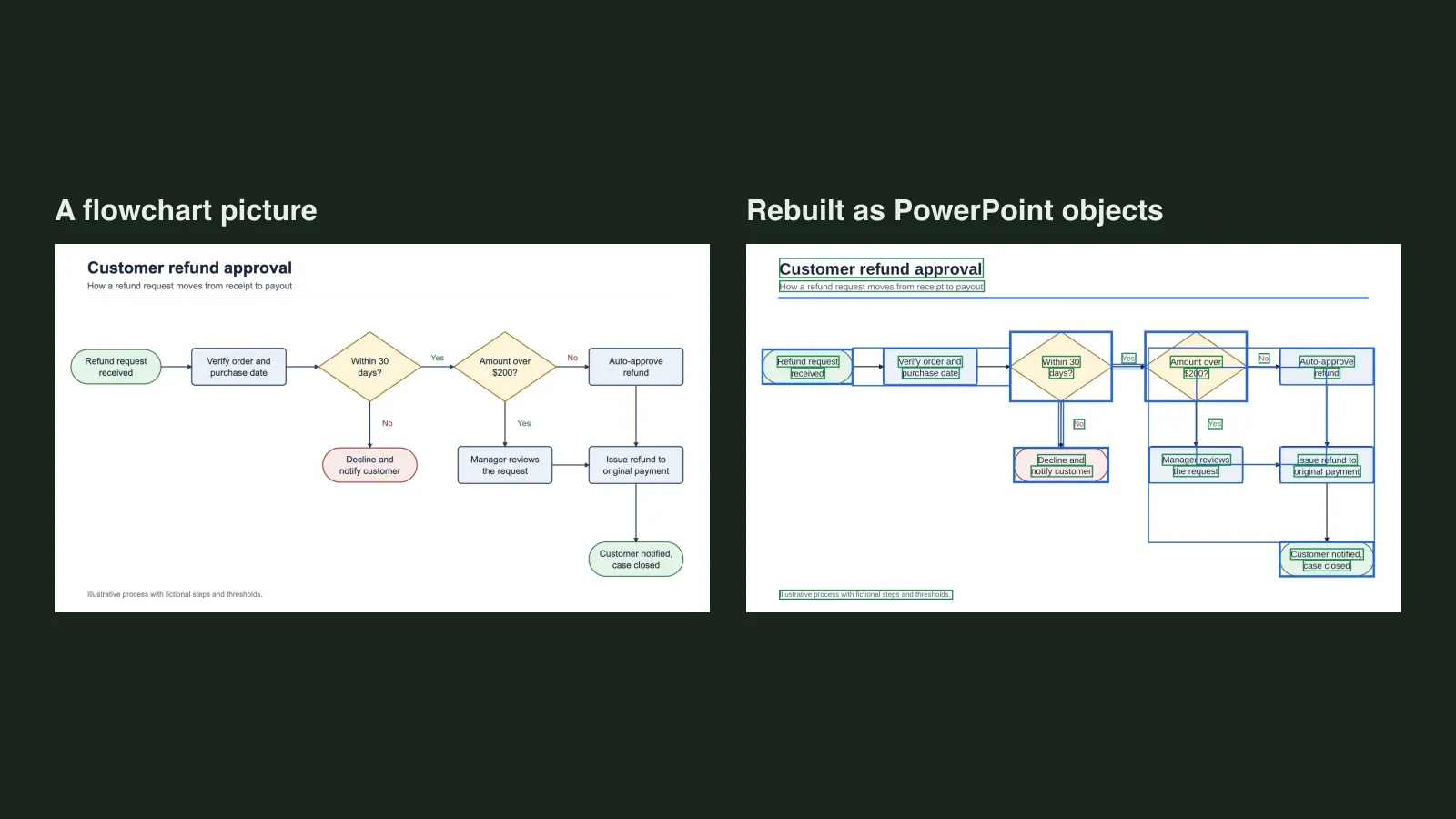
Below are three real conversions. The coloured outlines are drawn from the finished PowerPoint files: green for text boxes, blue for shapes.
A flowchart
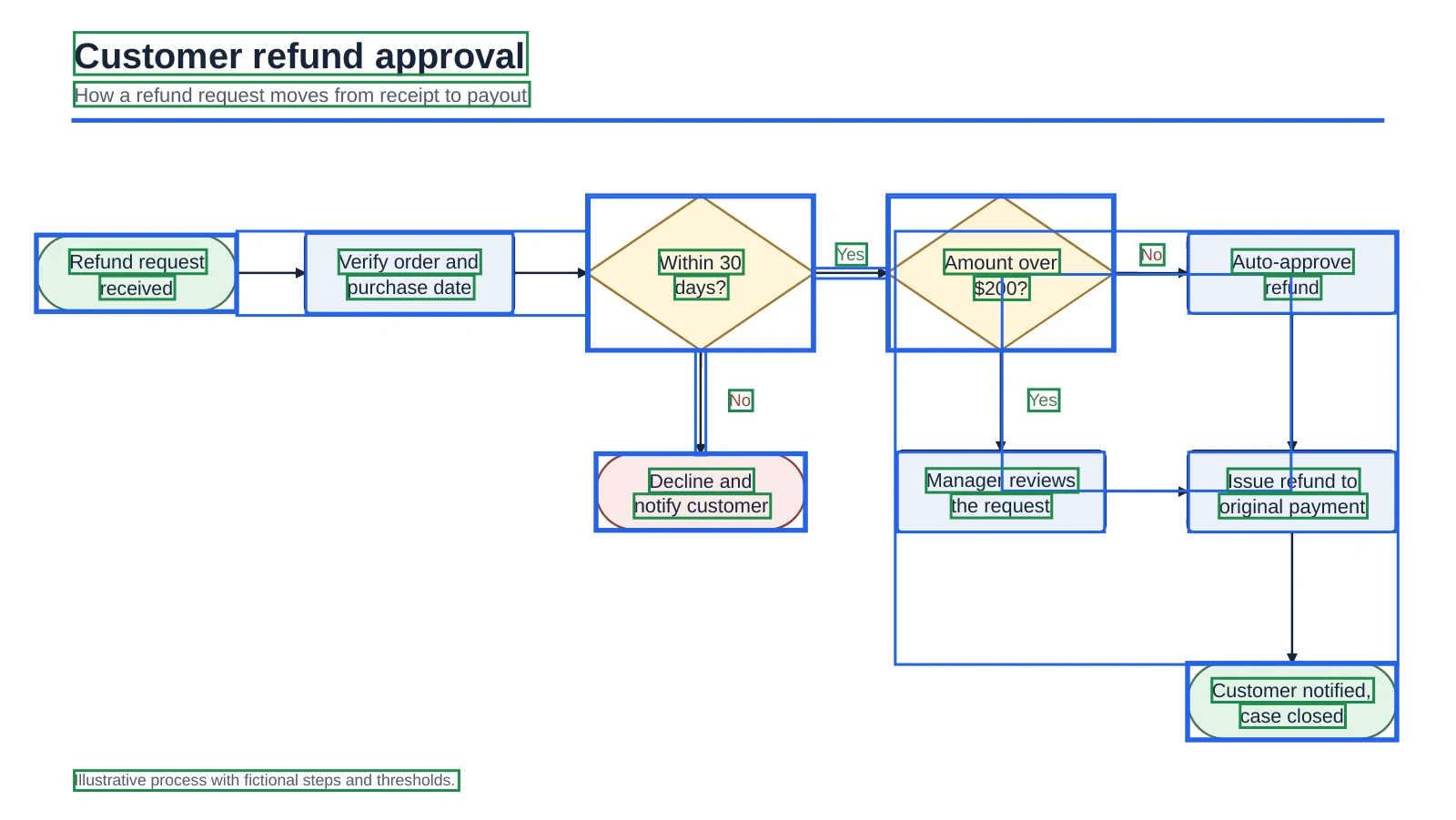
What to check: the arrows come back as plain lines, not connectors. If you move a box, move or redraw its arrows too.
A chart
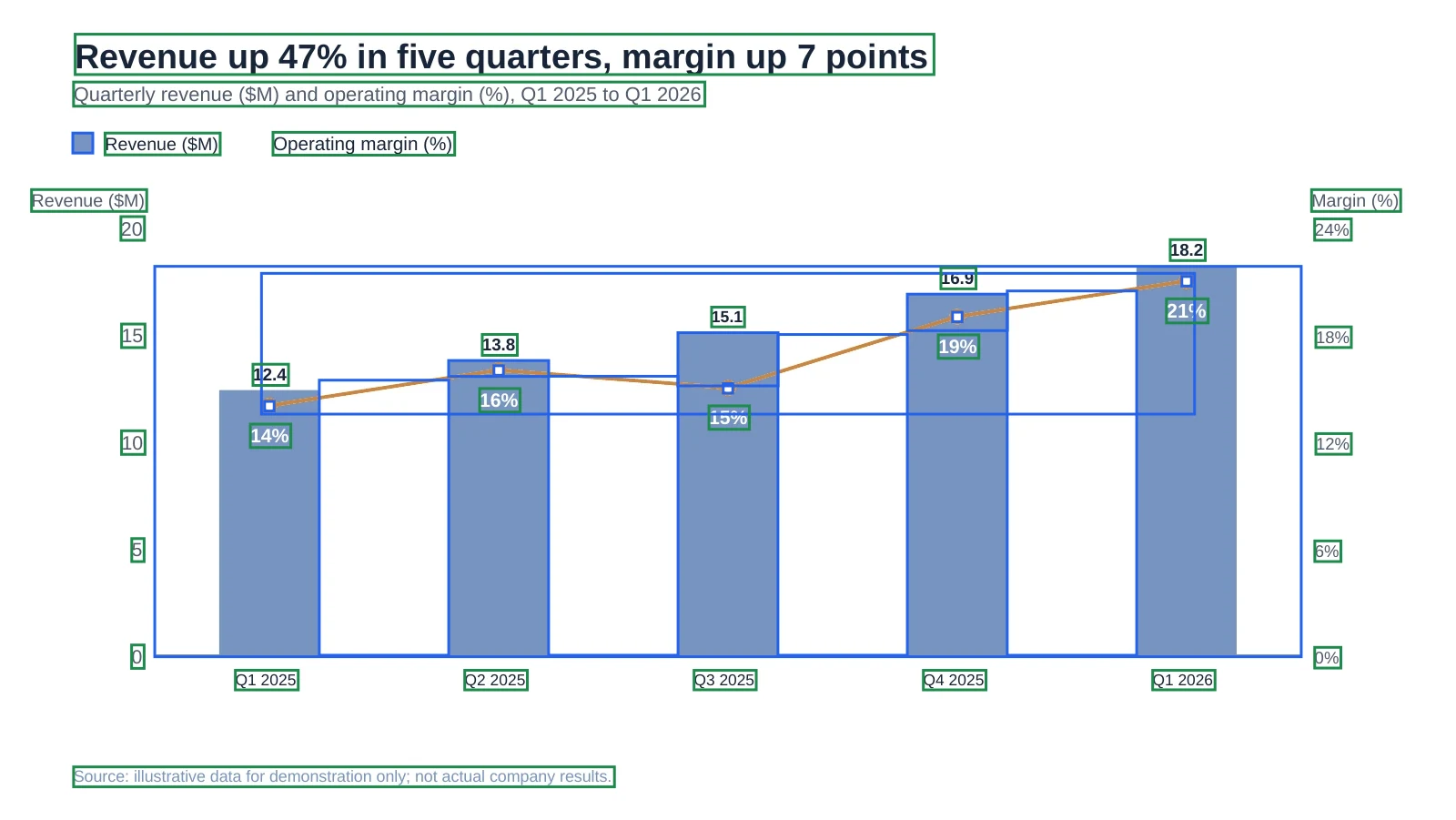
What to check: you can retype a value or recolour a bar, but typing new numbers will not resize the bars. In this example the legend's line marker was dropped and some label colours shifted, so compare colours with the original.
A table
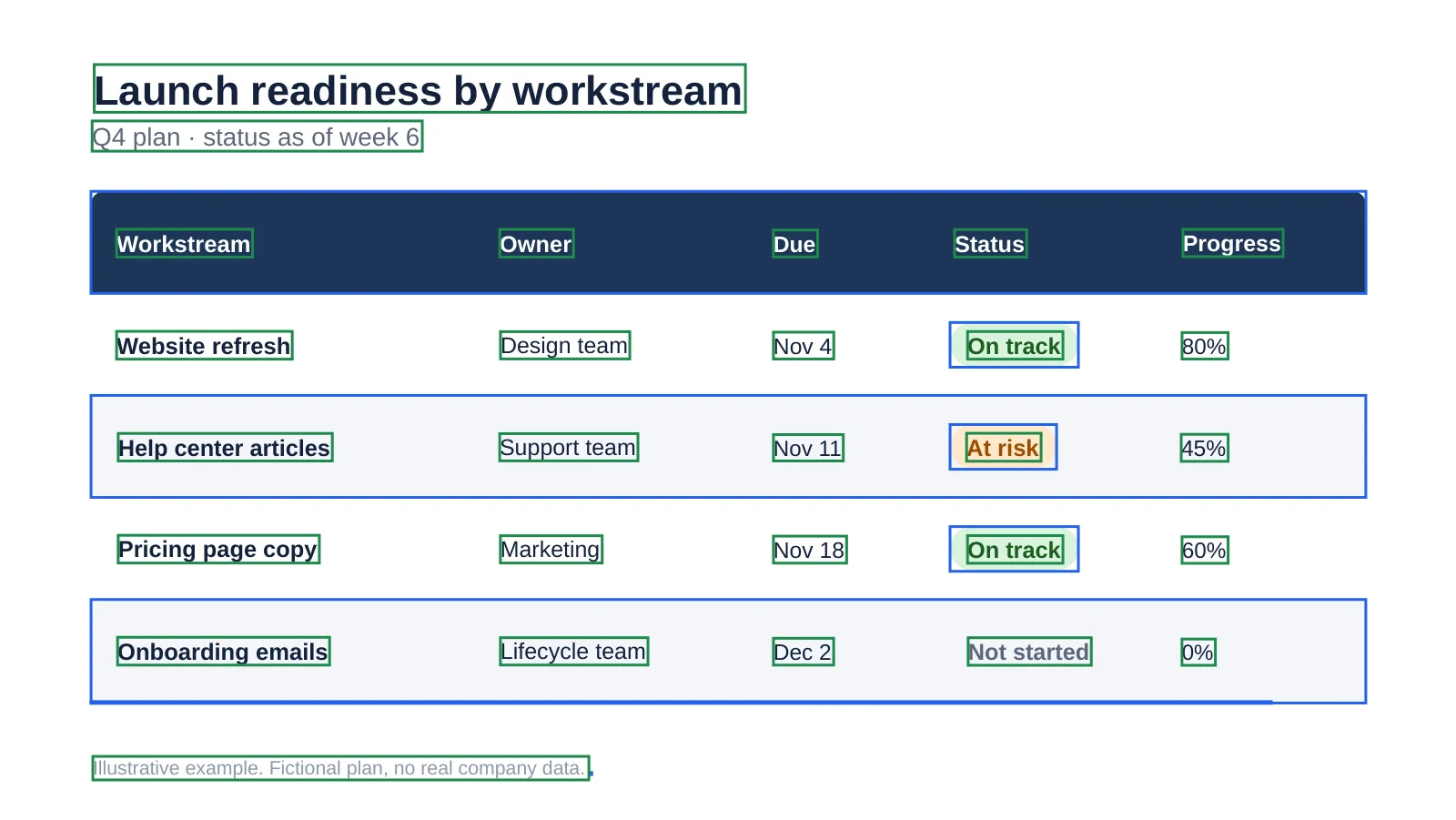
What to check: the result is text boxes and shapes laid out like a table, not a native PowerPoint table, so you cannot add a row with Tab. Here the grey "Not started" pill lost its background and the bottom rule came out fainter.
What Unraster does not do, so you can decide before you spend anything:
- It makes one slide from one image. It does not convert PDFs or multi-page files.
- Charts are not live charts and tables are not native tables, as shown above.
- Small lettering and decorative artwork can stay as shapes instead of text, and fonts are substituted with similar ones, so spacing can shift slightly.
- It works best on slides, diagrams, charts and tables made of text, lines and flat colour. A busy photo gives you little to edit.
If your source is an SVG
If the file you have is an SVG rather than a PNG or JPG, PowerPoint can break it apart itself. Microsoft's guide to editing SVG images in Microsoft 365 describes Convert to Shape: right-click the SVG and choose Convert to Shape, and its parts become separate shapes you can recolour and edit. It does nothing for a flat picture, and on iOS and Android the guide points you to Office on Windows for this step.
Before you send the slide
Whichever method you used, run through this before the slide goes out:
- Put the original next to your edited slide and compare them at 100% and at 200%.
- Read every number and name aloud. OCR and rebuilding can both misread a character without looking wrong.
- Check colours that carry meaning, such as status pills, legend keys and red or green values.
- Click a few objects to confirm they are what you expect: text boxes for words, shapes for boxes, a chart or table only if you built one.
- Replace fonts that matter to your brand.
Bottom line: Edit Picture is the quickest fix for a picture that is almost right, and OCR is the quickest way to get the words out. When you need the slide itself to be editable, with words you can restyle and boxes you can move, rebuild it as objects: by hand for a simple slide, or with Unraster for a dense one, then check it against the original.