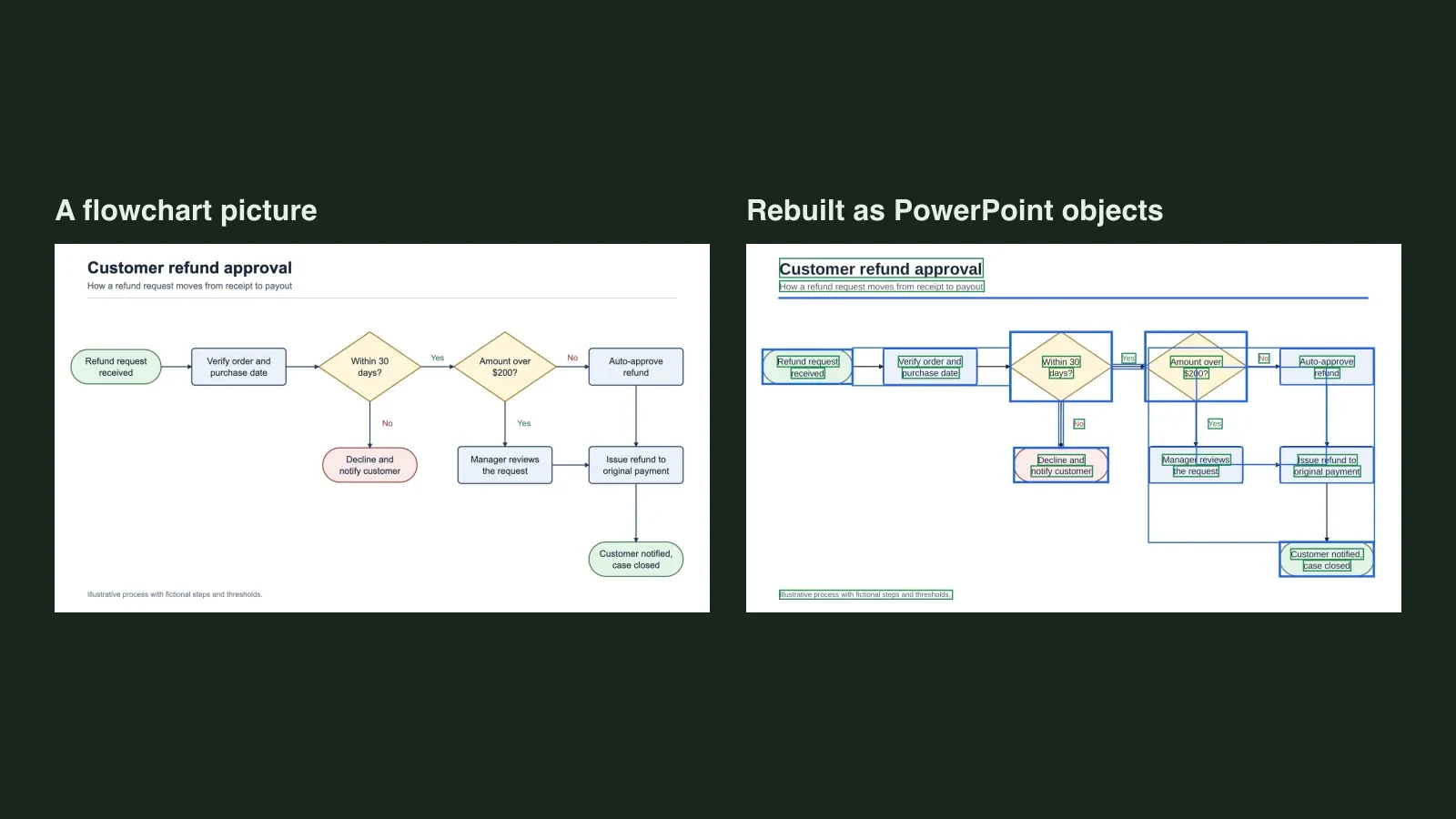
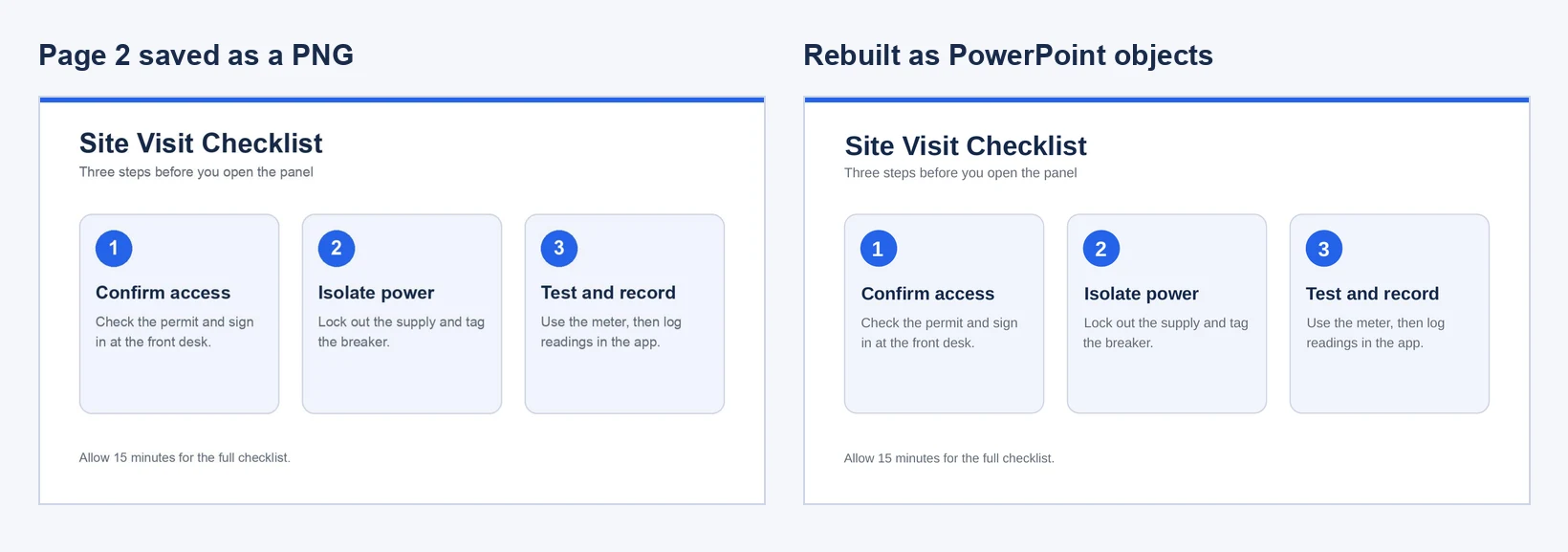
Quick answer: Use the native export whenever you still have access to the original slide app: Google Slides uses File > Download > Microsoft PowerPoint (.pptx), Apple Keynote uses File > Export To > PowerPoint on Mac (or More (...) > Export > PowerPoint on iPhone/iPad), and Canva uses Share > Download > Microsoft PowerPoint (.pptx). If you only have a PDF handout, flat PNG/JPG slides, an AI-generated slide export, or a picture-only
.pptxwhere clicking text selects the whole page, jump to the embedded converter below or open Unraster's Image to editable PowerPoint tool (single slide: free editable watermarked preview in the page, then $2.99 or 2 credits to download) or PDF to editable PPT (2 credits/page, up to 30 pages).
"Slides" rarely means one file format anymore. You might receive a Google Slides link, a Keynote file from a Mac user, a Canva presentation, a PDF handout from an AI deck tool, or a .pptx whose slides turn out to be flattened screenshots. Every source moves into Microsoft PowerPoint differently, and picking the wrong route costs time retyping or fixing broken layouts.
Start with the format you actually have in hand.
| Your source format | Recommended path | Output quality & watch-outs |
|---|---|---|
| Google Slides | File > Download > Microsoft PowerPoint (.pptx) | Native text boxes, shapes, and masters; check Google Font fallbacks and linked Sheets charts |
| Apple Keynote | File > Export To > PowerPoint | Native text boxes and shapes; Magic Move simplifies to Fade and macOS fonts can reflow on Windows |
| Canva presentation | Share > Download > Microsoft PowerPoint (.pptx) | Mostly editable text and shapes; curved text, custom effects, and some graphics can flatten |
| AI slide decks (NotebookLM, ChatGPT, Gamma, Claude) | Check if .pptx is real text first; if flat, rebuild PDF or PNGs | Many AI exports embed one full-slide image per page with zero text boxes |
| Image-only PDF or PNG/JPG slides | Upload PDF or slide images to Unraster | Rebuilds native text boxes and vector shapes; charts and tables become shapes, not linked data objects |
Image-only .pptx file | Save needed slides as PNG/JPG, then rebuild with Unraster | Replaces flat slide pictures with editable text boxes and shapes |
Whenever you still have access to the original deck in Google Slides, Keynote, or Canva, start with that app's native .pptx export. Native exports keep speaker notes, slide masters, real tables, and most data-backed charts—details no image or PDF converter can recreate once a slide has been flattened.
Google Slides to PowerPoint
Google Slides translates into PowerPoint cleanly because both apps share a nearly identical slide-object model: text boxes, grouped shapes, slide masters, speaker notes, and standard transitions carry over as native PowerPoint objects.
Official export steps
Per Google Docs Editors Help, convert a Google Slides presentation straight from the browser:
- Open the presentation in Google Slides.
- In the top menu bar, click File > Download > Microsoft PowerPoint (.pptx).
- Open the downloaded
.pptxin PowerPoint and review every slide before sharing.
For multiple decks in Google Drive, right-click any Google Slides file and select Download—Drive converts native Google Slides presentations to .pptx automatically.
Post-export checklist for Google Slides
Even a native Google Slides export usually needs a quick five-minute audit in PowerPoint:
- Google Fonts fall back to system fonts. Typefaces such as Plus Jakarta Sans, DM Sans, Inter, or Roboto are often missing on Windows laptops. PowerPoint substitutes Arial or Calibri silently, which widens lines and pushes multi-line titles into cards below. Unify the whole deck at once via Home > Replace > Replace Fonts (on Mac, Format > Replace Fonts), or install the matching Google Font locally first.
- Linked Google Sheets charts lose their live link. Charts pasted from Google Sheets arrive as static PowerPoint charts or grouped shapes. Verify axis labels, legend alignment, and number formatting—especially on dense combo charts.
- Line spacing and bullet indents shift slightly. Google Slides and PowerPoint compute line height differently. Scan the deck in Slide Sorter view to catch clipped footers or overflowing table cells, then tweak the Slide Master once instead of adjusting every slide individually.
- Comments and online videos need review. Unresolved Google Slides comments often carry into PowerPoint comments, and linked YouTube clips can break offline in conference rooms.
Apple Keynote to PowerPoint
Apple Keynote builds sharp decks on Mac and iPad, but its animation engine and system fonts differ from Microsoft PowerPoint. Apple provides native .pptx export across macOS, iOS/iPadOS, and iCloud on the web.
Official export steps across Apple devices
Following Apple's Keynote User Guide, pick the menu for your device:
- On a Mac: Open the deck in Keynote and choose File > Export To > PowerPoint. Open Advanced Options only if you need the legacy
.pptformat (keep.pptxfor modern PowerPoint). Click Save, pick a destination, and click Export. - On iPhone or iPad: Open the presentation, tap More (...) in the toolbar, tap Export, then choose PowerPoint. Save the
.pptxto Files or share it directly. - In Keynote for iCloud (web): Open the presentation at iCloud.com, click More (...) > Download a Copy... > PowerPoint.
Post-export checklist for Keynote
Keynote shows a short summary dialog whenever features change during export. Read that list carefully—it flags the exact slides to verify:
- Magic Move and 3D transitions downgrade. Keynote's Magic Move does not auto-convert into PowerPoint's Morph transition and usually falls back to a plain Fade. Complex builds (Anvil, Flame, 3D Cube) also simplify. If smooth object motion matters, rebuild those sequences with PowerPoint's Transitions > Morph.
- macOS fonts reflow on Windows. Decks built in Helvetica Neue, SF Pro, or Avenir Next can wrap unpredictably on a corporate Windows PC. Switch to cross-platform fonts (Arial, Calibri, Segoe UI, Georgia) or embed fonts in PowerPoint on Windows (File > Options > Save > Embed fonts in the file).
- Password protection and video codecs. Decide during export whether to drop Keynote's file password so recipients can open the
.pptxcleanly. Re-encode Apple ProRes or HEVC clips to standard H.264.mp4so they play reliably on Windows PowerPoint. - Check on the target machine. Tables with merged headers or custom fills can pick up heavier borders in PowerPoint, so inspect the exported
.pptxin PowerPoint itself rather than only in macOS Quick Look.
Canva, AI slide decks, PDFs, and image-only slides
Native exports stop helping once a presentation leaves its original tool as a flat file—or when a tool exports a .pptx made of full-slide pictures.
Canva decks
If you still have edit access in Canva, start with Share > Download > Microsoft PowerPoint (.pptx). Regular text boxes and basic shapes export as editable objects, while custom fonts, curved text, layered effects, and some graphics can flatten or shift. For Canva-specific edge cases and fixes, read how to convert Canva to PowerPoint.
The ten-second click test for AI decks and picture-only .pptx files
Many modern slide exports—including NotebookLM decks, ChatGPT image outputs, Power BI or Tableau exports, and basic PDF converters—look identical to native PowerPoint slides until you try to edit a single figure.
Run a quick check before spending time in PowerPoint:
- Click a slide title. If a blinking cursor appears inside a text box, you have editable text.
- Watch the selection box. If the entire 16:9 slide highlights as one rectangle (and the ribbon switches to Picture Format), the slide is a flat image. No PowerPoint menu setting can unlock pixels into text boxes.
- For PDFs, drag across a sentence or press Ctrl/Cmd+F. If nothing highlights and search returns zero matches, every page is an image.
Rebuilding PDFs and flat slide images into editable .pptx with Unraster
When you do not own the original Google Slides, Keynote, or Canva project—and all you have is a PDF, flat PNG/JPG slides, or an image-only .pptx—you need a converter that rebuilds pixels into native PowerPoint text boxes and vector shapes instead of placing pictures on blank slides.
Follow the path that matches your file:
- Extract images if you hold a picture-only
.pptx. Unraster takes images (PNG, JPG, WebP up to 20 MB) and PDFs, not.pptxfiles directly. In PowerPoint on Windows, select a slide and use File > Save As > PNG or JPEG > Just This One (or All Slides). On Mac, use File > Export > PNG or JPEG. You can also save the deck as a PDF and upload the PDF directly. - Test a single slide image in the free watermarked preview. Drop your PNG, JPG, or WebP onto the Unraster PowerPoint converter and click Make editable PowerPoint. Signed-in Google accounts get up to 3 free watermarked previews per day in the in-page editor, where you can inspect text accuracy, retype labels, and move objects before paying. When the preview looks right, unlock for $2.99 or 2 credits to download the
.pptx(your preview edits carry over). - Upload a whole PDF deck (up to 30 pages). Your browser renders each page locally into an image and uploads those page images; PDFs longer than 30 pages let you pick a range up to 30 pages at a time. A PDF costs 2 credits per delivered page with no free preview. To check conversion quality before running a long deck, export one representative page as a PNG and run a free single-image preview first.
- Combine several slide images into one
.pptxdeck. Upload multiple PNG, JPG, or WebP files at once to get a single deck in filename order (prefix01-,02-,03-if order matters). Multi-image decks have no free preview and cost 3 credits per page without a subscription (up to 10 images), or 2 credits per page with a subscription (up to 30 images). - Pay only for delivered slides. Downloads are free once unlocked, and any failed conversion or failed page is never charged.
Real conversion walkthrough
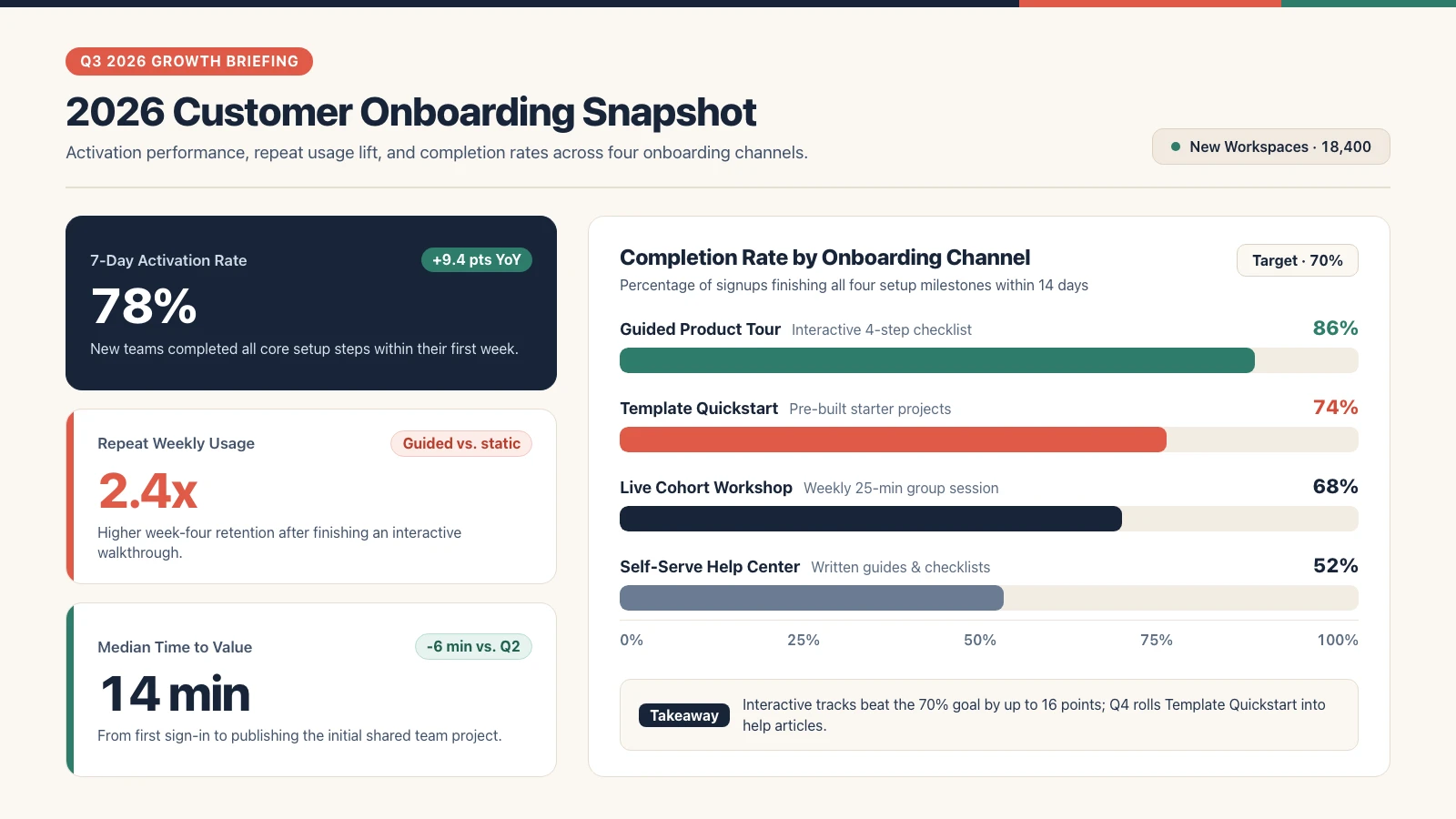
To show what actually comes back—including the imperfections—here is an unedited single-run conversion of a 1600 × 900 flat slide PNG (Q3 Support & Onboarding Review) through Unraster's PowerPoint converter. The slide combines KPI stat cards, delta pills, a four-row horizontal bar chart, a legend, and a dark priority callout.


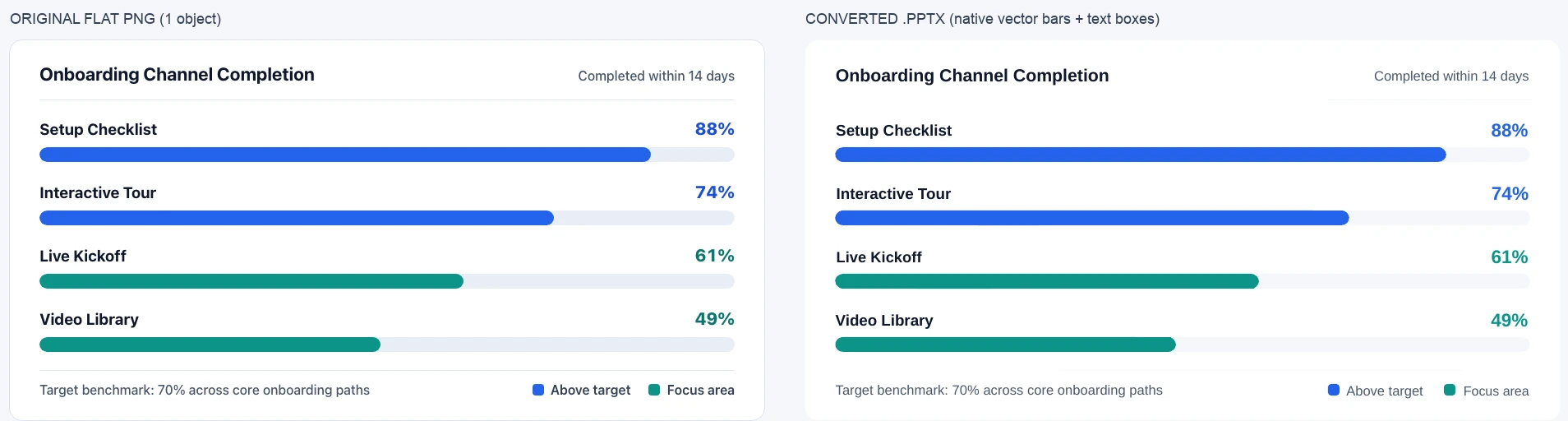
Checking the delivered .pptx file shows 70 native PowerPoint objects in total—33 editable text boxes and 37 native vector shapes—and 0 embedded images. Every KPI number (18 min, 64%, 4.7 / 5), channel percentage (88%, 74%, 61%, 49%), card label, pill tag, and priority note is a native text box you can click and retype.
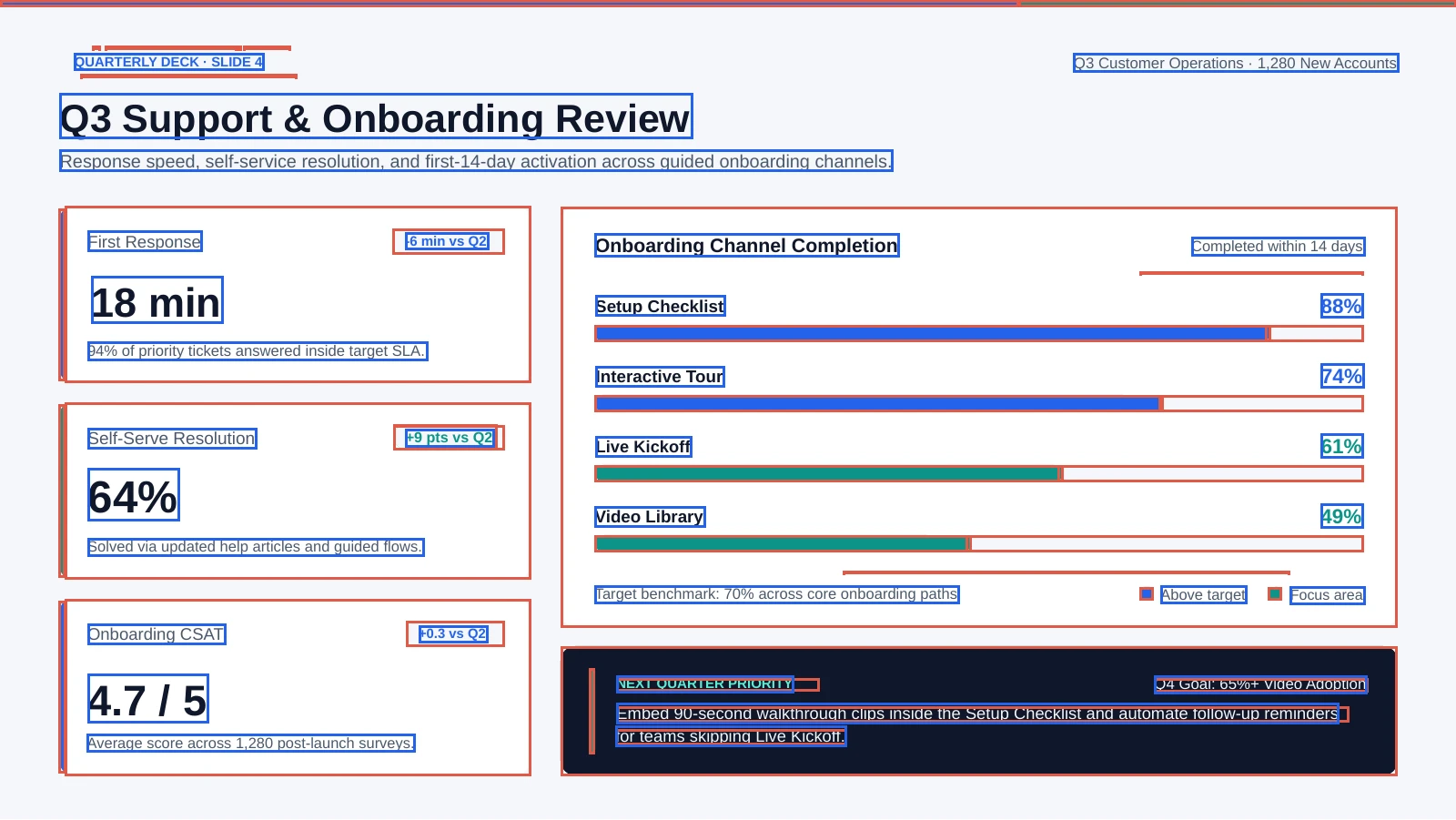
A close-up crop of the Onboarding Channel Completion panel highlights the practical gain. On the left, the entire chart sits inside one flat PNG. On the right, each progress bar, grey track, channel label, and percentage figure is a separate PowerPoint object you can retype, recolor, or resize.
Four real differences to check on your own slide
No image-to-PowerPoint rebuild is pixel-identical. Inspecting this delivered .pptx surfaced four specific differences to check before presenting your own deck:
- Hairline pill borders can fragment. Around the top-left
QUARTERLY DECK · SLIDE 4badge, the faint rounded outline broke into several short, disconnected thin line segments. Delete those fragments and apply a clean PowerPoint shape outline—or keep the pill borderless. - Ultra-thin horizontal dividers can drop out. The very faint horizontal rules below
Onboarding Channel Completionand aboveTarget benchmark: 70% across core onboarding pathsmostly disappeared or left only a faint short line. Redrawing a 1 pt line in PowerPoint takes seconds when you want crisp dividers. - Multi-line callout sentences can split per line. Inside the dark
NEXT QUARTER PRIORITYcard at the bottom right, the two-line action copy split into two separate text boxes (Embed 90-second walkthrough clips inside the Setup Checklist and automate follow-up remindersandfor teams skipping Live Kickoff.). If you rewrite that note to a different length, merge the second line into the first box and delete the extra box so wrapping stays natural. - Progress bars are vector shapes, not Excel-backed charts. Each of the four bars rebuilt as an independent rounded-rectangle vector shape next to an editable percentage text box. Changing
88%to92%will not auto-resize the blue bar—drag the bar's right edge in PowerPoint to match the updated number.
What Unraster cannot do
Knowing these boundaries up front helps you choose the right route:
- No animations, transitions, speaker notes, or embedded media. Those properties live only inside source presentation files like Google Slides or Keynote and disappear once slides become PDFs or images.
- No native Excel charts or PowerPoint tables. Charts return as shapes and text boxes with no underlying datasheet; tables return as loose text boxes and shapes rather than native PowerPoint table grids.
- No original brand fonts. Unraster maps text to a close sans-serif substitute, so run Replace Fonts in PowerPoint once to unify your deck back to your brand typeface.
- Weak on skewed phone photos and heavy textures. Crisp digital exports, screenshots, and clean slide PDFs rebuild cleanly; angled photos of screens, glare, or textured paper scans need much more cleanup.
- Independent tool. Unraster is not affiliated with Google, Apple, Canva, or Microsoft.
Bottom line: Use native exports first whenever you still have access to the source app—Google Slides (File > Download > Microsoft PowerPoint (.pptx)), Apple Keynote (File > Export To > PowerPoint), or Canva (Share > Download > Microsoft PowerPoint (.pptx)). When you are stuck with flat slide images, an image-only PDF, or a deck where every slide selects as one picture, rebuild editable text boxes and shapes on the Unraster PowerPoint converter, convert a whole PDF on PDF to editable PPT, or follow our workflow for PowerPoint slides that are images.