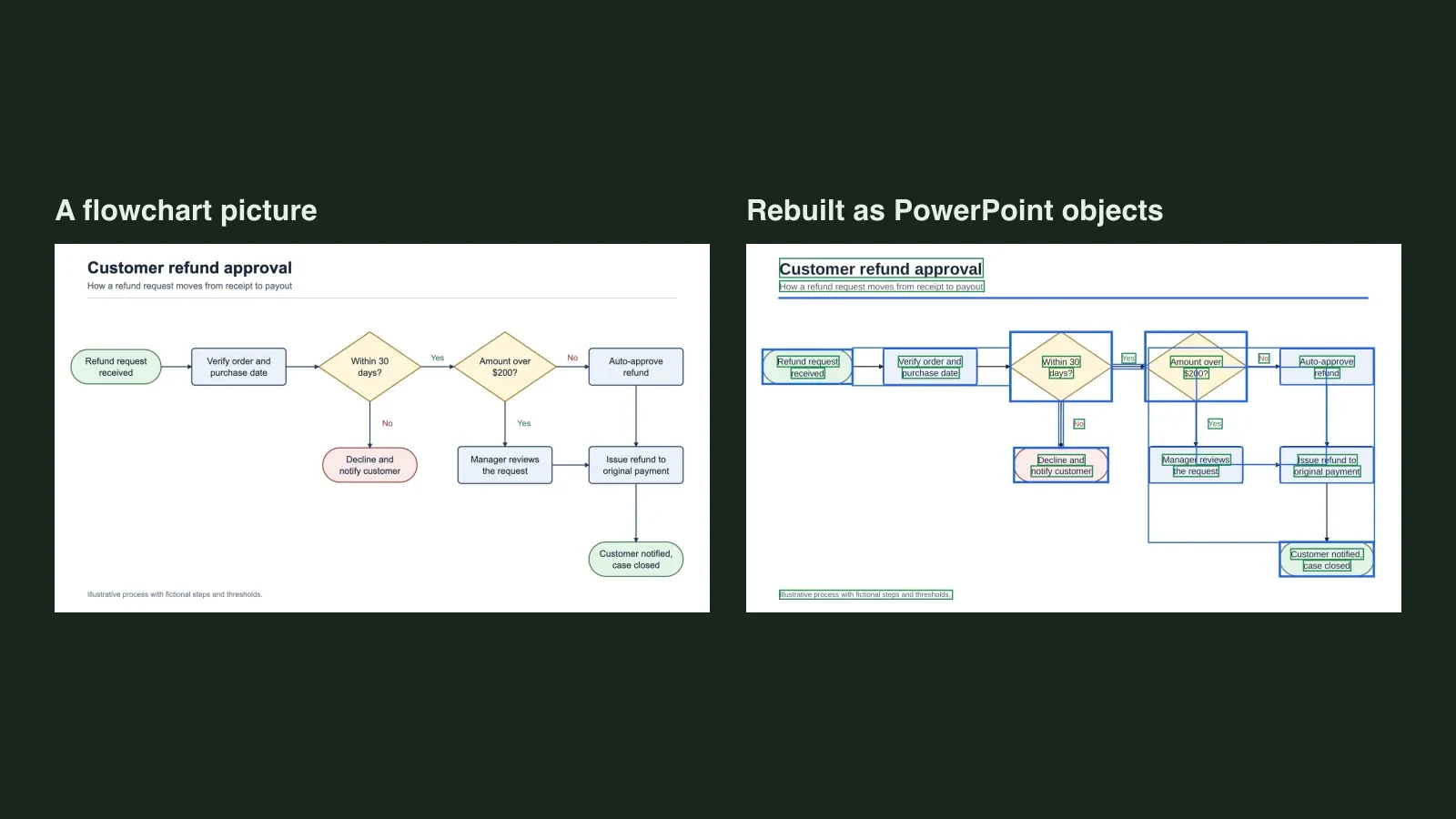
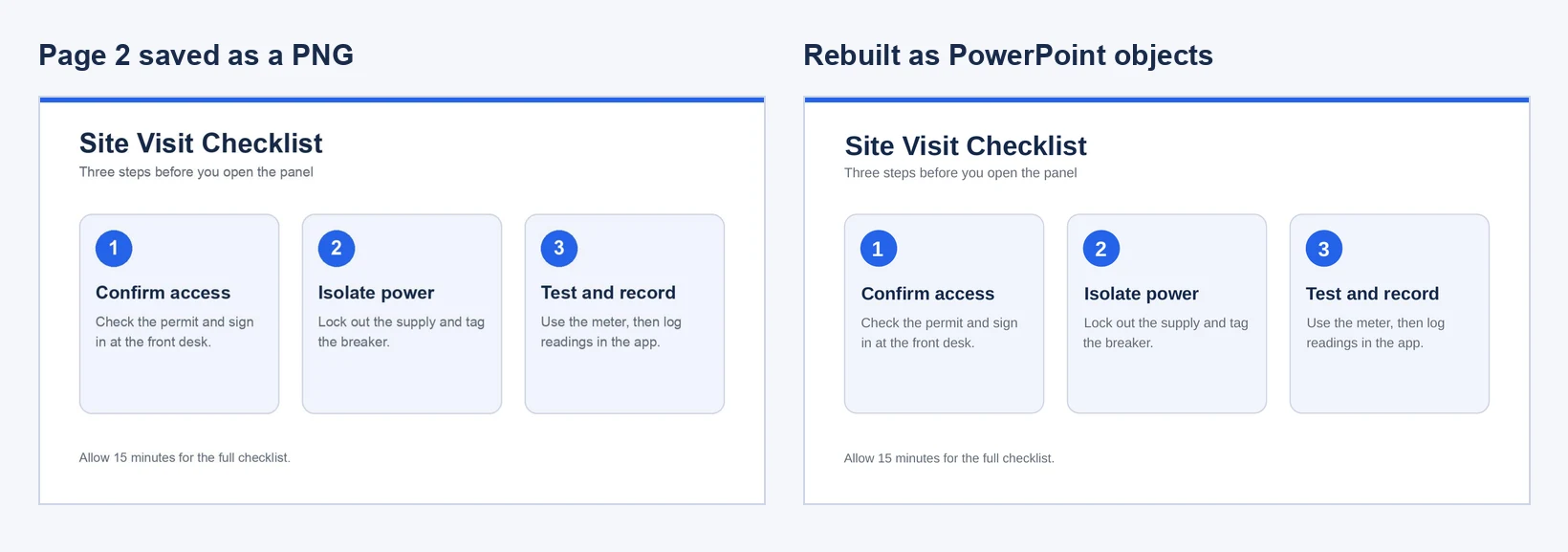
Quick answer: If you have edit access in Canva, export natively via Share > Download > File type: Microsoft PowerPoint (.pptx). Have only a flat Canva PDF or PNG? Skip straight to the converter embedded below or open Unraster's Image to editable PowerPoint tool (one slide: free editable watermarked preview in the page, then $2.99 or 2 credits to unlock and download) or PDF to editable PPT (2 credits/page, up to 30 pages).
Moving a deck from Canva into PowerPoint is straightforward when you own the original link. The headache starts when you only received a Flatten PDF, a folder of PNG exports, or a Canva .pptx where a chart or infographic arrived as one locked picture.
Pick the path that matches the file you have right now:
Pick the right method for your file
| Your situation | Best method | What you get in PowerPoint |
|---|---|---|
| You have edit access in Canva | Canva native .pptx export | Native .pptx with editable text and most shapes (check fonts and effects) |
You have one flat PNG/JPG slide (or one flat picture inside a .pptx) | Single-image rebuild with Unraster | One .pptx slide with rebuilt text boxes and vector shapes; free preview first |
| You have a flattened Canva PDF deck (up to 30 pages) | PDF deck rebuild with Unraster | One .pptx file with one rebuilt slide per PDF page |
| You have several exported Canva PNG/JPG slides | Multi-image deck rebuild with Unraster | One combined .pptx (or a .zip of individual .pptx files) |
| You need a chart linked to live Excel data | Rebuild via Insert > Chart | Native PowerPoint chart backed by an editable spreadsheet |
Method 1: Export directly from Canva as .pptx
Whenever you can open the Canva project, use Canva's native PowerPoint export first. Per Canva's download or save designs help guide:
- Open your presentation in Canva and confirm the aspect ratio matches your target deck (widescreen PowerPoint is 16:9).
- Click Share in the top-right corner, then Download.
- Change File type to Microsoft PowerPoint (.pptx). (On non-presentation formats like posters or infographics, open More under Share to find Microsoft PowerPoint.)
- Choose All pages or select specific slides, then click Download.
Open the .pptx in PowerPoint and click a headline and a graphic. If a text cursor appears, the wording is editable. If a whole card or chart selects as one rectangle and opens Picture Format, Canva flattened it into a bitmap.
Where Canva's native .pptx export breaks
Canva's exporter handles clean text-and-shape decks well, but heavier designs run into four recurring issues:
- Font swaps and reflow: Canva-hosted fonts not installed locally fall back to system fonts (often Arial or Calibri), pushing single-line titles onto two lines or overflowing narrow cards.
- Dropped motion and media: Magic Animate, transitions, audio and interactive embeds do not map cleanly to PowerPoint.
- Flattened visual effects: Curved text, glow effects, multi-layer shadows, masked frames and some infographic stickers export as static pictures you cannot retype.
- No Canva edit link: Agencies or teammates often send a Flatten PDF or PNG exports, putting Canva's
.pptxexport out of reach.
If Canva's export only has font drift, fix it in PowerPoint with Home > Replace > Replace Fonts. If your file is already flat—or specific slides came through as pictures—use Method 2.
Method 2: Rebuild a flat Canva PDF or PNG with Unraster
Unraster is not affiliated with Canva or Microsoft. When a slide exists only as pixels—a flattened PDF page, a PNG/JPG export, or a flat picture pulled from a .pptx—PowerPoint cannot break it apart on its own. Rebuilding it requires turning visible text into native PowerPoint text boxes and tracing cards, pills, dividers, icons and bars into separate vector shapes.
Converting a single Canva PNG or JPG slide
Use the single-image route for one infographic, one slide export, or one flattened graphic saved out of PowerPoint (right-click the picture and pick Save as Picture, or export the slide as PNG).
- Start with a sharp image. Upload a PNG, JPG or WebP up to 20 MB—a clean 1600 px–1920 px Canva export converts far more accurately than a small browser screenshot.
- Inspect and test in the free watermarked preview. Drop the image, sign in with Google, and click Make editable PowerPoint. You get a free watermarked preview in the in-page editor (up to 3 per day with Google sign-in), where you can check text recognition, retype labels and move objects before paying.
- Unlock and download. Unlock the editable
.pptxfor $2.99 or 2 credits to download (edits made in the preview carry over). Downloads are free once unlocked, and failed conversions are never charged. - Edit in PowerPoint. Retype text, move or recolour vector shapes, and apply your brand font.
Why native object rebuilding costs more than cheap overlay converters: Lower-priced tools often leave the artwork as a full-slide background screenshot or cut-out picture pieces with text boxes pasted on top—so you cannot recolour a bar, delete an icon or move a card cleanly. Unraster rebuilds the entire slide into native PowerPoint text boxes and vector shapes with 0 embedded screenshots, includes a free preview on single slides, and never charges for failed conversions. See the object counts from our head-to-head test in Image to Editable PPT: Unraster vs Codia vs Tosea.
Converting a multi-page Canva PDF or image set
For a multi-page Flatten PDF or a folder of exported PNG slides, convert the whole deck in one upload:
- Flattened Canva PDF (up to 30 pages): Upload the PDF to get one combined
.pptxwith one slide per page. Costs 2 credits per delivered page with no free preview. - Several PNG, JPG or WebP images: Upload multiple slide images for one combined
.pptxor a.zipof separate.pptxfiles. Costs 3 credits per page without a subscription (up to 10 images), or 2 credits per page with a subscription (up to 30 images), with no free preview.
Before converting a 20-page PDF, save one representative page as a PNG and run a free single-image preview to check how your typography and contrast convert. Credits are charged only for delivered pages—failed pages cost nothing. When uploading multiple images, prefix filenames (01-cover.png, 02-metrics.png) to keep slide order intact; the deck inherits the aspect ratio of the first page.
Real conversion walkthrough: a flat Canva-style briefing slide
To show what actually comes out—and what still needs a quick touch-up—we ran a 1600 × 900 flat PNG slide (2026 Customer Onboarding Snapshot) through Unraster's PowerPoint converter and opened the delivered .pptx in a slide viewer to compare it side by side.
Source PNG vs. rendered PowerPoint output
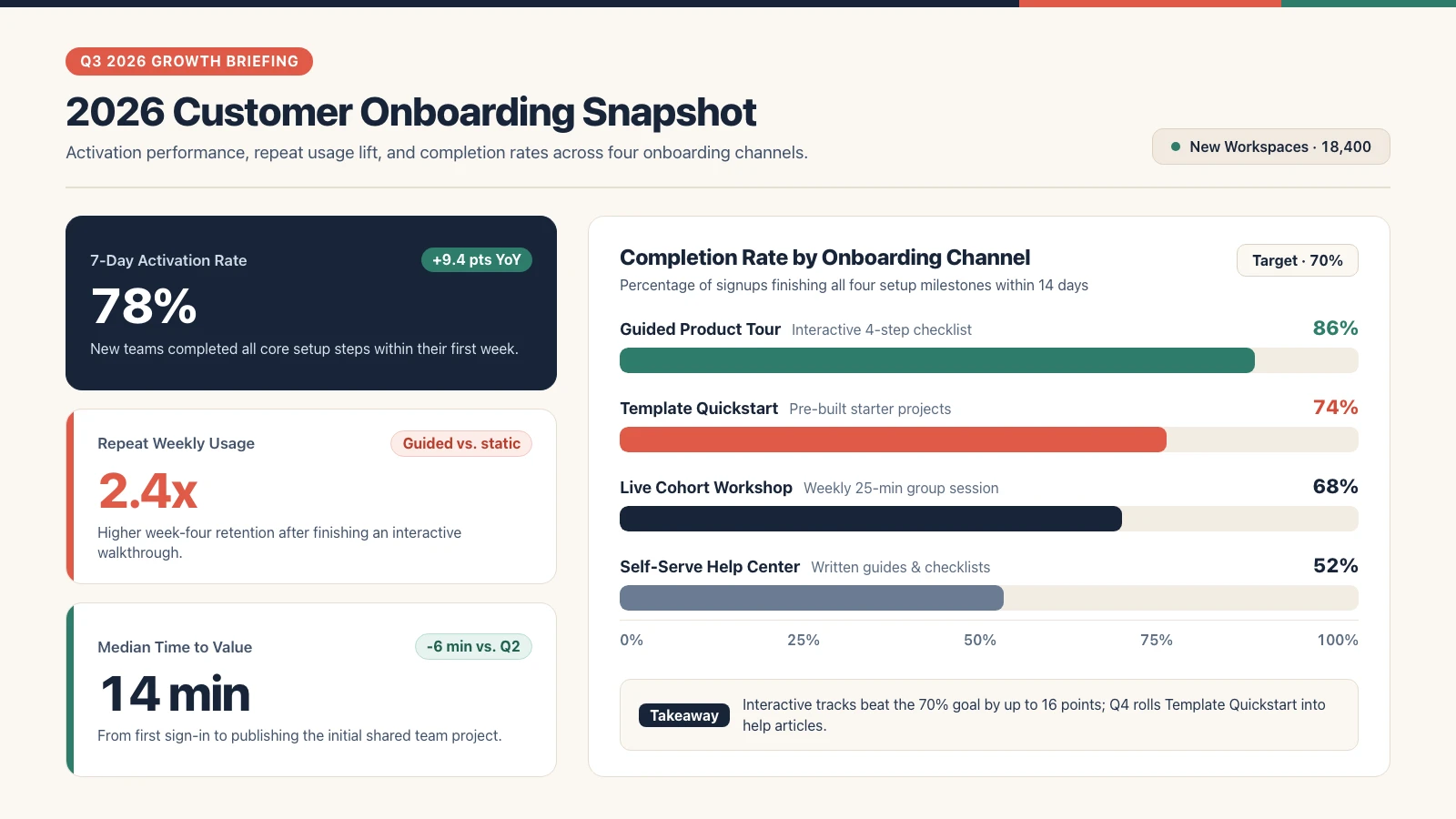
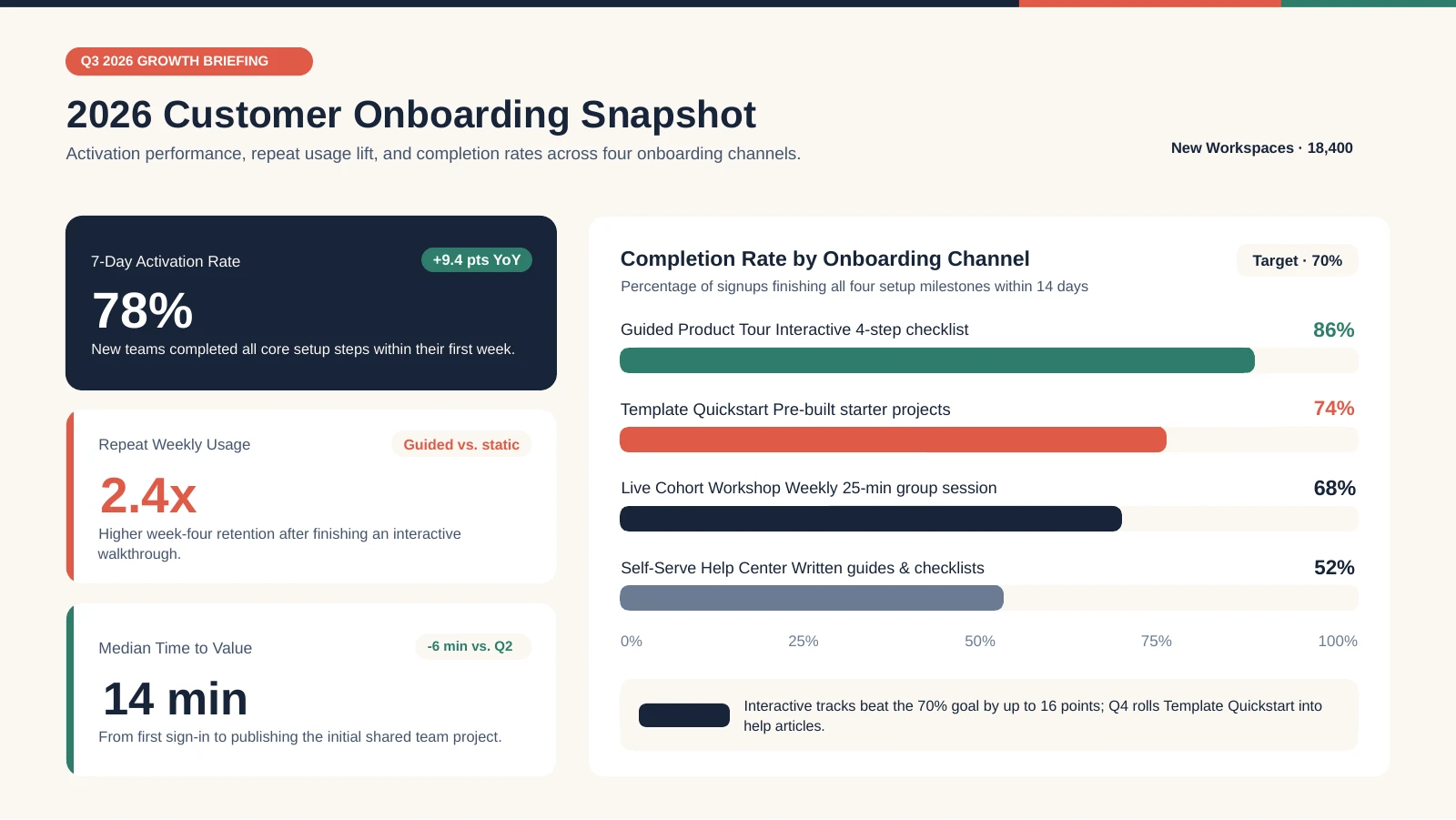
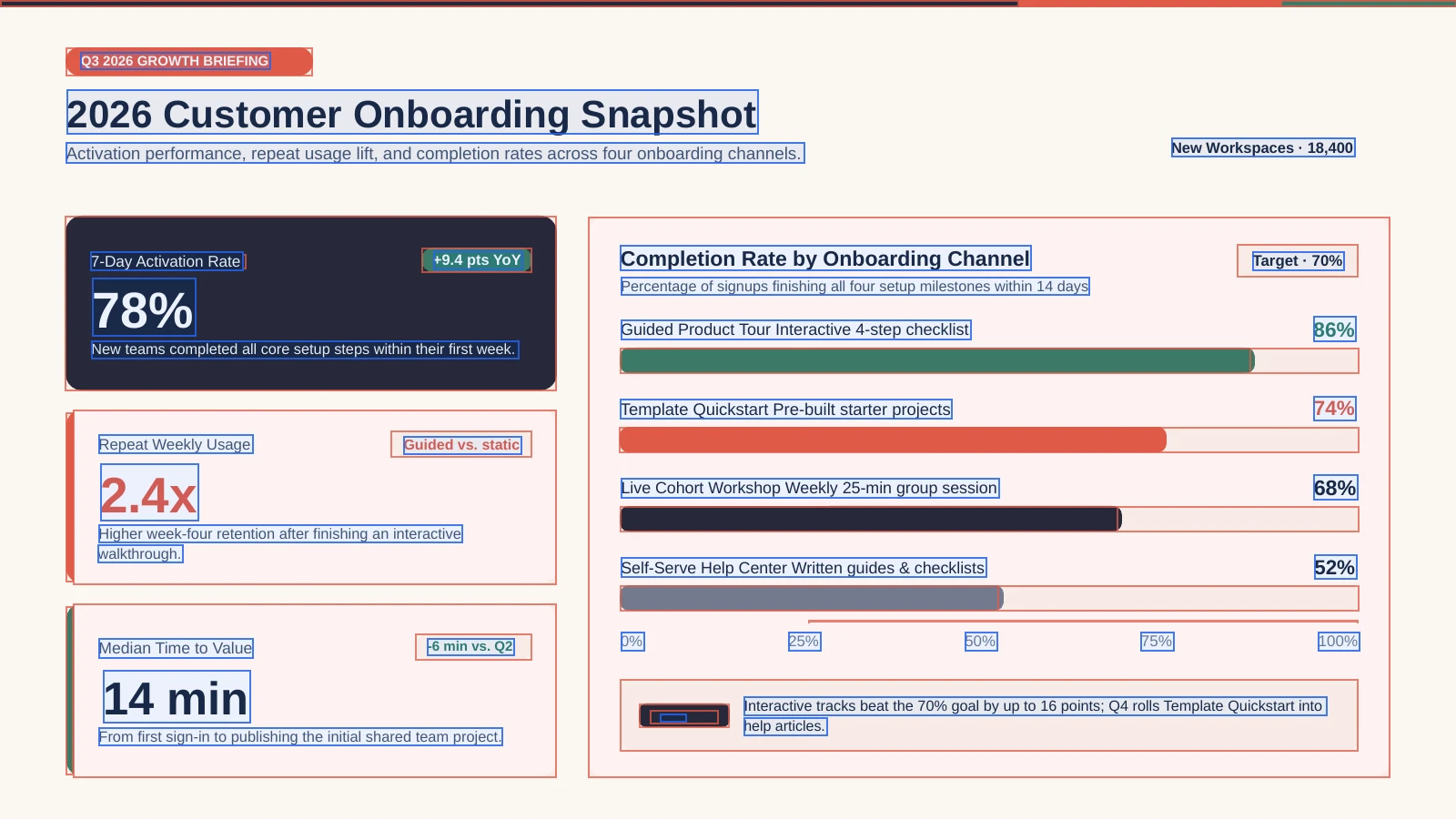
Inspecting the delivered .pptx file confirms what actually sits on the slide: 36 editable text boxes, 32 native shapes, and 0 embedded pictures (68 native PowerPoint objects in total). Nothing was left behind as a hidden background bitmap.
Inspecting every text box and vector shape
The overlay below maps every object inside the delivered .pptx: blue outlines mark the 36 editable text boxes, and coral outlines mark the 32 native vector shapes (cards, accent strips, status pills, tracks and bar fills).
Close-up: flat bar chart vs. editable vector shapes
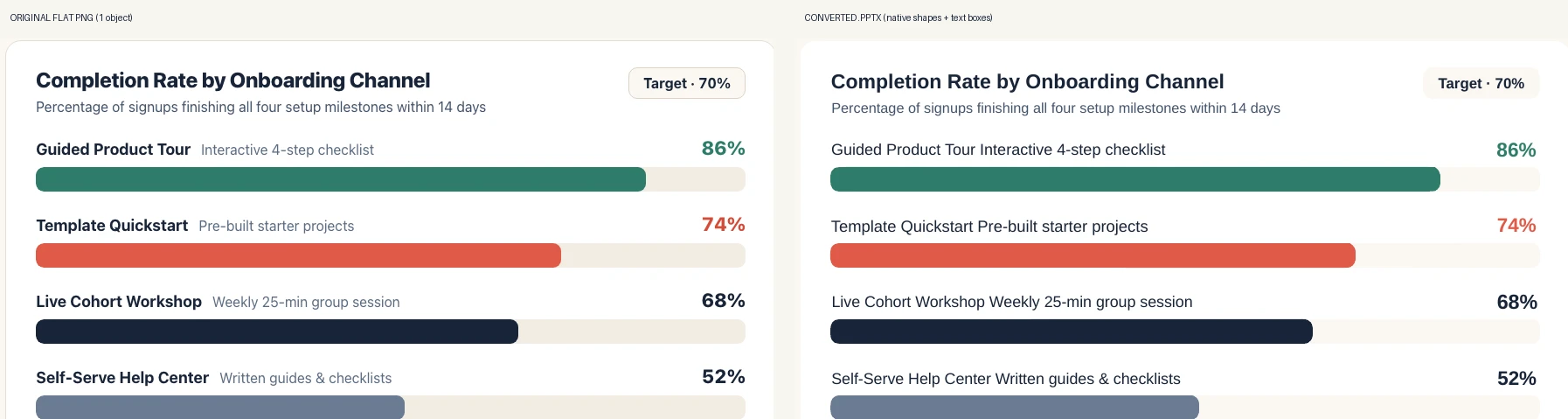
Zooming into the right-hand chart shows the practical difference: on the left, the entire panel is one flat raster image; on the right, each bar fill, track, label and percentage (86%, 74%, 68%, 52%) is an independent object you can click, retype, recolour or resize.
Four things you should fix in PowerPoint
No image-to-PowerPoint conversion is pixel-perfect. Looking closely at the rendered .pptx above immediately highlights four real defects to tidy up in PowerPoint:
- Dark pill text contrast (
Takeawaybadge). On the bottom-right dark navy pill, the word Takeaway came back as an editable text box (visible in blue on the object map), but its text colour returned dark and blended into the navy fill. Select it via the Selection Pane and switch its font colour to white. - Merged channel labels and muted subtitles. Each chart row merged the bold dark title and light grey subtitle into one regular-weight text box (
Guided Product Tour Interactive 4-step checklist). Highlight the first phrase and press Ctrl+B / Cmd+B, then tone the subtitle back to grey. - Dropped hairline divider and top-right badge chrome. The thin rule under the subtitle disappeared, and the rounded outline plus green dot around
New Workspaces · 18,400dropped—though the text itself returned cleanly. Redraw thin rules or pill outlines if your template needs them. - Vector bars instead of a live Excel chart. Each bar is a rounded rectangle separate from its percentage text box. Changing
86%to91%will not auto-resize the bar; drag its handle manually, or replace the chart with Insert > Chart if numbers update frequently.
Everything else—the navy and light KPI cards, coloured accent bars, headline metrics (78%, 2.4x, 14 min), trend pills, axis ticks and takeaway copy—arrived ready to click and edit.
Fast five-minute polish pass in PowerPoint
Whether you exported natively from Canva or rebuilt a flat file with Unraster, run three quick checks before presenting:
- Replace fonts deck-wide: Use Home > Replace > Replace Fonts to swap fallback system fonts back to your brand typeface and clear spacing drift.
- Audit objects in the Selection Pane: Open Home > Arrange > Selection Pane to catch low-contrast text (like the
Takeawaypill above), re-bold merged labels, or group multi-shape icons. - Verify numbers side by side: Compare figures, dates, currency symbols and proper nouns against the original Canva slide at 100% zoom, and rebuild any chart that needs live Excel data via Insert > Chart.
What Unraster cannot do
- No Canva animations, audio or video: Flat PNGs and PDFs have no motion timeline; add transitions in PowerPoint.
- No live Excel charts or native PowerPoint tables: Charts return as vector shapes and text boxes; tables return as grid shapes and cell text boxes.
- No automatic brand font recovery: Canva-hosted fonts map to similar system fonts until you swap them in PowerPoint.
- Limits on busy photos and micro-text: Clean slides, KPI cards, infographics and diagrams convert cleanly; dense photos, soft gradients or tiny 7 pt footnotes may stay graphic or need manual touch-ups.
- No direct Canva links or
.pptxuploads: Unraster converts exported PNG, JPG, WebP and PDF files only. Unraster is not affiliated with Canva or Microsoft.
Bottom line: Start with Canva's native Share > Download > Microsoft PowerPoint (.pptx) when you have edit access. When you only have a flat Canva PDF, PNG/JPG slides, or flattened graphics inside a
.pptx, rebuild single slides on Unraster's image to editable PowerPoint converter (free watermarked preview first) or convert a multi-page deck on PDF to editable PPT.