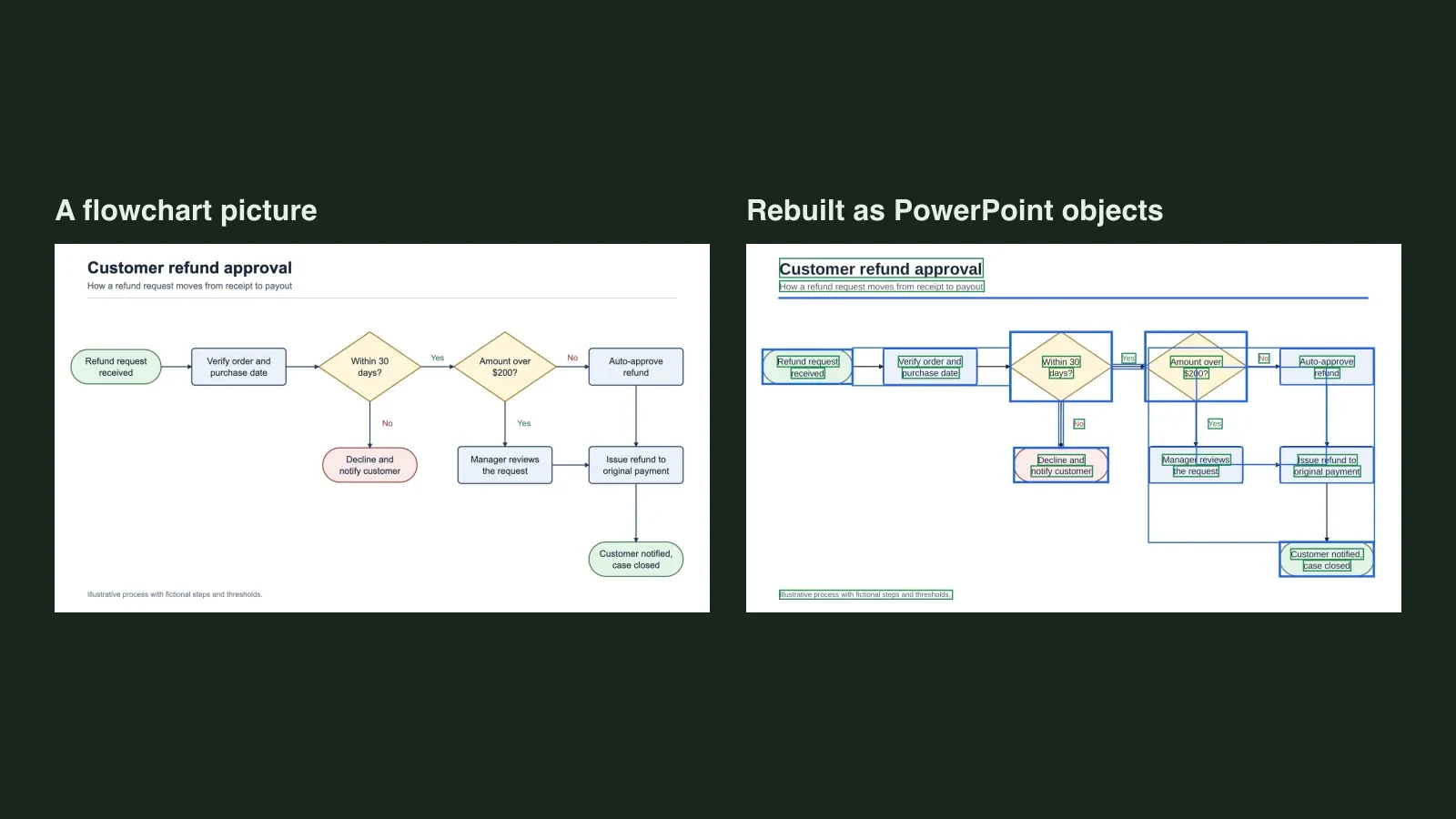
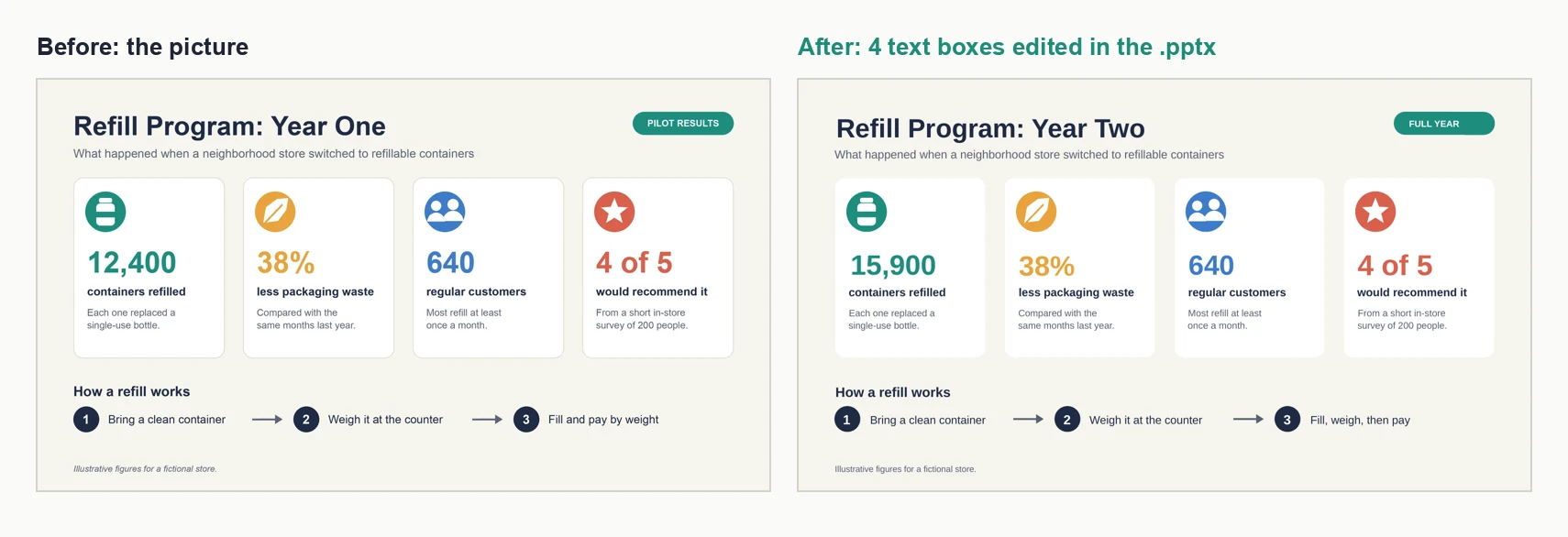
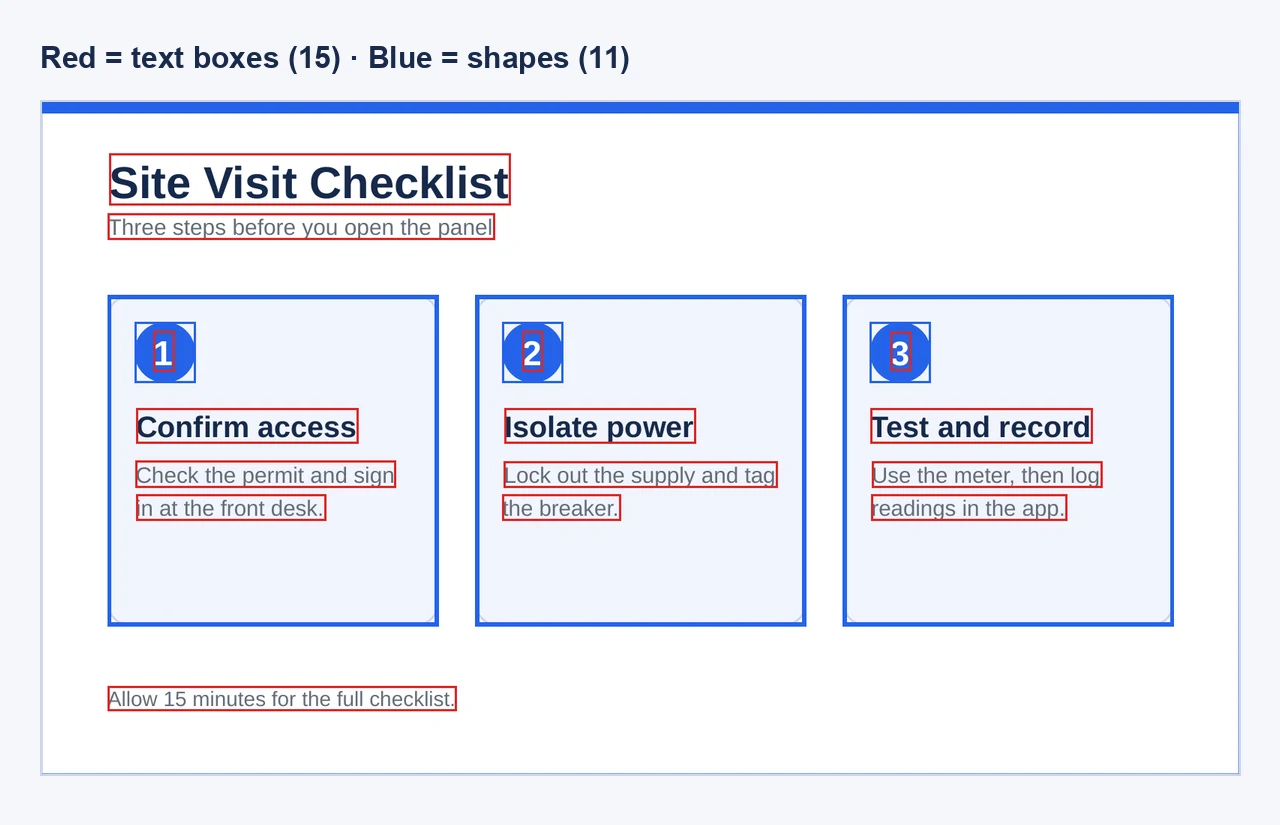
Quick answer: Unraster does not take PDF files. It takes a PNG, JPG or WebP, one image at a time, and turns it into one editable PowerPoint slide. So with an image-only PDF you save the page you need as an image, upload that, and edit the result. We tested it on a 3-page image-only PDF: one page came back as 15 text boxes and 11 shapes you can edit.
That is the honest limit up front: no PDF upload, no batch, one page per slide. If you have a 60-page deck saved as a PDF of pictures, you are looking at 60 saves and 60 conversions. This post is for the pages you actually need to change.
| Your situation | What to do |
|---|---|
| A few pages of a deck saved as pictures | Save each page as an image, then convert it |
| A PDF with real, selectable text | You may not need any of this: check first |
| A scan or phone photo of paper | Read the limits before you spend anything |
| Dozens of pages at once | Unraster is the wrong tool: no PDF upload, no batch |
Is your PDF really image-based?
Open the PDF and try to select a word, or search for one. If the cursor selects nothing and search finds nothing, each page is a picture. That is what happens when slides are exported as images, or a paper document is scanned without text recognition.
To test this properly we made a 3-page, 16:9 PDF in which every page is one full-page picture, with no text layer. A text extraction on it returned nothing, and an image listing showed exactly one picture per page. Page 2 is a "Site Visit Checklist" with three numbered cards. The names and numbers are made up.
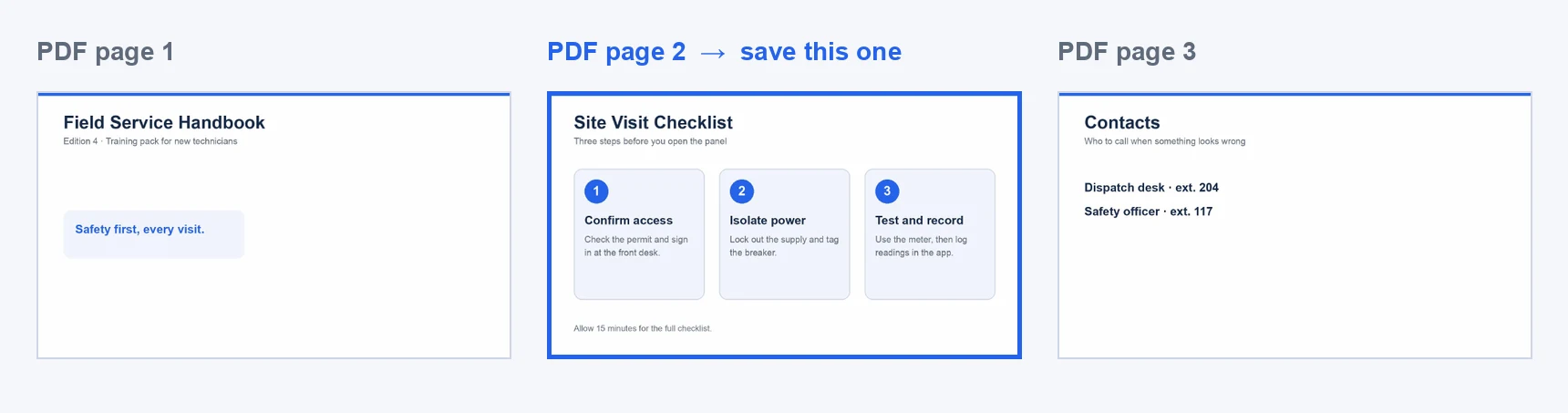
If your PDF does have selectable text, the text is already there to select and copy, so try that first. This guide is only for the case where the page is a picture.
Save a page as an image
You need one PNG, JPG or WebP per page. Many PDF viewers can export a page as an image; menu names vary, so look for an export or "save as image" option in yours. On a Mac, Apple's guide to exporting PDFs and images in Preview says to open the PDF, choose File > Export, and choose a file type from the Format menu. Apple's page does not say whether this saves one page or all of them, so check what you get.
How we did it: the command-line tool pdftoppm at 150 dpi, one page, PNG. We exported the page directly rather than taking a screenshot. A 16:9 page came out at 1600 x 900 pixels, which is a sensible size: large enough that small text stays readable, small enough to upload quickly.
Tips for the image:
- Save at a resolution where the smallest text is still clearly readable on screen.
- Crop away scanner borders so the page fills the picture.
- One page per file. If a PDF page holds two slides side by side, split them first.
Convert the page
- Upload the PNG on the image to editable PPT page. If the page is a slide, screenshot to slides is the closest fit.
- Look at the preview. It outlines every text box and shape, so you can see what is editable before you pay.
- If it looks right, download the .pptx. Each account gets one free PowerPoint preview; downloading that first file is a one-time $2.99 or 2 credits, and every later PowerPoint is 2 credits. No subscription is needed, and the price is shown on the button.
- Open the file in PowerPoint and click a word to type.
- Repeat for each page you need.
What came back from the test page
Here is the page we saved next to the slide rebuilt from it. The rebuilt slide was rendered from the delivered .pptx file.
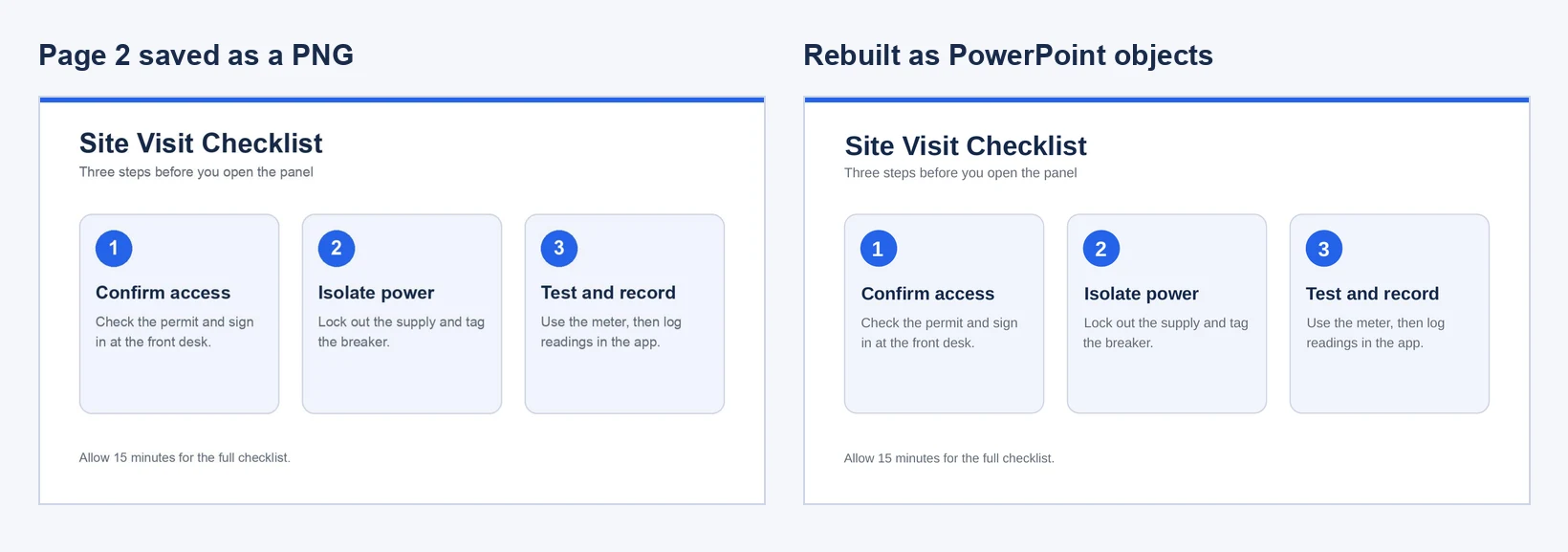
The file contains no embedded picture. Everything is an object:
Then the real test: we opened the .pptx XML, changed "Isolate power" to "Lock out power" and "15 minutes" to "20 minutes", and rendered it again.
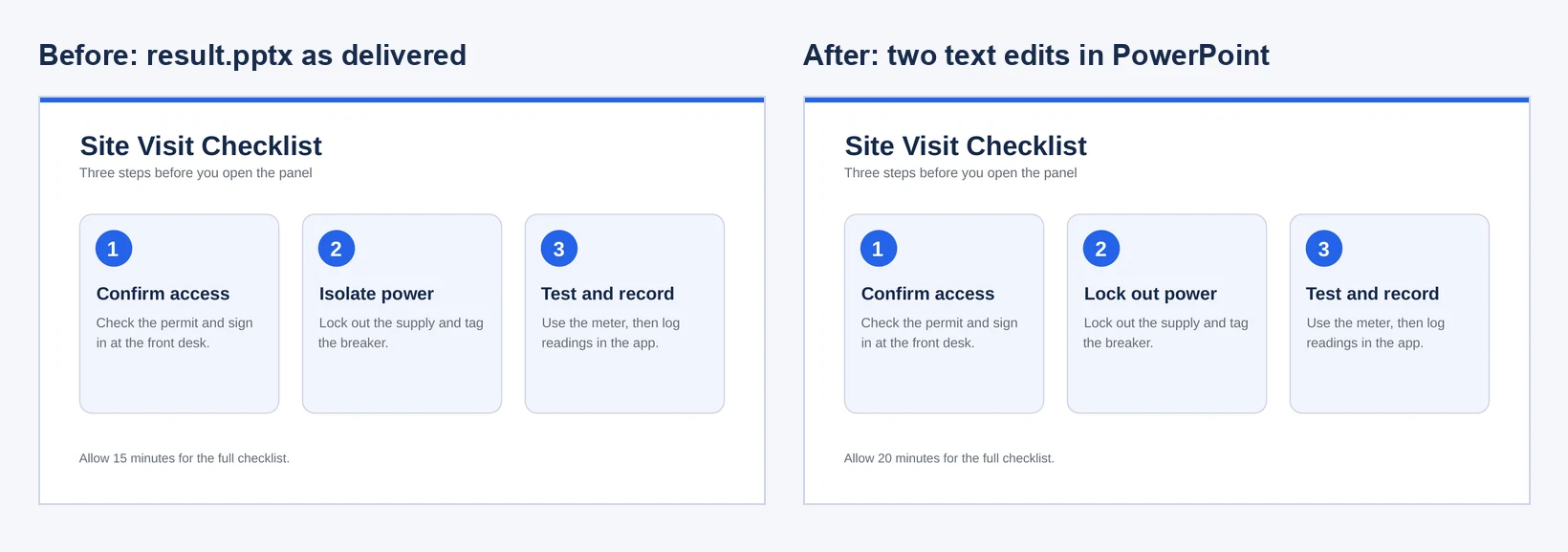
That edit was made in the file and rendered with LibreOffice, not in PowerPoint itself, so open yours in PowerPoint before you hand it on.
What to check in your own result
From this one test:
- Fonts are similar, not the original. The test page used Arial and came back close, but a brand typeface will be replaced.
- Paragraphs are split by line. Each two-line caption came back as two text boxes, so editing a long paragraph means retyping across boxes.
- Numbers sit in their own boxes. The "1", "2" and "3" in the blue circles are text boxes on top of circle shapes.
- Card shadows and edges. Soft edges are redrawn as thin outlines and can be a little rougher.
This is a single measurement on one page, not a promise for every PDF.
What Unraster can't do
- It does not accept PDF files. PNG, JPG and WebP only.
- It does not batch. One image becomes one slide.
- It does not edit photos of paper or textured backgrounds well. See how to edit text in a picture for other routes.
- It does not promise a pixel-perfect copy, and it does not rebuild charts as data-backed charts: you get shapes and text.
- It has no online editor. You edit the .pptx in PowerPoint or a compatible app.
The cost, plainly
Saving pages as images costs nothing. Your first PowerPoint preview is free. Downloading that first file is a one-time $2.99 or 2 credits, and each later PowerPoint is 2 credits, with no subscription. Ten pages cost one $2.99 download (or 2 credits) plus 2 credits for each of the other nine. If that is more than you want to spend, only convert the pages you need to change.
Bottom line: For an image-only PDF, save the page you need as an image and rebuild just that page. Unraster does not take PDFs or batches, but one clean page can come back as editable text boxes and shapes. Start with image to editable PPT, and read how to make an image editable in PowerPoint for the PowerPoint-side options.