Quick answer: PowerPoint has no Extract Text command for a PNG or JPG. The Microsoft-documented route is OneNote: right-click the picture, choose Copy Text from Picture, then paste the words into PowerPoint. Windows' Snipping Tool and Preview on a Mac can do the same job. All of them give you plain text, not a slide.
You have a screenshot of a pricing table or a diagram someone sent as a PNG, and you want the words in your own deck. Before picking a tool, decide whether you need the words or the slide.
For the words — to quote, translate or retype — copy them out with OCR and paste. For the boxes, colours and positions, no extraction tool will help: the route is to rebuild the picture as objects. Both are below.
If you are not sure which of the wider fixes you need, start with our guide to how to make an image editable in PowerPoint, which compares every route.
| What you need | Route | What you end up with |
|---|---|---|
| The words only | OneNote: Copy Text from Picture | Plain text on the clipboard |
| The words from something on screen | Snipping Tool or Preview | Plain text on the clipboard |
| Words plus layout, as editable objects | Rebuild the slide | Text boxes and shapes |
Copy the words out with OneNote
OneNote's help page is where Microsoft documents lifting text from a picture. The page on copying text from pictures and file printouts describes the feature as Optical Character Recognition, or OCR, that "lets you copy text from a picture or file printout and paste it in your notes so you can make changes to the words".
- Put the picture on a OneNote page.
- Right-click the picture and choose Copy Text from Picture.
- Click where you want the text to land and press Ctrl+V.
- Select the pasted text, copy it again, and paste it into a text box in PowerPoint.
Two details from that page are worth knowing before you blame your image:
- The command can be missing at first. Microsoft says it "may not be immediately available on the menu that appears when you right-click the picture", because OneNote is still reading the image, and that "some results may take up to 24-48 hours to become available". Right-click again later before assuming your version lacks the feature.
- Quality follows the picture. The page ties OCR effectiveness to "the quality of the image you're working with". A sharp screenshot works well; a photographed slide with glare does not.
For a multi-page file printout, the same right-click menu offers Copy Text from this Page of the Printout and Copy Text from All the Pages of the Printout.
What you get is plain text in reading order; a three-column table arrives as one run of lines.
What PowerPoint itself offers
PowerPoint's picture tools work on the image, not on the words inside it. Microsoft's Edit pictures page lists the tools in the Edit Picture panel: Add text, Erase, Move, Upscale, Remove background, Auto enhance and Effects. Add text lets you place new text on the image, position it and select Update; the other tools remove, move or improve parts of the picture.
The same page treats the result as an updated picture, and warns that once it is updated "you can only undo all changes together". It describes no step that copies existing words to the clipboard, so there is no hidden Extract Text button to find in the ribbon.
Edit Picture still has a job: fixing one wrong label in a picture that is otherwise fine, which our guide to making an image editable in PowerPoint covers. The related trap is Convert to Shape, which only breaks apart SVG graphics, never a flat PNG; see converting a picture to shapes.
Two quicker grabs: Snipping Tool and Preview
If the text is already on screen, skip OneNote.
On Windows, capture the area with Snipping Tool, then select Text actions. Microsoft's Snipping Tool page says the button activates OCR and lets you "extract text directly from your image", selecting part of it or choosing Copy all text. It also states that "all text recognition processes are performed locally on your device", which is useful for confidential screenshots.
On a Mac, open the image in Preview and use Live Text. Apple's Preview guide says to drag to select the text, Control-click the selection and choose Copy Text; if nothing selects, turn on Tools > Text Selection first. Apple notes that Live Text is not available in all regions or languages.
Both hand you a clipboard of text.
Paste the words into the slide
The paste is where most disappointment happens.
- Draw the text box first (Insert > Text Box), then paste inside it, so the text does not arrive as a loose object you have to drag into place.
- Expect one block, not many. OCR does not know that "Q3 revenue" was a separate label, so break the text into the pieces you need and give each its own box.
- Rebuild emphasis by hand. Bold, italic and coloured words come back as plain characters, and bullets usually arrive as stray symbols at the start of a line.
- Check the reading order before you trust it. Two columns of text can interleave, and a caption under a chart can end up attached to the line above it.
Reusing the words is still far faster than typing them; only the layout is lost.
When you need the layout back: rebuild the slide
Sometimes the text is not the point. You want to move a box or recolour a bar, and extraction throws the layout away by design.
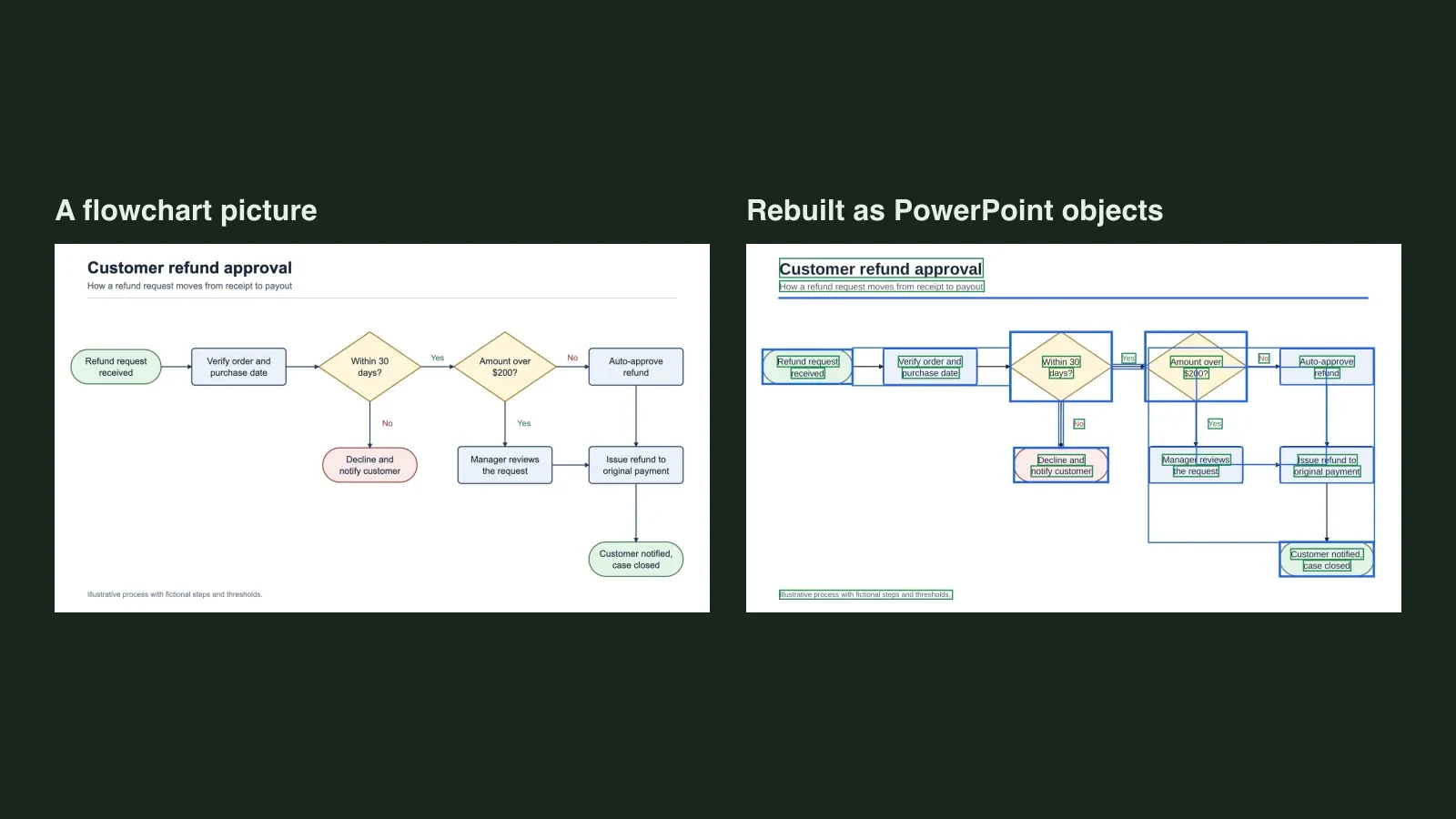
Unraster takes one PNG, JPG or WebP and rebuilds the whole image as a PowerPoint slide: words become native text boxes, and boxes, lines, bars and fills become separate shapes you can select and restyle. You download a .pptx and work in PowerPoint.
- Upload the image on the image to editable PPT page and click Make editable PowerPoint.
- Open the free preview: the page renders a lower-resolution, watermarked preview of the real PowerPoint, free with any account (up to 3 a day), so you can retype text and drag objects and see whether the text came back as text.
- Unlock the file to download it: $2.99 or 2 credits per file. Download PPTX is free after that; the price is on the button before you pay, and a failed conversion is not charged.
- Open the file in PowerPoint, click a label and type.
The difference is easiest to see side by side.
| Extracted text (OCR) | Rebuilt slide (Unraster) | |
|---|---|---|
| What you get | One block of plain text | Text boxes and shapes on a slide |
| Position, colour, size | Lost | Kept as separate objects |
| Fonts | You choose them | Similar fonts substituted |
| Good for | Quoting, translating, retyping | Restyling, moving, animating parts |
| Where it stops | Misreads, no structure | Small lettering can stay a shape; no native charts; arrows are lines, not connectors |
That last row is the one to read twice. A rebuilt chart is a drawing with no data sheet, and a rebuilt table is boxes laid out like a table. If the numbers will change, build a real chart or table and use the picture as a guide.
Proofread these before you present
Recognition errors do not look like errors; they look like confident text.
- Digits and letters that share a shape: 0 and O, 1 and l, 5 and S, 8 and B. Read every number against the original.
- Currency, units and percentages: a dropped $ or % changes the meaning of a slide more than a typo does.
- Hyphenated line breaks: "cus-tomer" often returns as two words or one wrong one.
- Reading order in columns and sidebars: verify that each sentence belongs where it landed, and that footers did not drift into the body.
Microsoft's OneNote page says the same: check that the text was recognised properly.
Bottom line: to get words out of a picture and into PowerPoint, use OneNote's Copy Text from Picture, or Snipping Tool on Windows and Preview on a Mac, then paste into a text box and proofread the numbers. If what you actually need is an editable slide with the layout intact, rebuild the image with Unraster and check the preview before you pay.