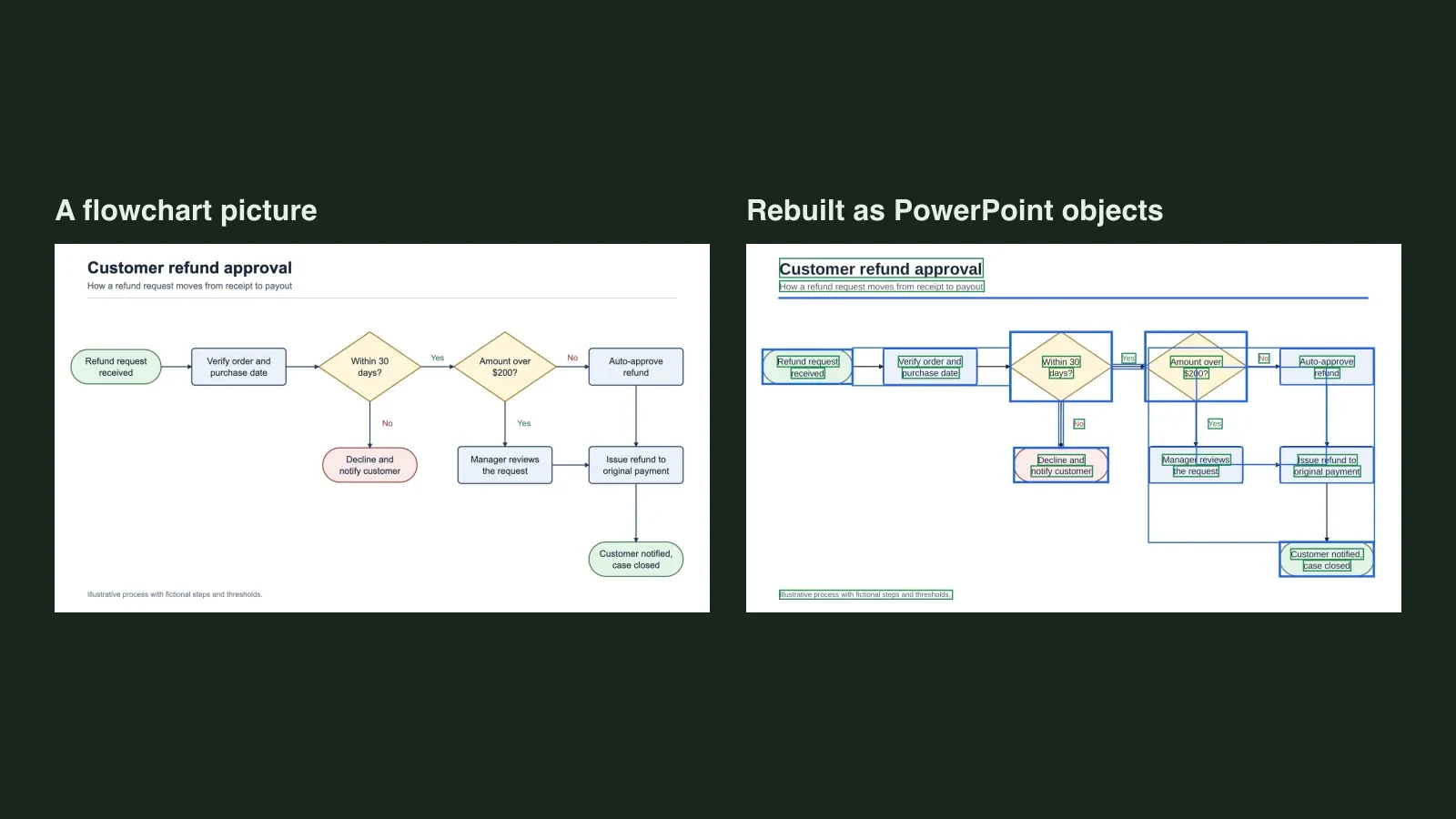
Quick answer: If you want to keep designing a flat AI image inside Canva, Magic Layers is built for that. If what you need is a PowerPoint file, or the thing you have is a PDF or a set of images, a converter that outputs .pptx is the more direct route. Neither is perfect: both rebuild an image, and you should read every word afterwards.
Unraster makes one of the two tools compared here and is not affiliated with Canva, Google or OpenAI. Facts about Canva below come from Canva's own pages, read on 2026-11-23, and may change; follow Canva's live help page.
What Canva Magic Layers does
Canva's Magic Layers help page (read 2026-11-23) says you can transform a flat image into editable design layers, so you can select, separate and edit individual elements without rebuilding the design from scratch. It says Magic Layers uses AI to break down images while preserving layout, hierarchy and design intent, and works best with graphic designs, illustrations and stylized visuals.
Once an image is in layers, Canva lists what you can do: move elements, delete objects, resize elements independently, apply effects to individual layers, and replace elements with new images or graphics.
Canva's newsroom post of June 2026 (read 2026-11-23) adds that Magic Layers is available inside Gemini and ChatGPT, so an image generated there can be passed to Canva without downloading and re-uploading it.
What Magic Layers does not take
From the same help page (read 2026-11-23):
- It works with single-page PNG and JPG files.
- It does not support PDF files, vector graphics, licensed images or multi-page documents. For a PDF, convert it to PNG or JPG first, and export each page of a multi-page document as a separate image.
- Images over 5000px on the longest edge are not currently supported.
- Photo-realistic images may not separate as cleanly.
- Magic Layers counts against Canva's monthly AI allowance; check Canva's pricing page for the limits on your plan.
The page does not describe a PowerPoint export for Magic Layers results, so this post does not say whether one exists. Check Canva's download options for your own design.
Where an image-to-PowerPoint tool differs
Unraster is built around one output: a .pptx with real text boxes and separate shapes. The differences that can be checked on each product's own pages:
| Canva Magic Layers | Unraster | |
|---|---|---|
| What you get | Layers inside a Canva design | A PowerPoint (.pptx) with text boxes and shapes |
| Input | Single-page PNG or JPG | PNG, JPG or WebP; a PDF; or several images as one deck |
| PDFs and multi-page | Not supported (convert and export page by page) | A PDF becomes one slide per page |
| How it is paid for | Counts against Canva's monthly AI allowance | Per delivered file; the button shows the price before you start |
| Preview before paying | Not covered by the help page | A watermarked preview of the real PowerPoint |
Prices and free allowances on Unraster change; the homepage always shows the price on the button, and a failed conversion is not charged.
What you still have to check after either one
Both routes rebuild a picture, and AI images are the hardest input. With Unraster in particular:
- Fonts are replaced with similar ones, so brand typefaces need checking.
- Soft gradients and shadows flatten to solid colour.
- Icons and artwork arrive as several shapes; group them before moving them.
- Charts become shapes with no data behind them, and arrows are shapes, not connectors.
- If the AI model misspelled a word in the picture, the word comes back with the same misspelling. The gain is that you can now click it and correct it.
Which to use
- Keep designing in Canva, single PNG or JPG, want to move objects around: Magic Layers.
- Need a .pptx, have a PDF, or have a set of slide images: upload them to Unraster and check the watermarked preview first.
- A slide from Nano Banana or ChatGPT: see Nano Banana and Gemini image to editable PowerPoint or ChatGPT image to editable PowerPoint.
- A NotebookLM infographic: see NotebookLM infographic to editable PowerPoint.
- Photos with words in them: neither is the right tool; see how to edit text in a picture.
For a wider comparison with other converters, see best tools to convert images to editable PowerPoint.