Quick answer: Yes, when ChatGPT gives you a presentation rather than a picture. OpenAI's help says ChatGPT Slides can create an editable deck and export it to PowerPoint as a .pptx, and the ChatGPT for PowerPoint add-in edits slides inside PowerPoint while keeping the slide structure editable. If you asked for "a slide" and got a PNG or JPG, that is a flat image with no text boxes, and needs a conversion step.
You want a deck you can change in PowerPoint, and you are not sure whether ChatGPT gives you that or a picture of it. Both happen; the feature that answered you decides which.
Four things you might be holding
| What you have | How to tell | Editable in PowerPoint? |
|---|---|---|
| An outline in the chat | Text in the conversation, no file to download | No. Paste it into slides yourself |
| A .pptx or Google Slides deck | A file appears, or an export offers PowerPoint | Yes, these are real slide objects |
| A PNG, JPG or WebP | The download is an image file | No, it is one picture |
| A deck the add-in edited inside PowerPoint | You worked in PowerPoint's sidebar | Yes, the slide structure stays native |
What OpenAI's help says ChatGPT can do
Two features can put a presentation in front of you, and they work differently.
ChatGPT Slides: a deck built inside ChatGPT
OpenAI's help on creating and collaborating on slides in ChatGPT describes a presentation feature. You open Work and ask for slides, describing the topic and material, or start in Space with Create > Slide and pick a blank slide or template. ChatGPT creates an editable presentation you can open in Space, and you can edit text, images, shapes, tables and charts directly, or select one element and use Request edits.
Export matters most. On the web, the help says you can export to PowerPoint "to continue editing a .pptx file", and also to PDF or Google Slides. It adds that if prompted directly, ChatGPT will provide a PowerPoint or Google Slides presentation.
Two limits come from the same page:
- Availability. Slides is listed for Pro, Business and Enterprise plans with Space access, and it is rolling out to eligible accounts. If you cannot see it, your plan or rollout stage is the likely reason.
- Windows desktop. On Windows devices without the required MXC component, local AI slide creation and editing in the desktop app use PowerPoint (.pptx) files instead of collaborative Slides. Windows 10 does not support that component, and Windows 11 users may need an update or their organization to enable it. The help says to use cloud mode or ChatGPT on the web for collaborative Slides.
Matching an existing deck's style
You can hand ChatGPT an example. The Slides help says to "share an example deck with ChatGPT to guide the style and layout", and the separate help for ChatGPT Work shows a prompt such as "Use this presentation's master slides and section order, but replace the content with the attached customer research." Work can also save a reference file as a reusable template, and a template can start from a PowerPoint (.pptx) file. The same page warns that PowerPoint is not included in the Work desktop flow at launch, and that availability depends on your plan, workspace settings and surface, so treat this as a style guide for the new deck, not a promise to edit your .pptx file in place.
ChatGPT for PowerPoint: the add-in
The second route is a sidebar inside Microsoft PowerPoint. OpenAI's ChatGPT for PowerPoint page describes it as "a PowerPoint-native AI experience that lives in a sidebar inside Microsoft PowerPoint" that can create, edit, understand and polish presentations "while preserving editable slide structure."
Find it in Microsoft Marketplace: in PowerPoint go to Home > Add-ins, search for ChatGPT, add it, open ChatGPT from the ribbon, and sign in with the ChatGPT account that has access. The help lists it for Free, Go, Plus, Pro, Business, Enterprise, Edu and K-12 users, with limited usage on Free and Go.
Use it when the deck exists and you want changes made in place. The help warns that ChatGPT can make mistakes, including when editing or deleting content, and that some advanced chart, shape and formatting edits may be limited. Review claims, numbers and slide changes, and duplicate the file first so you can revert.
The trap: "make me a slide" can return an image
None of the routes above produce a picture, but a normal conversation can, and that is where most of the confusion starts.
OpenAI's Images in ChatGPT help says ChatGPT Images can create and edit images, that it can "follow instructions to add text, add details within the image, or make the background transparent", and that Save downloads the image to your device. An image request returns an image file, not a slide file.
For a poster, that is the right tool, but it is not a slide file. An AI-generated infographic often looks like a finished slide: title, cards, icons, numbers. In PowerPoint it behaves like a photograph: click a heading and the whole thing selects as one rectangle. The letters are pixels, so there is no text box to retype, card to recolour, or way to delete one part and keep the rest.
The ten-second check
- Look at the extension.
.pptxor a Google Slides file is a deck..png,.jpgor.webpis an image. - Click a word. A text box with a cursor means editable text. The whole slide highlighting as one object means a picture.
If the click test says picture, the design may still be worth keeping; you just need to turn the picture into objects.
If you ended up with an image, rebuild it
This is the one case where Unraster helps. Upload the image from ChatGPT and get a slide where the lettering is rebuilt as native text boxes and the rest as separate shapes.
- Save the image as a PNG, JPG or WebP. Uploads go up to 20 MB, but the free PowerPoint preview takes up to 12 MB; for previews, keep the file under that.
- Upload it on the ChatGPT image to editable PowerPoint page and click Make editable PowerPoint.
- Open the free preview: the page renders a lower-resolution, watermarked preview of the real PowerPoint, free with any account (up to 3 a day), so you can retype text and drag objects.
- Unlock the file to download it: $2.99 or 2 credits per file. Download PPTX is free after that, your edits are kept, and the "Your PowerPoint is ready" bar confirms delivery; you are charged only for a delivered file.
- Proofread the .pptx in PowerPoint.
What to expect:
- Text is rebuilt from the picture. A misspelling becomes the same misspelling in a text box, which you can now fix.
- Fonts are replaced with similar ones. Spacing shifts slightly and a brand typeface will not match.
- Very small lettering can stay as a shape. Check captions, footnotes and numbers.
- Charts are not native charts. Bars, labels and axes come back as shapes with no data sheet.
- Arrows are drawn shapes, not connectors. Move a box and its arrow stays put.
- It is not pixel-perfect. Compare the slide with the image before you present.
Three real conversions, and what changed
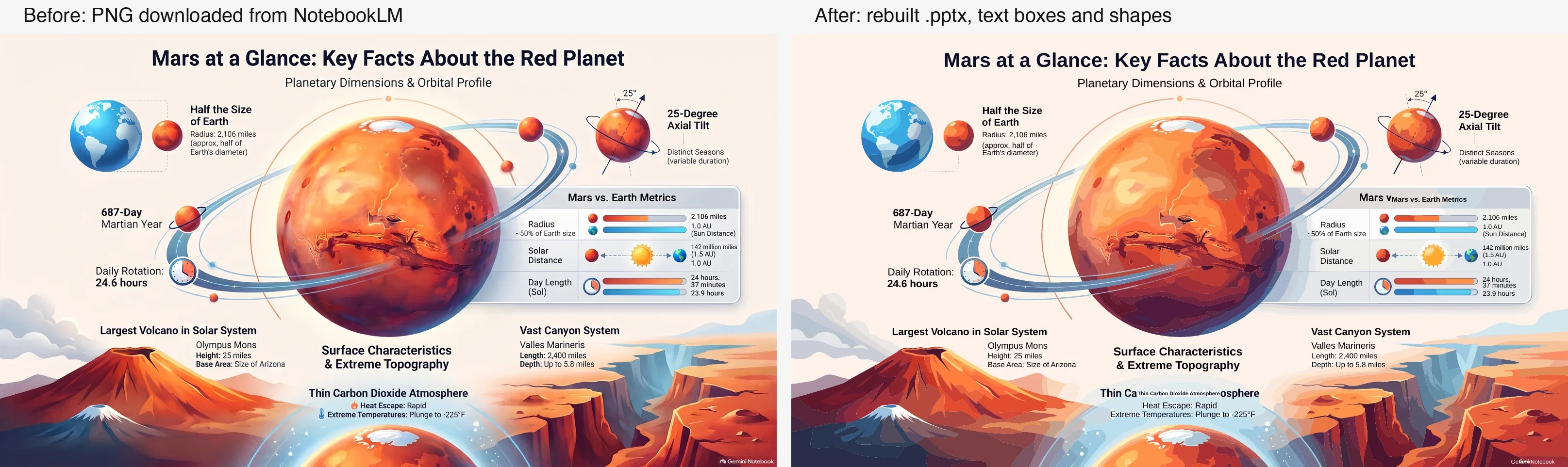
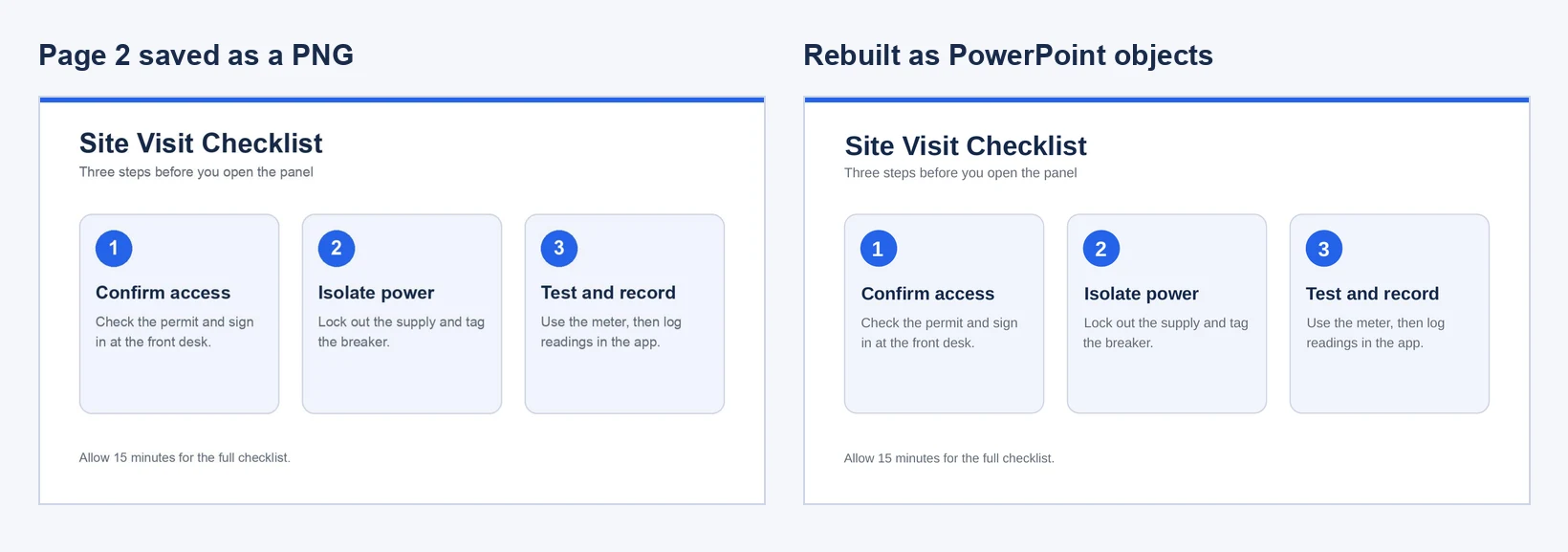
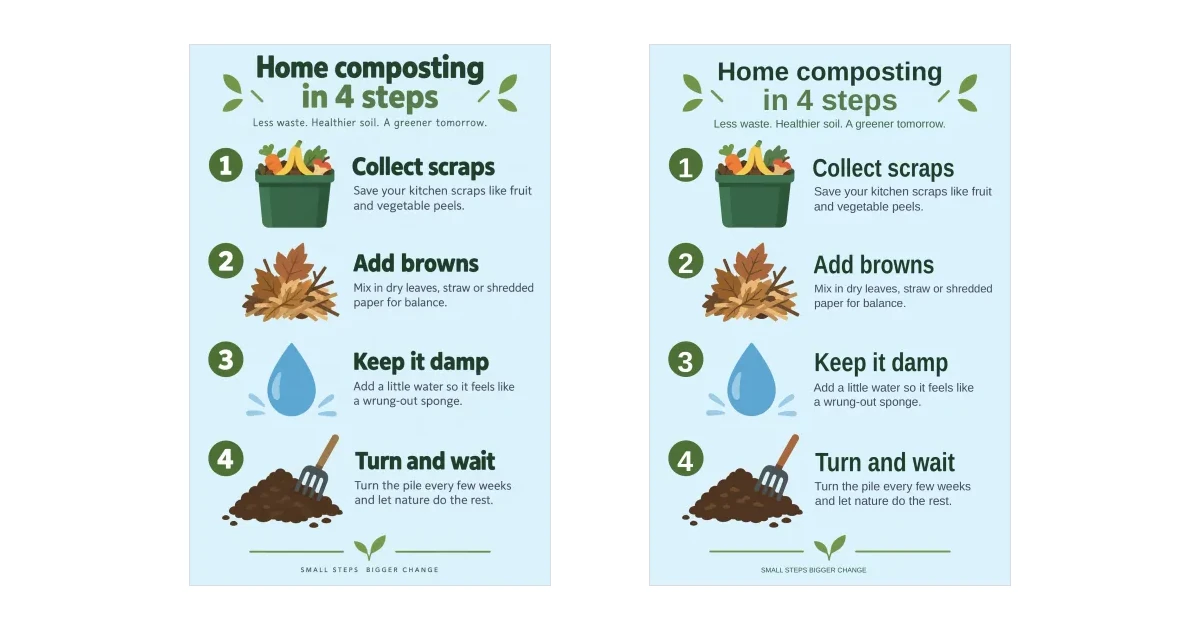
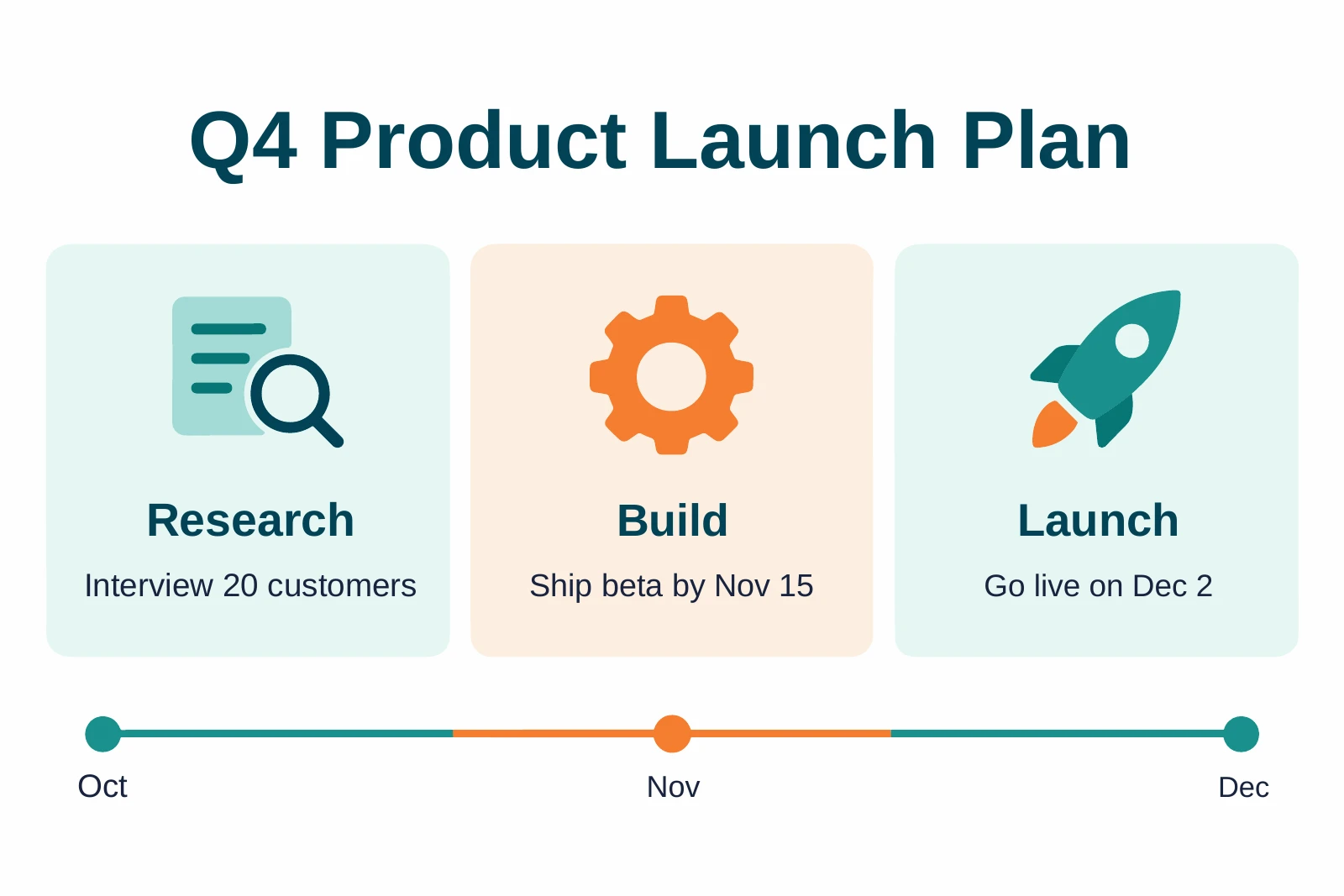
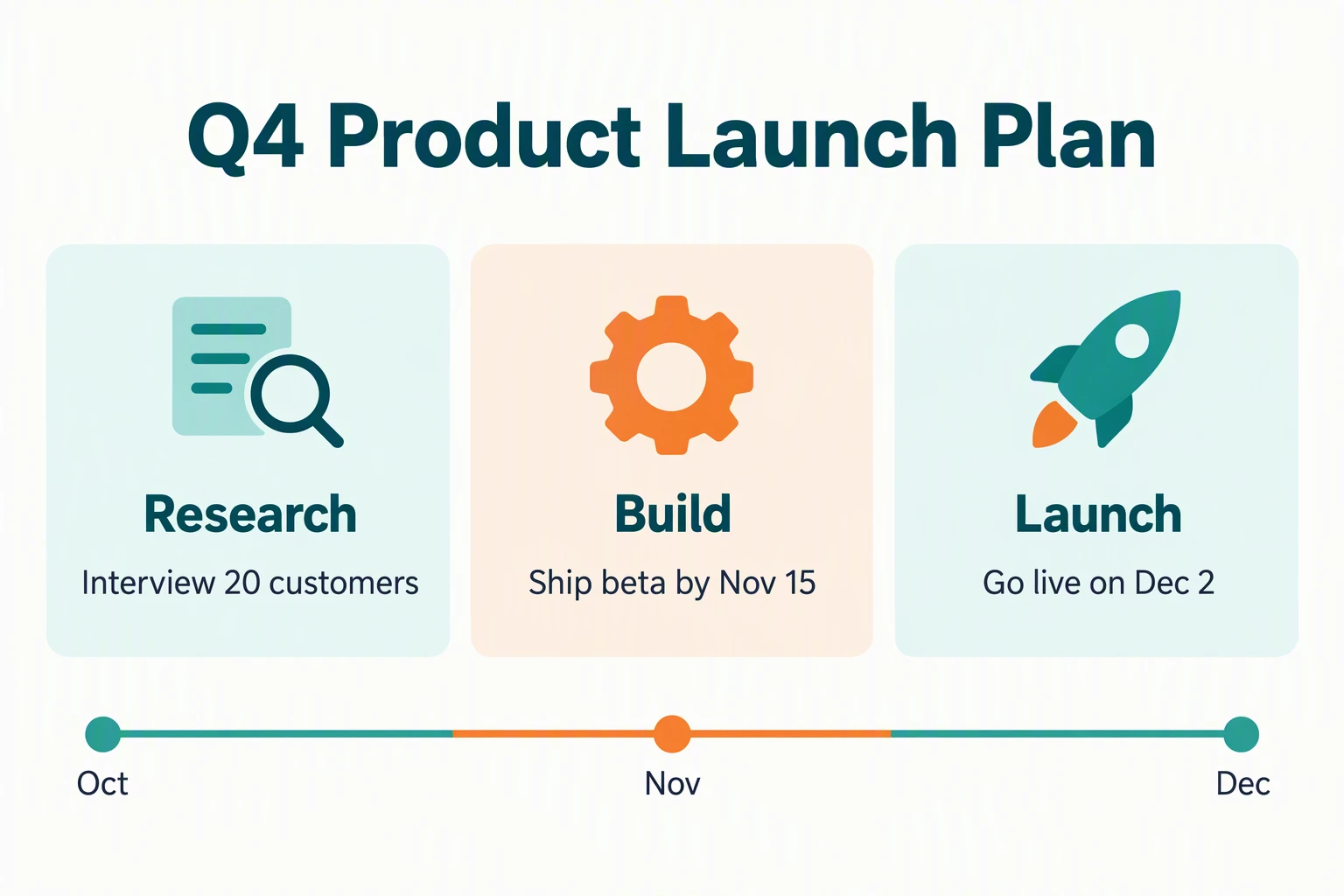
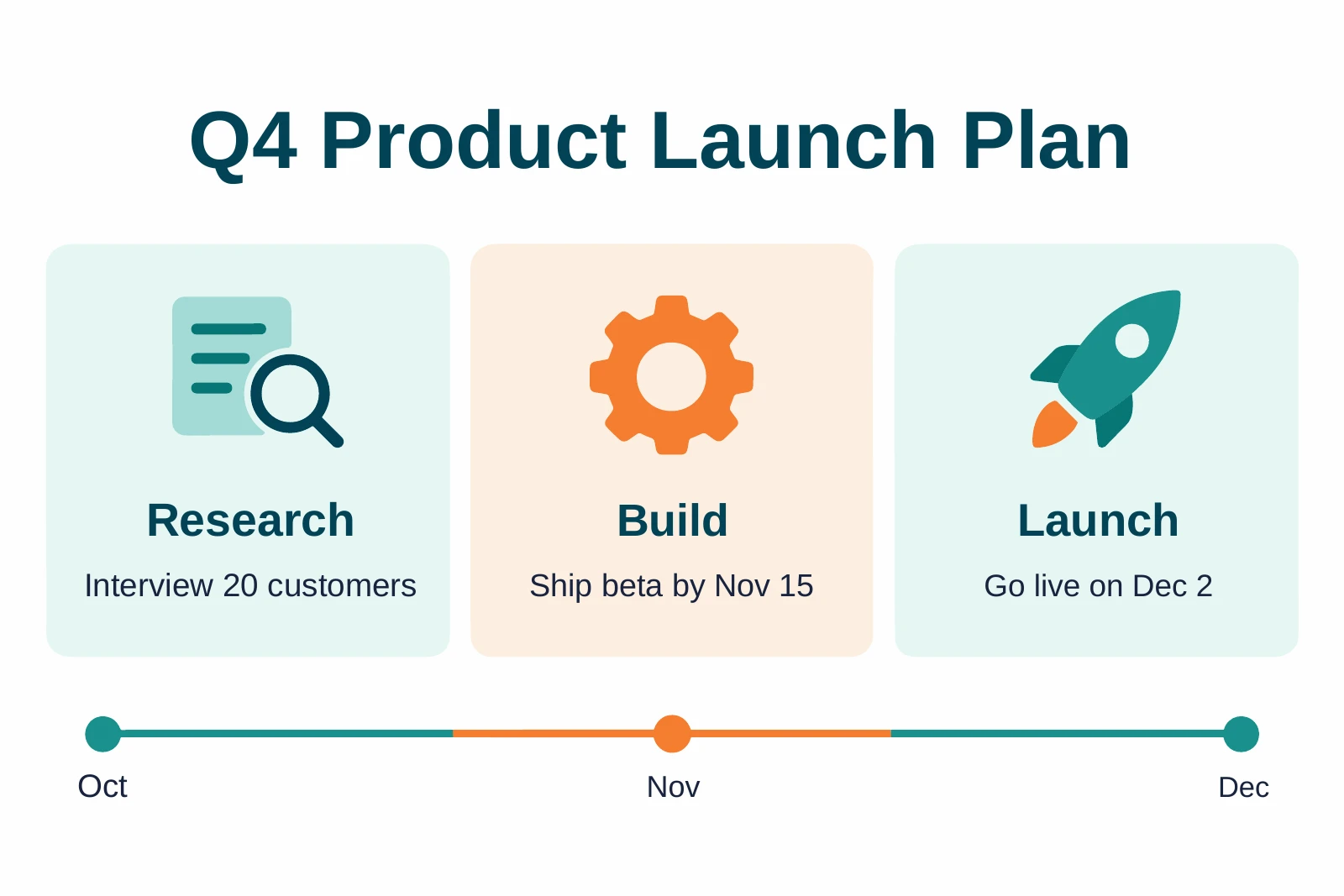
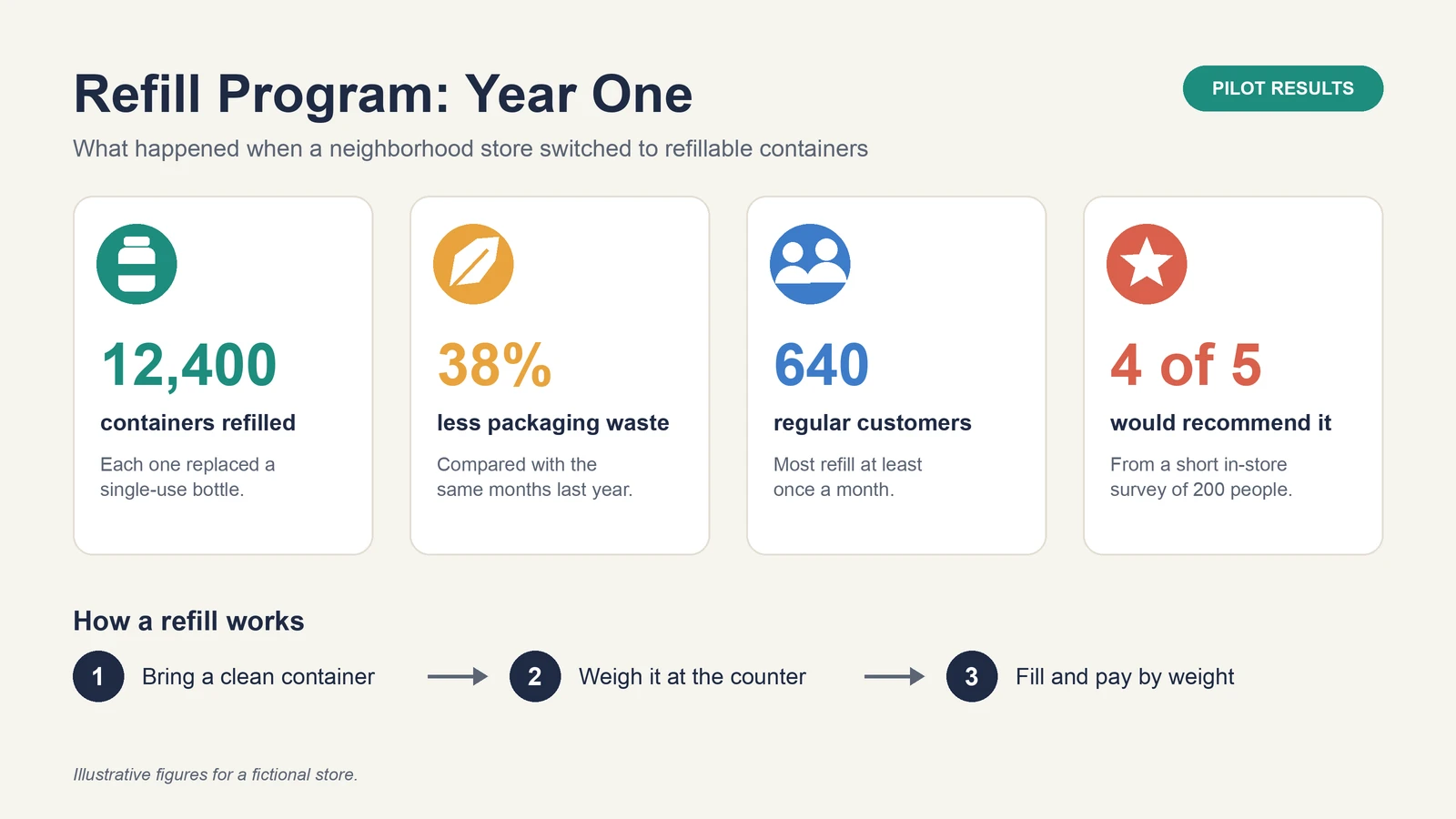
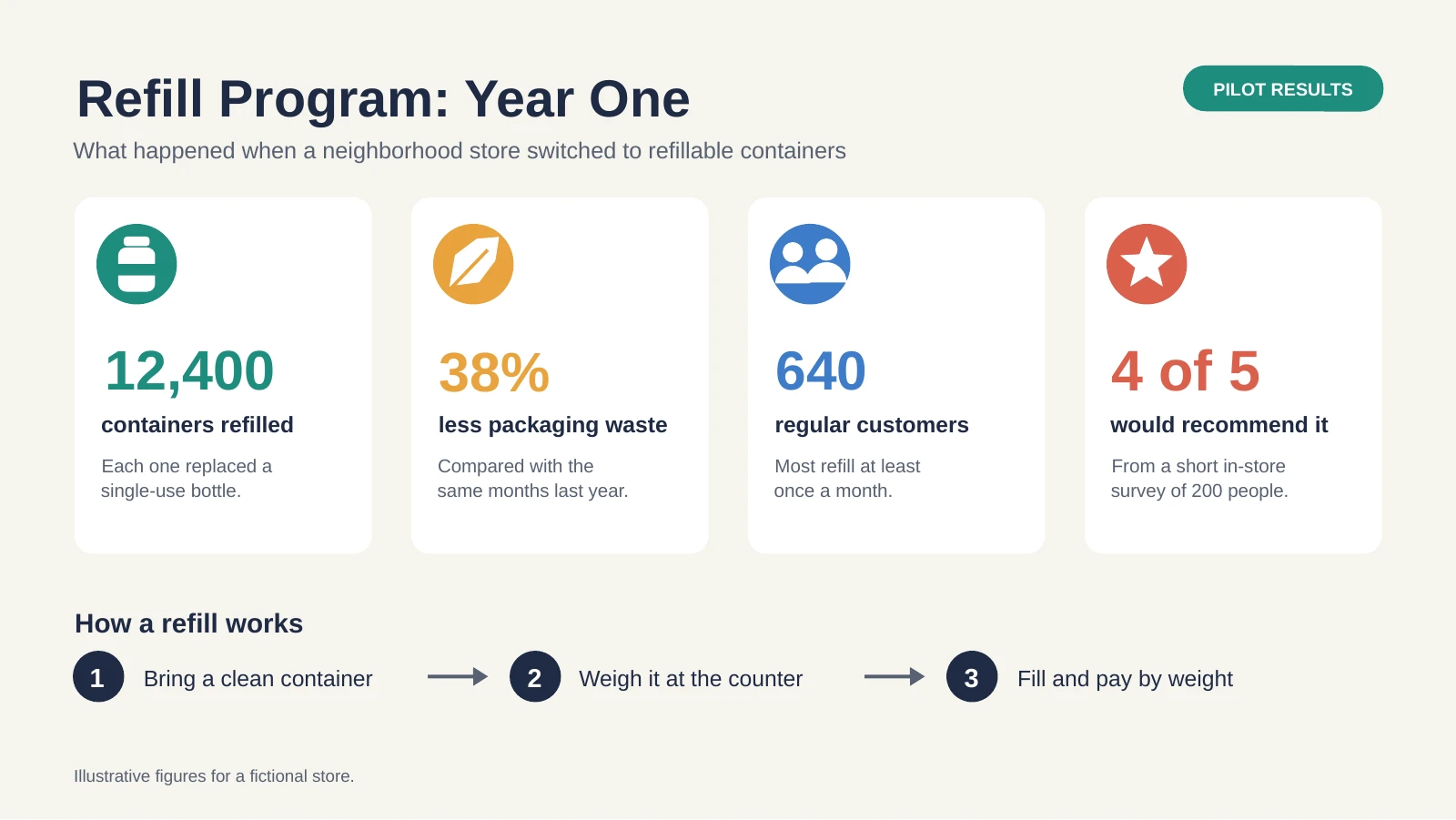
These are real results from Unraster's PowerPoint conversion, not mock-ups. Each pair shows the source image on the left and a picture of the delivered .pptx on the right (rendered from the file, so fonts in your PowerPoint may sit slightly differently). The sources are fictional slides, one generated with an AI image tool, so no real brand data appears. Read the differences under each pair: they are what you should look for in your own file.
A launch-plan slide from an AI image generator
An infographic with four icons and numbers
A three-card slide image
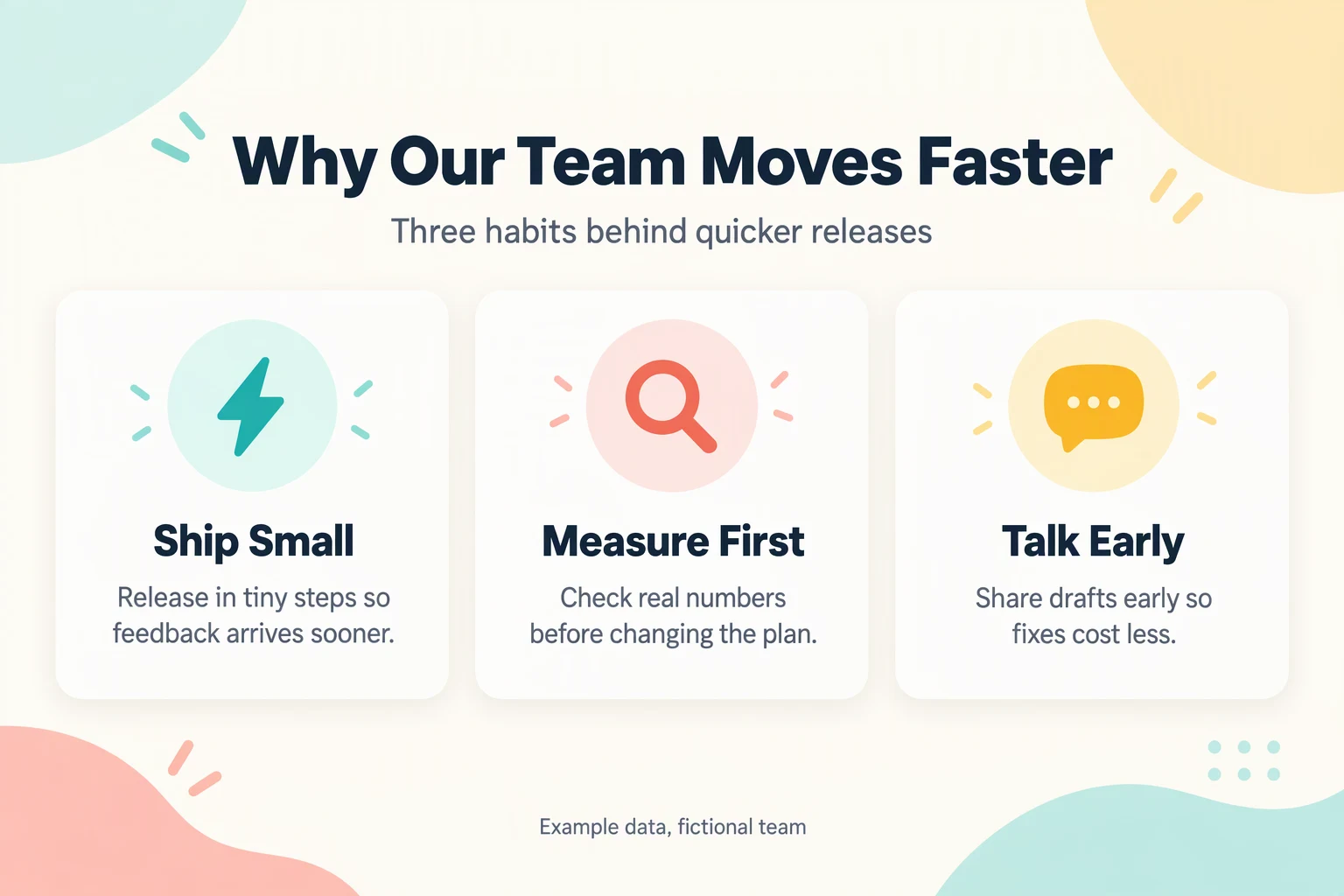
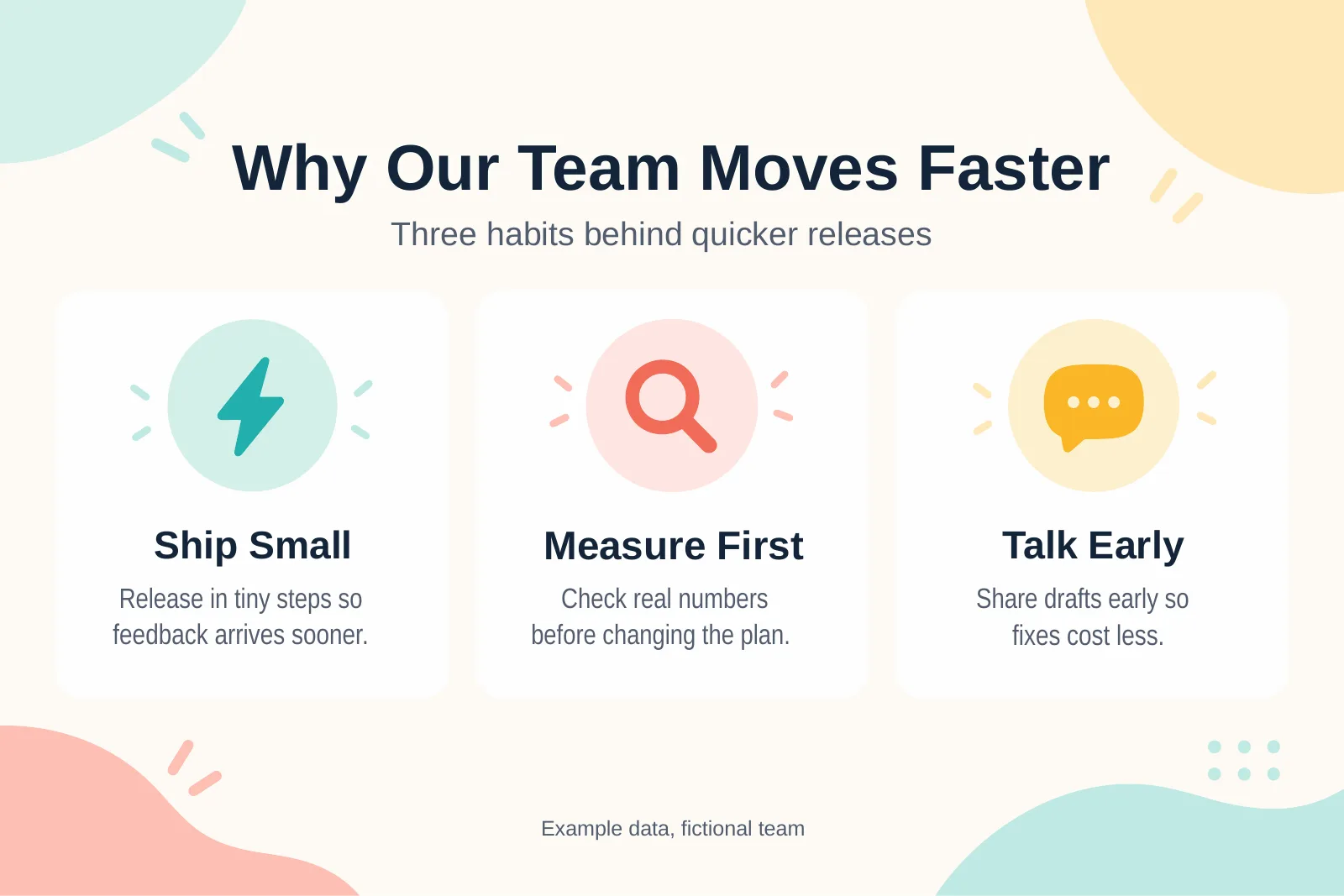
Three patterns repeat across all of them. The words become real text, the fonts are swapped for a similar one, and soft shading and fine borders are the first things to disappear. These are single runs on three images, not a promise for your file, and the slides keep the image's 3:2 shape rather than 16:9. See the full pages for ChatGPT images, infographics and Gemini-style images.
Which route should you use?
| Your situation | Best route |
|---|---|
| You want a new deck and your plan includes Slides | Ask for slides, then export to PowerPoint |
| The deck is already open in PowerPoint | Use the ChatGPT for PowerPoint add-in |
| You have a PNG of a slide or infographic | Convert the image, then proofread |
| You only need the words | Ask for an outline and build the slides yourself |
What not to expect
Check content and formatting after any export, and treat the first one as a draft. The image route has its own ceiling: a rebuilt slide is a close drawing, not a recovered file, with no original fonts, linked chart data or build animations. If you need those, start from a deck. A phone photo of paper or a textured scan will also come back rough.
If your slide came from a PDF or from NotebookLM instead, see can you export NotebookLM slides to PowerPoint, and if the picture sits in an existing deck, how to make an image editable in PowerPoint covers the in-PowerPoint options. For charts and infographics specifically, read how to edit an infographic in PowerPoint.
Bottom line: ChatGPT can make editable PowerPoint slides when you use the routes OpenAI documents: ChatGPT Slides with a .pptx export, or the PowerPoint add-in. If the result is a PNG or JPG, it is a picture, not a slide, and the fix is to rebuild it as objects. Check the file type first, then decide.