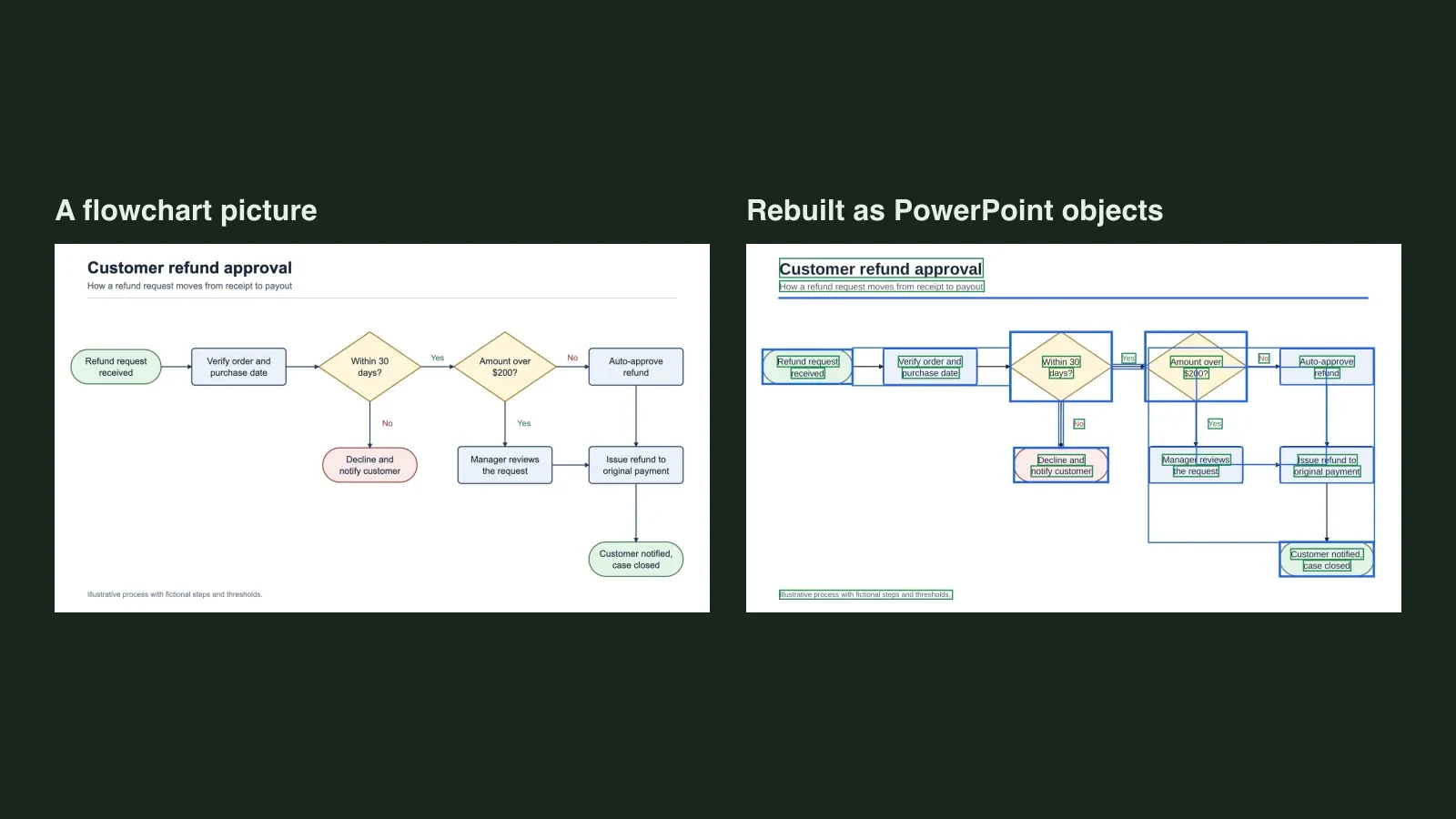
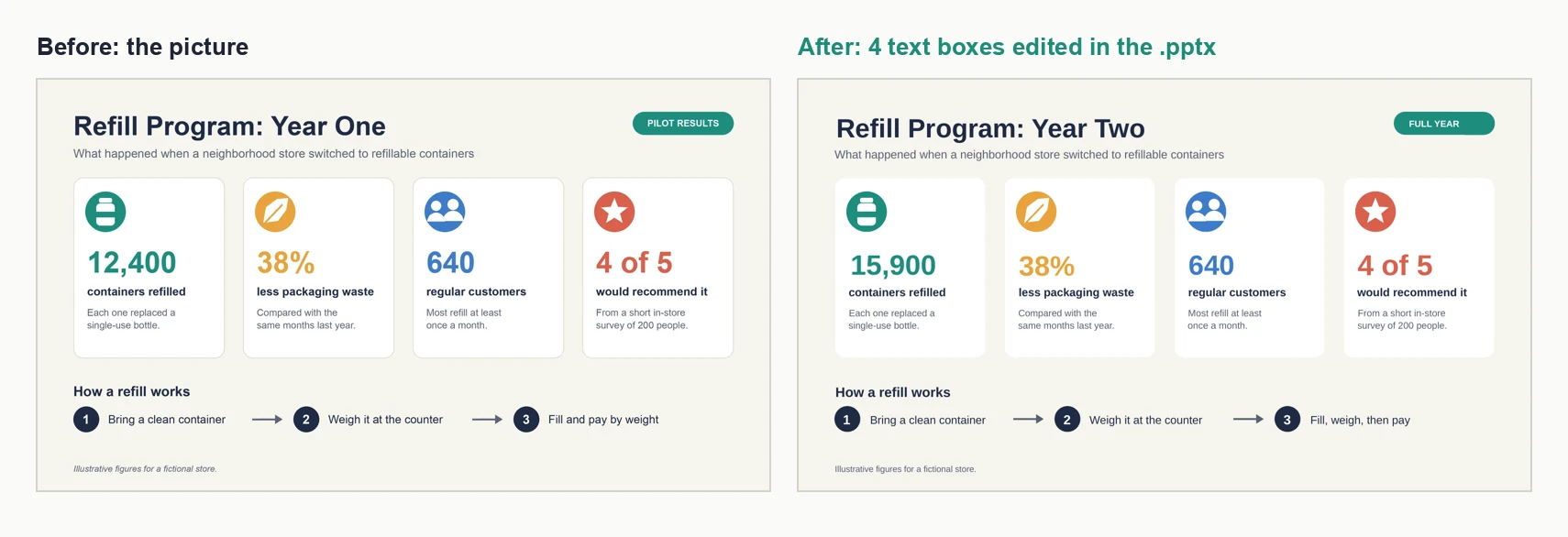
Quick answer: Yes. Google's help page says that on a generated Slide Deck you open the three dots menu and choose Download PDF Document (.pdf) or Download PowerPoint (.pptx). What the help page does not say is whether the text in that file is editable. Click a word to find out: if a slide is one flat picture, upload the PDF (or the slide images) to Unraster and each slide is rebuilt with text boxes and shapes, at 2 credits per page.
Unraster is not affiliated with Google. The app is now called Gemini Notebook in Google's help; this post says NotebookLM because that is the name most people search for.
| Your situation | What to do |
|---|---|
| You want a file you can open in PowerPoint | Download from the three dots menu |
| The download button is missing or blocked | Check the Play Books limit |
| The slides open but the text won't select | Rebuild them as editable slides |
| You only want to change a few words | Try the Revise view, with a catch |
| You have an infographic, not a slide deck | Upload the one image |
How to export a slide deck
Google's help page (read 2026-11-07), Generate Slide Decks in Gemini Notebook, gives the steps in one sentence: select the three dots menu next to the generated Slide Deck and choose "Download PDF Document (.pdf)" or "Download PowerPoint (.pptx)". The same page also says you can rename, share or delete the deck from that menu.
- Open your notebook and find your generated Slide Deck in the notebook.
- Select the three dots menu next to it.
- Choose the PowerPoint (.pptx) download if you want to open it in PowerPoint, or the PDF if you want to share or print it.
- Open the downloaded file and run the click test below.
Google renames products and menus from time to time, so check the live help page (we read it on 2026-11-07) if a menu item is not where this post says.
When the download is blocked
The same help page says: depending on the publisher's content restrictions, you may not be able to download artifacts generated using a notebook that has a Play Books ebook as a source. If your download is missing, check whether the notebook uses such a source. We cannot tell you which ebooks are restricted; that is up to the publisher.
The click test: are your slides editable?
Open the downloaded file in PowerPoint (or any slide app) and click once on a word in a slide.
- A text box appears around the words: the text is editable. You do not need anything else.
- The whole slide highlights as one object, or nothing can be selected: the slide is a picture. The words are pixels.
Google's help page does not state which of these you will get from the PowerPoint download, and we did not have a Slide Deck on hand to test, so do not take either answer on trust. Run the test on your own file. A PDF that opens with no selectable text is the same situation: here is how to tell.
When the slides are flat pictures
If the click test says "one picture", you have two routes into Unraster:
- A PDF: sign in, drop the PDF on the Unraster home page. Up to 30 pages become one PowerPoint with a slide per page. Each page costs 2 credits, only delivered pages are charged, and there is no free preview for a PDF.
- Slide images: save a slide as PNG, JPG or WebP and upload it. A single image keeps the free Basic SVG preview and one free PowerPoint preview per Google-signed-in account, then a one-time $2.99 or 2 credits for the first download.
Unraster takes PDFs and images, not .pptx files. If all you have is a downloaded .pptx whose slides are pictures, export it to PDF from PowerPoint, or save slides as PNG, JPG or WebP, then upload that. Your browser renders PDF pages to images and sends those for conversion; the PDF file itself is not uploaded. Every slide takes the size of the first page.
Here is what a rebuilt PDF page looks like. This is not a NotebookLM page: it is a test page we drew, saved into an image-only PDF, which is the same situation as a deck that arrives as pictures. We converted it as one page.
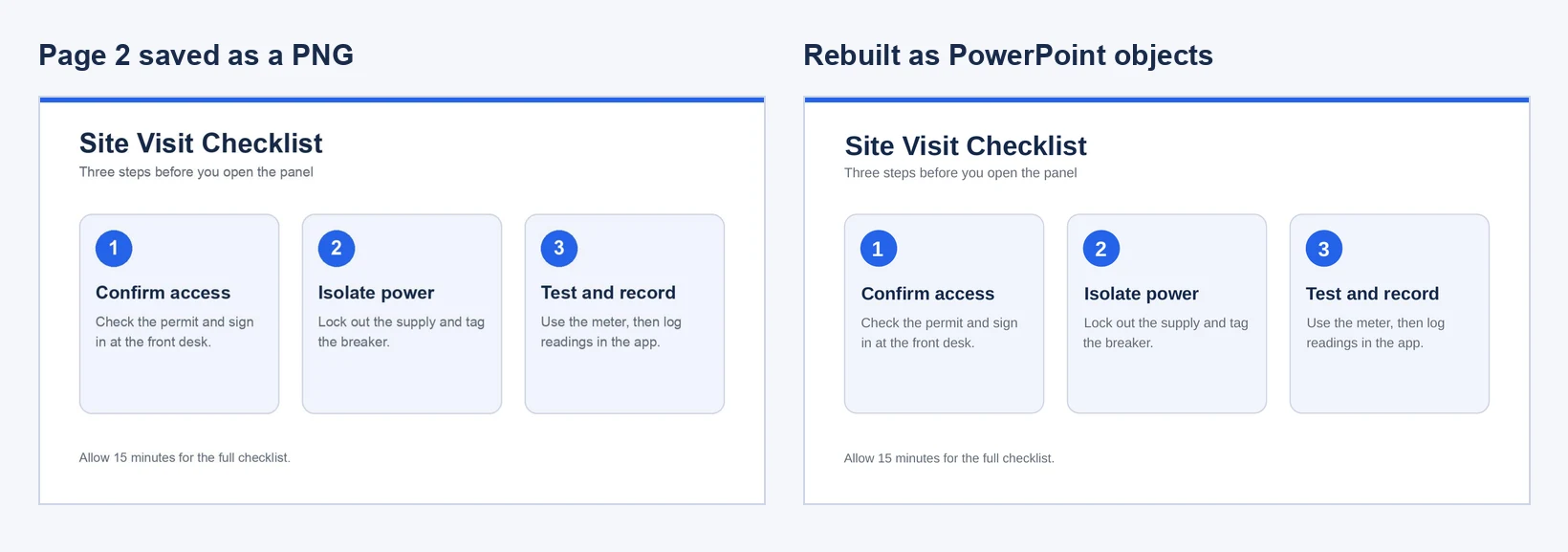
The rebuilt file had 15 text boxes and 11 shapes and no embedded picture, so every word on the page is an object you can click. Check each text box against the original: in this test the font was a similar one, and two-line captions came back as one box per line.
What a real NotebookLM infographic looked like after conversion
A Slide Deck needs an account and a notebook to generate, and we do not have a real deck to show. We do have a real infographic from the same app: we generated it from NASA's public Mars facts page, downloaded the PNG, and converted that single image.
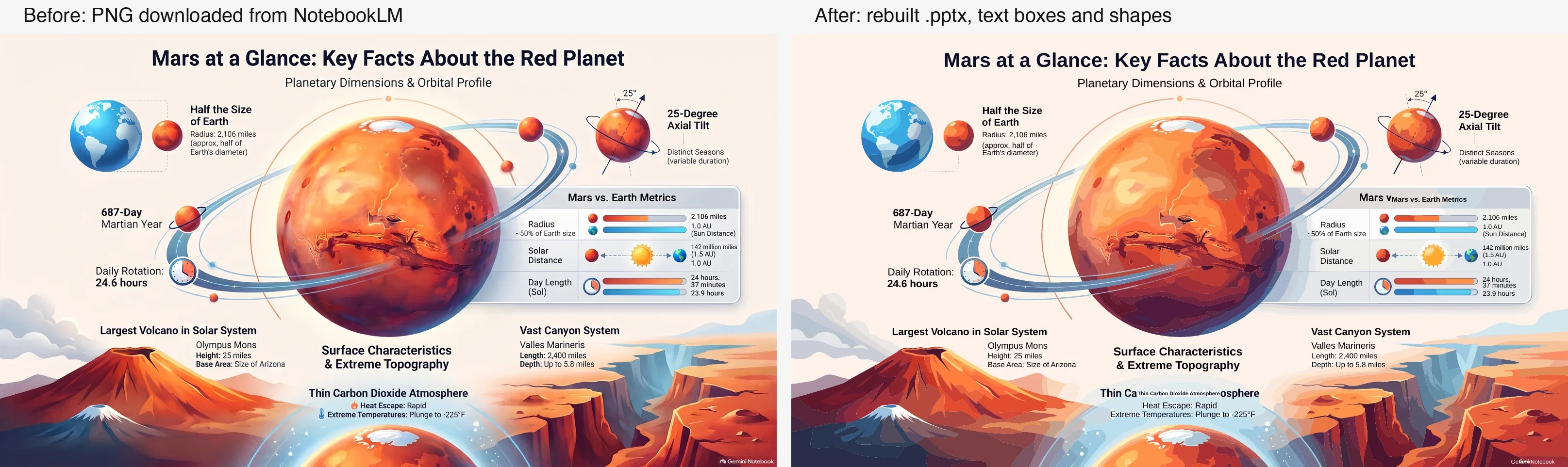
The result had 46 text boxes and 830 other shapes, with no embedded picture:
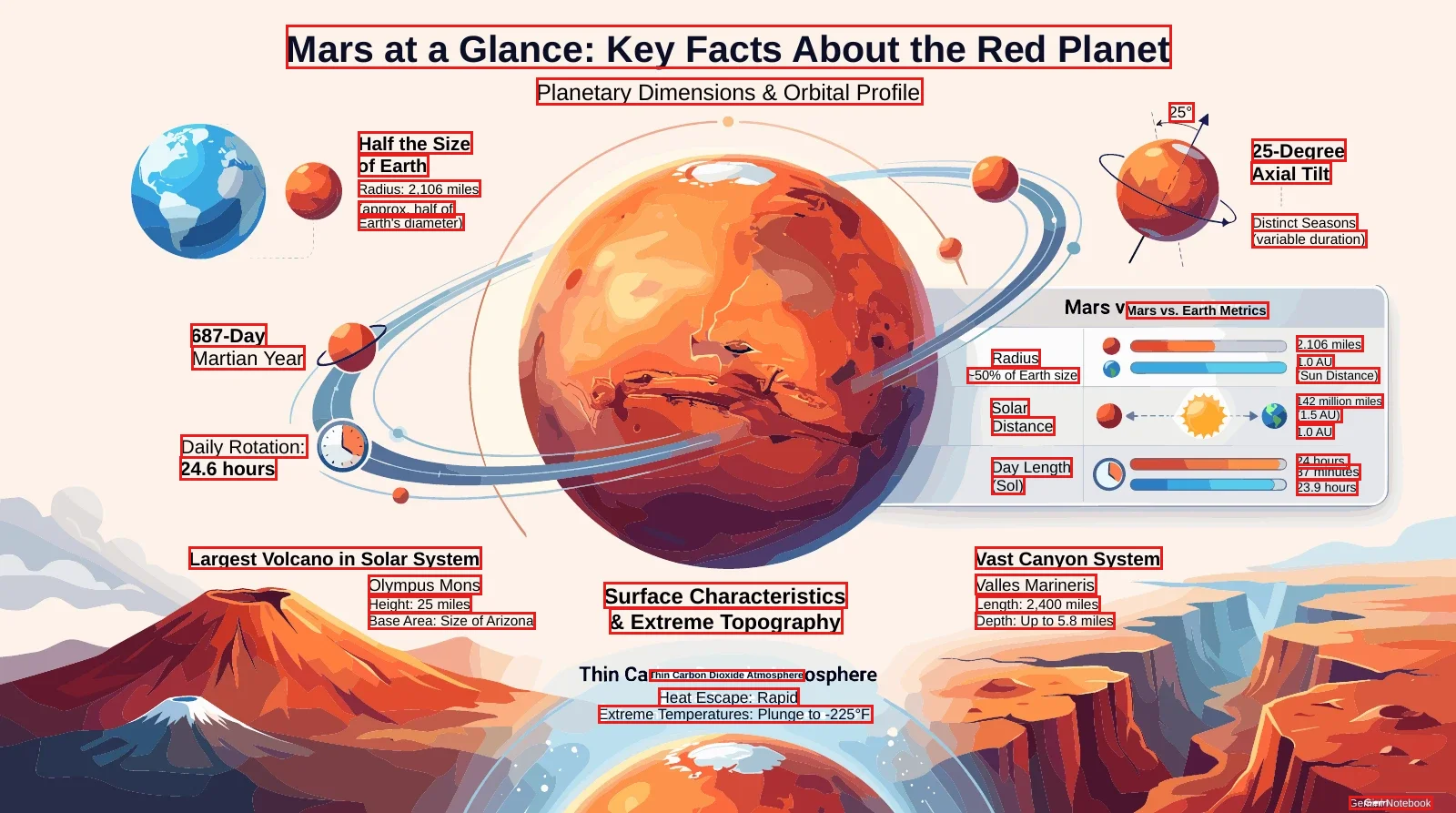
What to check in a result like this:
- Doubled text. Two headings (the table title and "Thin Carbon Dioxide Atmosphere") show an overlapping text fragment. Delete the extra box.
- The watermark. The app's small watermark text came back garbled. We left the original watermark alone.
- Fonts and gradients. The font is a similar sans-serif, and soft gradients are flattened.
- The original's own mistakes. The source infographic labels a table row "1.0 AU" under Radius. We kept it as it was; nothing here confirms the Mars numbers, so check facts at NASA.
This is a single test on one image, not a promise for every deck.
Editing inside NotebookLM, and the catch
Google's help describes a Revise view: you type instructions for a slide, such as editing text, changing layouts or updating visuals. It also says that at this time sources are not taken into account during revisions, and that every time you generate a revision, Gemini Notebook creates an entirely new slide deck. So for a one-word fix, revising may change other things, because the whole deck is regenerated. Retyping in PowerPoint on an editable slide is more predictable.
What Unraster can't do
- It takes at most 30 pages (or 30 images) per run, and only on the website. The API takes one image per request.
- It does not rebuild charts as data-backed charts: you get shapes and text.
- It handles photos of paper and textured backgrounds badly.
- It puts every slide on the size of the first page.
- It does not promise a pixel-perfect copy. Check small lettering against the original.
- A PDF run needs an account with credits and has no free preview.
Bottom line: Download the deck from the three dots menu as a PDF or PowerPoint, then click a word to see if it edits. If the slides are pictures, upload the PDF to Unraster and edit real text boxes, or start from the NotebookLM to PPTX page.