One PowerPoint Recommended
Just this one slide
$2.99one-time
- See a watermarked PowerPoint preview before you pay (free with Google sign-in)
- Pay only if you keep it
- One image at a time
- No monthly plan needed for one slide
draw.io has no .pptx export. Upload an exported PNG, JPG or PDF and get PowerPoint text boxes and shapes you can edit.
or drop images or a PDF ·
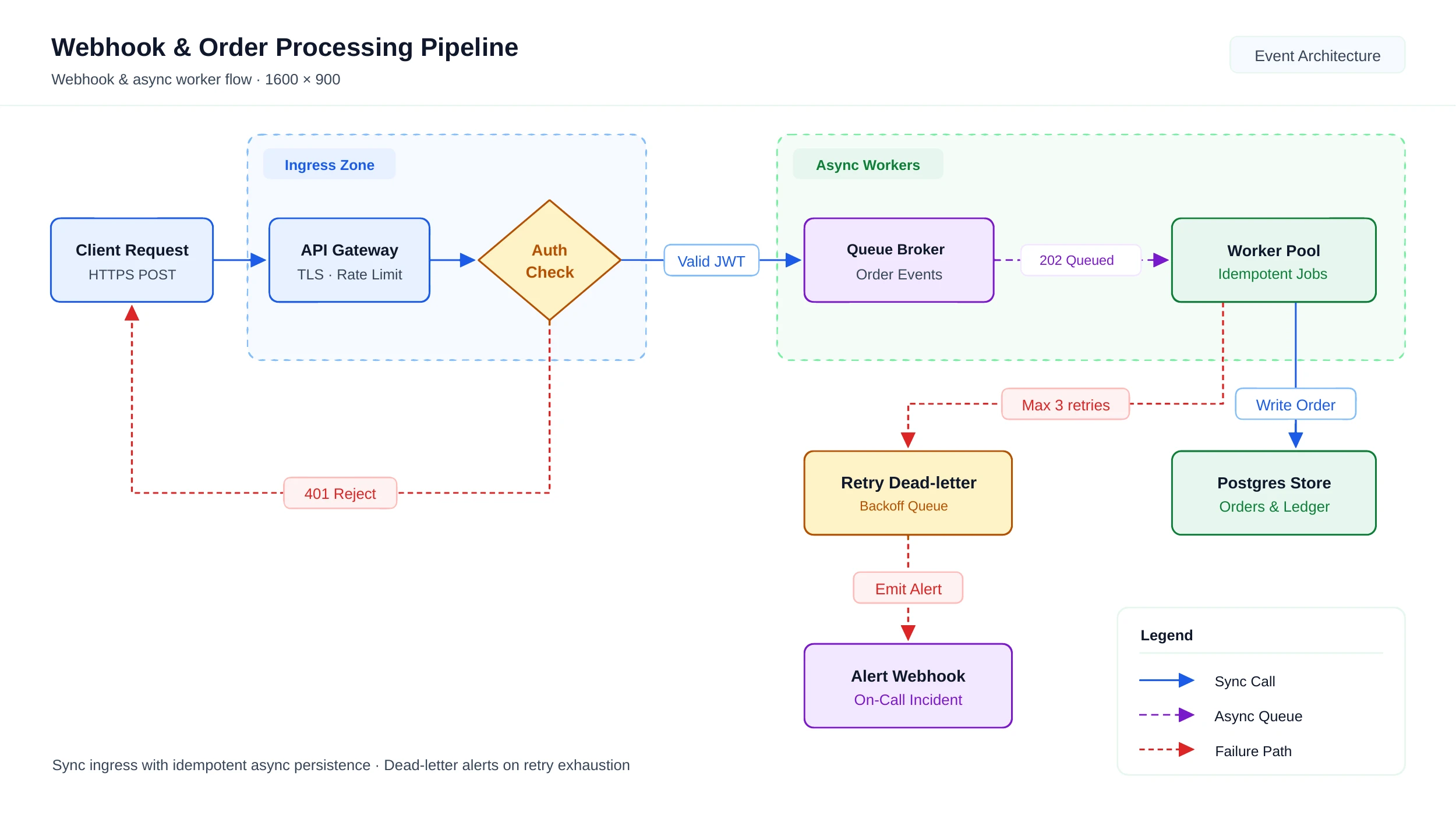
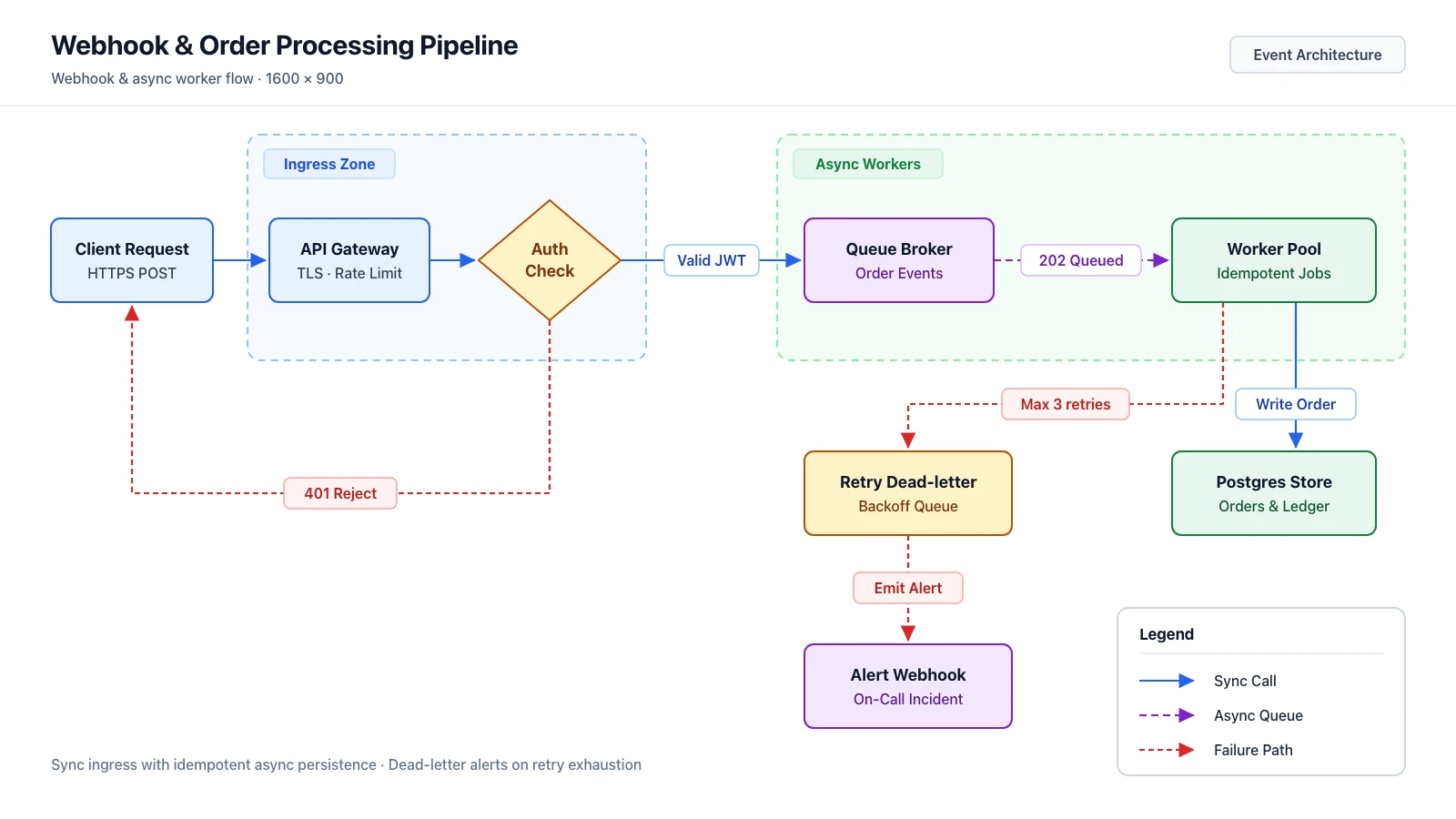 Original imageEditable PowerPointGreen outlines = native objects
Opens in PowerPoint, Keynote & Google Slides · No charge if it fails
Uploads are deleted after 30 days and never used to train our models
A 1600 × 900 draw.io-style “Webhook & Order Processing Pipeline” diagram we drew on a plain white background (left), compared with the converted PowerPoint slide (right). Outlines mark the 32 native text boxes and the vector shapes, with 0 embedded bitmaps.
Preview rendered from the downloadable PPTX. Outlines show native PowerPoint objects.
One image: a watermarked PowerPoint preview (free with Google sign-in), then $2.99 or 2 credits to unlock. A PDF (up to 30 pages): 2 credits per delivered page, no free preview. Several images in one deck: 2 credits a page with a subscription (up to 30 images), 3 without (up to 10), no free preview.
draw.io (diagrams.net) has no native .pptx export. For one diagram, use File > Export as > PNG... at a higher Zoom (200% or higher) on a plain white background so text stays sharp. For multi-page diagrams, choose File > Export as > PDF... with All Pages (and Crop if needed). If your existing PNG or PDF was saved with “Include a copy of my diagram”, dragging it back into draw.io lets you edit the live source directly; otherwise continue here.
Drop, choose or paste a PNG, JPG or WebP up to 20 MB—one image becomes one slide. You can also upload a multi-page PDF of up to 30 pages (2 credits per delivered page, no free preview), or combine several diagram images into one deck (3 credits per page up to 10 images without a subscription, or 2 credits per page up to 30 images with one).
For a single image, click “Make editable PowerPoint”. Signed-in Google accounts get a free watermarked preview in the in-page editor (up to 3 a day), so you can inspect text accuracy, retype pill labels and move objects before paying; download stays locked until you unlock. Check small labels and multi-line diamond text against your export before unlocking.
When the preview looks right, unlock a single-image slide for $2.99 or 2 credits (edits made in the preview carry over). Multi-page PDFs and image decks are billed per delivered page. Downloads are free once unlocked, you are charged only for delivered files, and a failed conversion or page is not charged.
Open the .pptx in PowerPoint (or Google Slides or Keynote) to retype node labels, recolour boxes and move dashed zones. Arrows come back as static vector shapes rather than live connectors, so move them alongside their boxes or redraw shifted lines with PowerPoint connectors. Note: importing a draw.io SVG (File > Export as > SVG...) into desktop PowerPoint and running Convert to Shape often drops or outlines text because draw.io’s default Word Wrap / Formatted Text uses SVG <foreignObject>.
Free watermarked preview with Google sign-in · failed conversions are never charged.
Just this one slide
$2.99one-time
Pay once, use any time · no subscription
$9.90one-time
Regular decks, every month
$19.90/ month
Billed monthly
One image: free preview, then $2.99 or 2 credits to unlock. A PDF or several images are priced per page. Full credit rules on the homepage →
Pay $2.99 once, no subscription. See the watermarked preview free with Google sign-in before you pay.
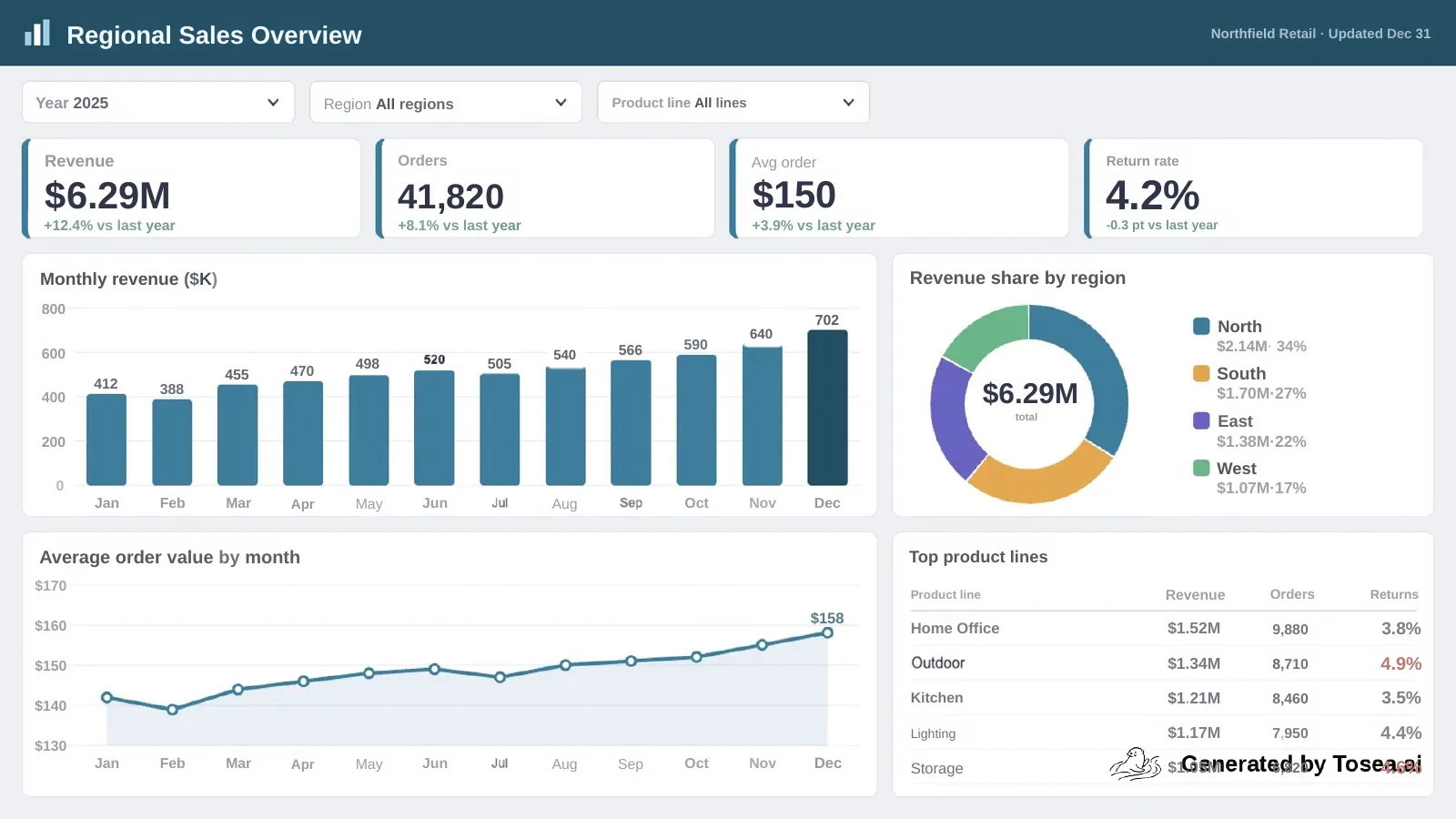
Unraster returned the charts and icons as 173, 210, 787 shapes you can recolour on the three test images; Codia 11, 16, 0, Tosea 0, 0, 0. The rest came back as pictures, and none of the three returns a native chart.
Sales dashboard: KPI cards, bar, donut and line charts, a table, filters
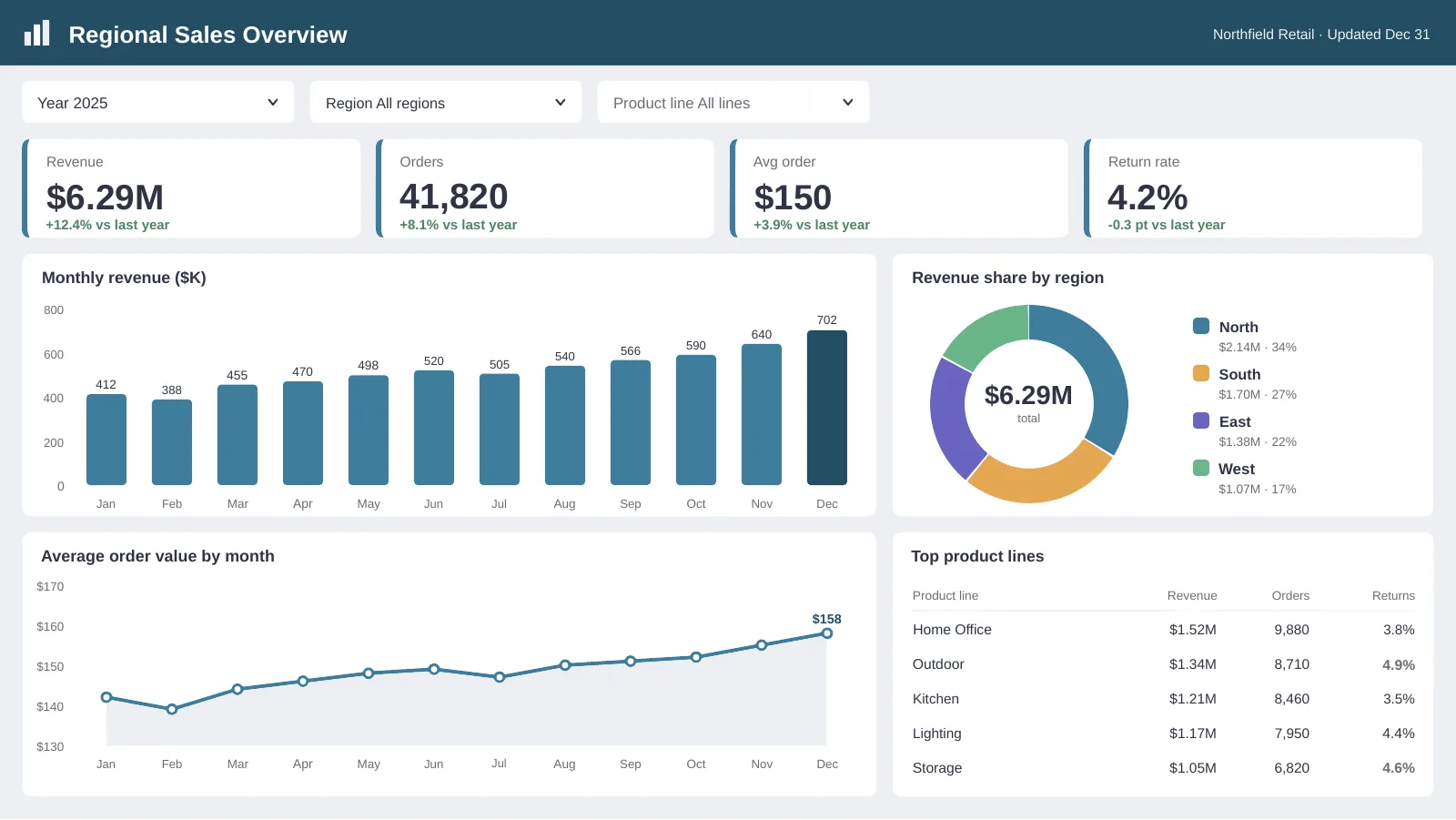
Unraster
Text boxes 102 · vector shapes 173 · pictures 0 · native charts 0
Free watermarked preview · $2.99 to keep it
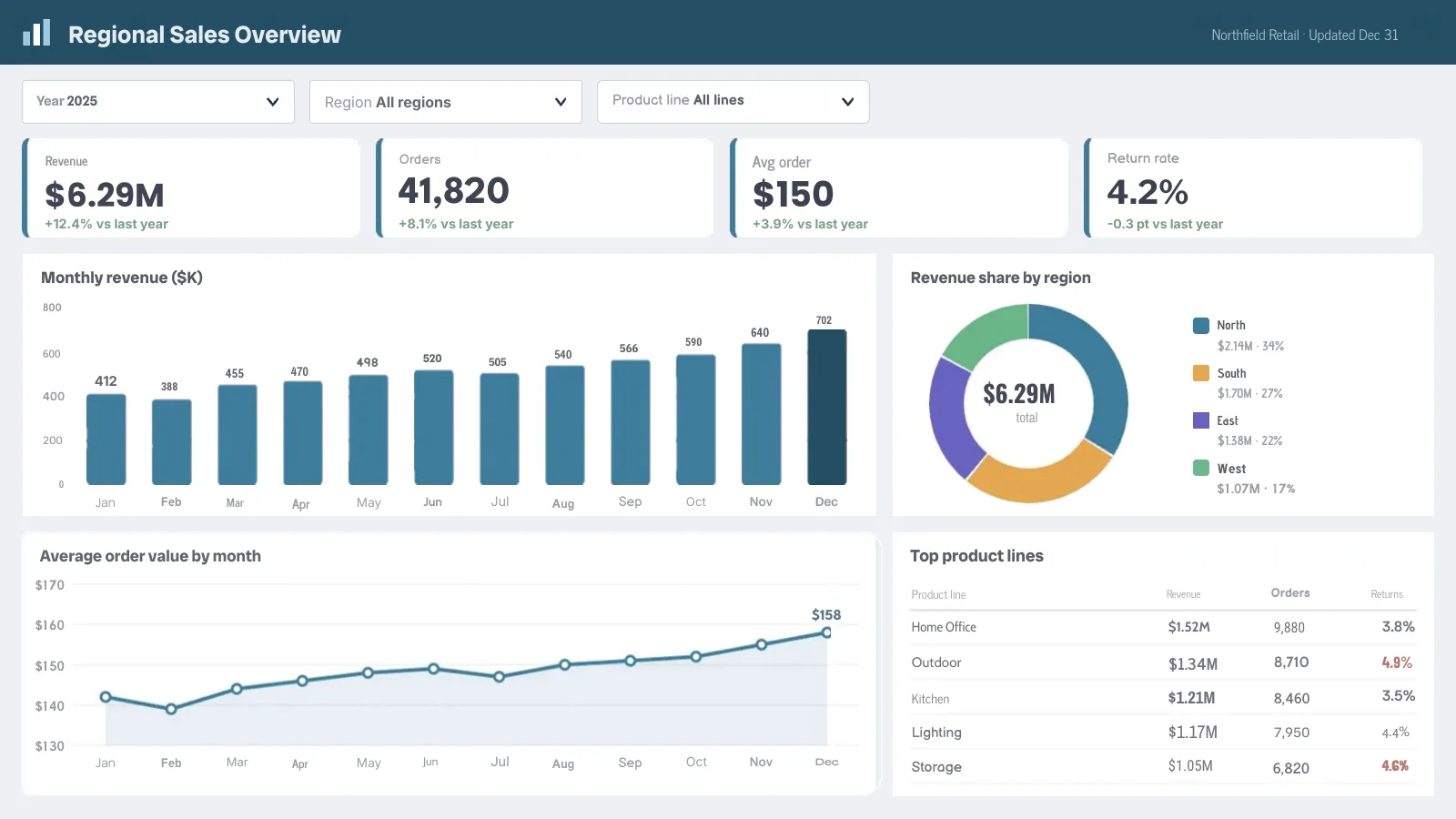
Codia NoteSlide
Text boxes 98 · vector shapes 11 · pictures 20 · native charts 0
Tosea
Text boxes 97 · vector shapes 0 · pictures 17 · native charts 0
Unraster redraws the charts as shapes you can recolour and drag; Codia and Tosea each add a full-slide background picture and return the chart parts as pictures. No tool returns a native PowerPoint chart.
Prices in USD. Optional AI Clean-up is 1 credit. Cancel or change plans anytime in Credits & billing.
Secure checkout by Stripe
Anything else? Email us.
No. draw.io (diagrams.net) exports PNG, JPEG, WebP, SVG, PDF, HTML and XML, but it has no native .pptx export (draw.io’s official PowerPoint add-in embeds diagram images rather than native shapes). To get editable PowerPoint objects from a flat export, save a high-resolution PNG (File > Export as > PNG...) or PDF (File > Export as > PDF...) and upload it here.
Export from draw.io as a PNG (200% Zoom or higher on a plain white background works best) or a PDF, then upload it on this page. For a single image, sign in with Google to inspect and edit a free watermarked preview in the in-page editor (up to 3 a day), then unlock the .pptx for $2.99 or 2 credits to download (preview edits carry over). Unraster rebuilds readable labels as native PowerPoint text boxes and boxes, diamonds, arrows and zones as vector shapes.
When you export File > Export as > SVG... from draw.io with Word Wrap or Formatted Text enabled, draw.io writes labels using SVG <foreignObject> tags. PowerPoint does not render <foreignObject> reliably, and Convert to Shape either drops the text or turns letters into uneditable curves. Converting a sharp PNG or PDF into native PowerPoint text boxes avoids that failure.
Yes. In draw.io, choose File > Export as > PDF... and select All Pages (plus Crop if you want tight margins). Upload that PDF here: up to 30 pages become one .pptx deck with one slide per page at 2 credits per delivered page, with no free preview. You can also combine several diagram PNGs into one deck: 2 credits per page with a subscription (up to 30 images) or 3 credits per page without one (up to 10 images). Failed pages are not charged.
No. Arrows, arrowheads and dashed zone borders come back as static vector shapes and groups rather than live PowerPoint connectors glued to nodes. Moving a node leaves its arrow behind, so move them together or replace shifted arrows with native PowerPoint connectors. If your PNG or PDF was saved with “Include a copy of my diagram”, drag it back into draw.io for live connector editing.
Check pill borders, multi-line diamond labels and dashed-zone lines against your original. In our Webhook & Order Processing Pipeline test (32 text boxes, 408 vector shapes across 38 groups, 0 bitmaps), the subtle pill outlines on “Event Architecture”, “202 Queued”, “Ingress Zone” and “Async Workers” dropped, “Auth Check” split into two text boxes, and the Legend border became slightly lighter. You can unify substituted fonts with Replace Fonts in PowerPoint.
No. Unraster is an independent tool and is not affiliated with draw.io (JGraph) or Microsoft. It processes only the image or PDF you upload and never connects to your diagrams.net files, Google Drive or Confluence.
Or drop a PNG, JPG or PDF anywhere on this page. Unraster is not affiliated with draw.io (JGraph) or Microsoft.