Quick answer: to vectorize a logo, first ask whether you can get the original vector file instead. If not, trace a large, clean PNG, then check the result before you use it: path count, colour count, a stray background box, lost small text, and edges at high zoom. Flat logos trace well. Gradients, thin lettering and tiny text do not, and traced text is outlines, not a font.
Most guides for this topic stop at the clicking: open the tracer, press a button, save. The part that decides whether the file is usable comes after. Did the trace invent colours? Is there a hidden white rectangle? Did the small print survive? And is this the kind of logo that should be traced at all?
This guide covers the decision, the preparation, the steps and a five-point check. The examples are three logos we drew ourselves and traced with Unraster's free Basic mode. We show a logo that works, one with small print that breaks, and one with gradients that cannot be traced faithfully. We also say plainly what a trace cannot give you.
Which route fits your logo?
Find your situation in the table.
| Your situation | What to do |
|---|---|
| You, a designer or an old project folder may still have the original SVG, AI, EPS or PDF | Do not trace. Ask for the original |
| A simple flat logo in a few solid colours | Trace it free with Basic |
| Thin lettering, many colours, or Basic came out messy | Try Advanced and run the check |
| A logo with gradients or glows | Expect flat colour blocks: redraw it or accept steps |
| You need the logo text to stay editable as a font | Tracing cannot do this |
| You already traced it and want to know if it is good | Run the 5-point check |
First, decide whether you need to trace
A trace is a redraw. Software looks at the pixels and invents new shapes that follow them. The original vector file, if it exists, was drawn on purpose: exact curves, the intended colours, often live text. So ask before you trace.
- The designer or agency. Logo work is usually delivered with vector files. A short email asking for the "vector version, SVG or AI" often settles it.
- Old project folders and brand kits. Look for files ending in .svg, .ai, .eps or .pdf next to the PNG.
- Whoever printed it. A printer or sign maker that used your logo may hold a vector copy.
If none of those exist, or you need the logo today, trace it. The rest of this guide assumes you are in that position. For a wider comparison of ways to convert PNG to SVG, including how to spot a fake SVG that is just your PNG inside a wrapper, see How to Convert PNG to SVG. This article is about logos and about what to check afterwards.
Prepare the source before you trace
A tracer can only follow the pixels it is given. Preparation usually helps more than any setting.
- Use the largest version you have. Our test logo was 1200 px wide. At 300 px wide the same logo traced to 22 paths and 20 fill values in a 4,751 byte file, with less detail kept (our single measurement). Hunt for the biggest file: the website header image, a press kit, a social profile at full size.
- Prefer PNG over JPG. JPG compression leaves faint speckle around edges, and a tracer reads that speckle as extra colours and tiny shapes. If a JPG is all you have, use the largest one.
- Keep the background plain. A flat white or a transparent background traces best. Shadows, textures and photos behind the logo become shapes.
- Make sure contrast is strong. Pale text on a pale background will break up. If you can, use the version of the logo with the strongest contrast.
- Do not upscale a tiny image first. Enlarging a small PNG adds blur, not detail. Tracing the blur tends to give wobbly edges.
- Crop empty margin. Extra space does not help, and it makes the background shape larger.
How to vectorize a logo, step by step
These steps use Unraster, where the original and the result sit side by side so you can compare before you download. Basic SVG is free and unlimited and runs in your browser, so the logo is not uploaded.
- Open the converter and drop in your PNG. PNG, JPG and WebP are accepted. Use the largest, cleanest file from the preparation step.
- Choose Basic SVG first. It is free, so it costs nothing to see whether your logo is a simple one.
- Compare the preview with the original. Look at the whole logo, then zoom in on letters, corners and any small text.
- Download the SVG and open it. Check the result in a vector editor or a browser, not only in the preview. The 5-point check below tells you what to look for.
- If it is not clean, try Advanced SVG. It costs 1 credit, shown on the button, and is charged only for a delivered file. Run the same check on the new file and keep whichever is better.
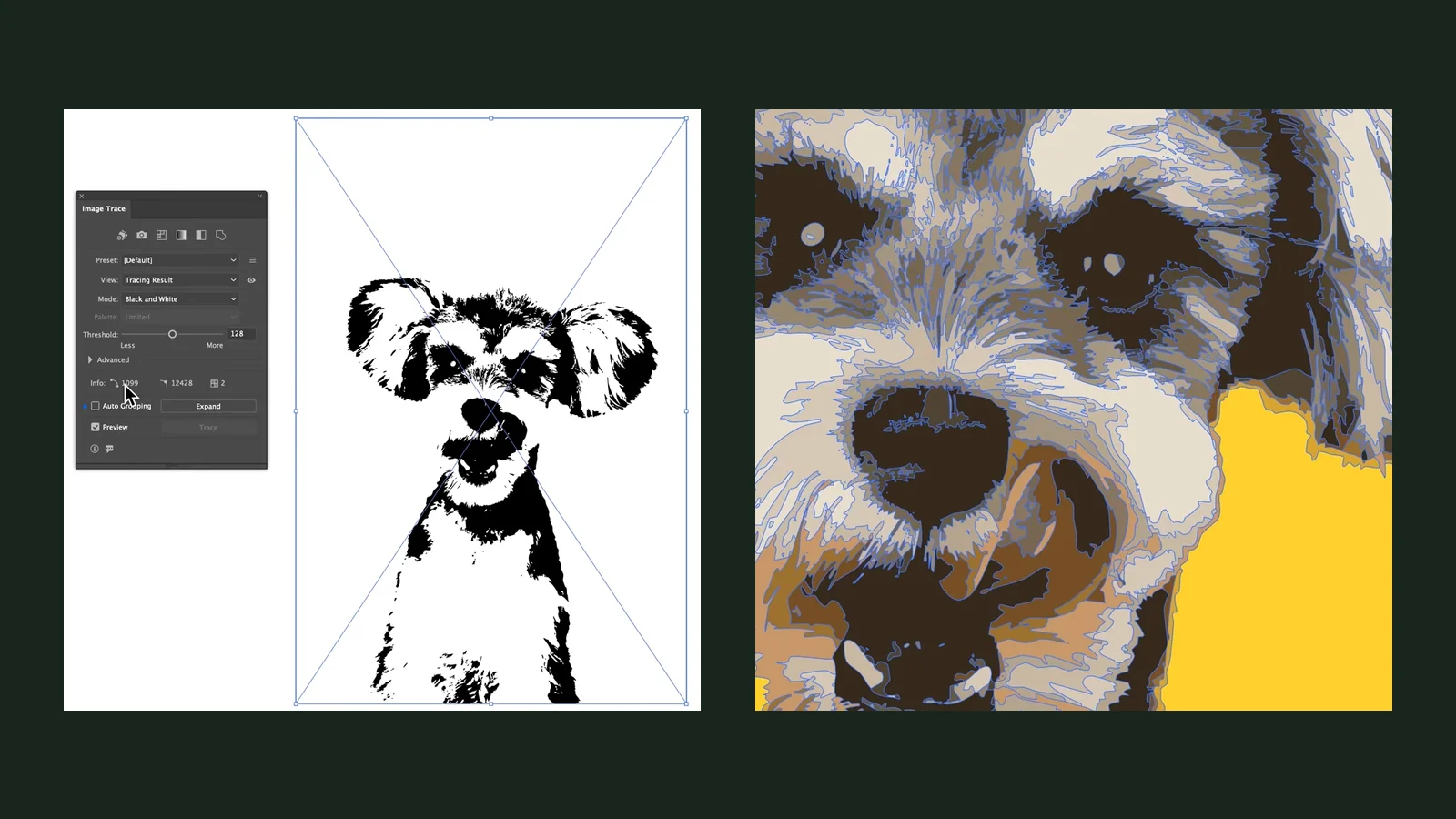
- Fix what the trace got wrong. Delete the background box, retype lost small text, and remove stray shapes in a vector editor. How to Trace an Image in Illustrator shows one editor's route, including Expand and the path counts.
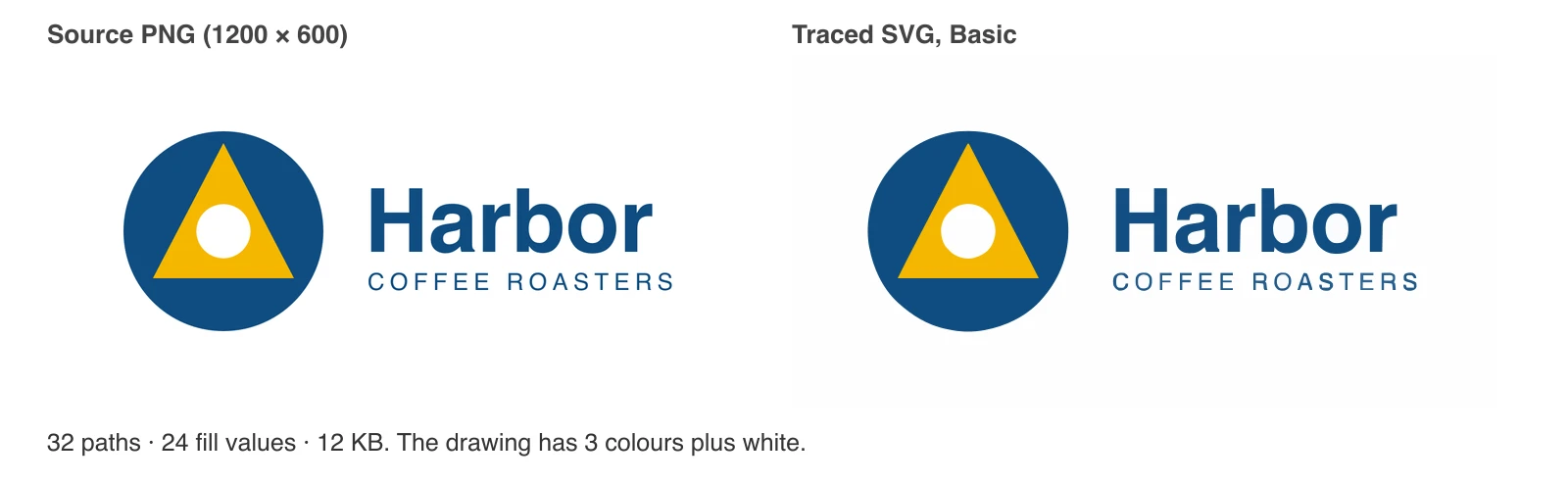
Here is the first sample, a coffee roaster logo we drew for this test. The source PNG is 1200 by 600 pixels and has three colours plus white.
If you are not on the page yet, open the converter again here and keep your first result next to the next section.
The 5-point check after you trace
A logo trace can look right and still be a bad file. Run these five checks on every trace, whichever tool made it.
1. Path count
Open the SVG and count the shapes. In a vector editor, select all and read the object count; in a text editor, count the <path elements. A simple logo should have roughly as many shapes as it has visible parts: a circle, a triangle, a hole, one per letter, and a background. Harbor has 18 letters, three mark shapes, a background and several letter counters, so 32 paths is plausible, and the problem there was the colours, not the count. Hundreds of paths from a plain icon is a sign to look further.
Our Linden & Co. sample, with thin lines and small serif text, came back with 162 paths. That is the number to be suspicious of, though read it together with the picture: many of them are fragments of small letters.
2. Colour count
List the distinct fill values. Open the file in a text editor and search for fill=, or use your editor's swatches panel. Harbor was drawn with three colours plus white, but the trace contained 24 distinct fill values. Each of those extra colours is a blend the tracer read from the anti-aliased edge of a shape. Visually they hide inside the edges, but they matter when you:
- send the file to a printer that wants named spot colours,
- cut vinyl in one colour per layer, or
- recolour the logo and find some pieces refuse to change.
The fix is to pick the three real colours and merge every near-match into them: select shapes with similar fills and set one fill value.
3. Background: is there a white box?
The tracer drew the background as a shape too. Our Harbor trace included one path as big as the whole canvas, filled with a near-white (#FEFEFE). It is invisible on a white page, and it turns into a visible rectangle the moment you place the logo on a coloured background. Delete it if you need transparency.
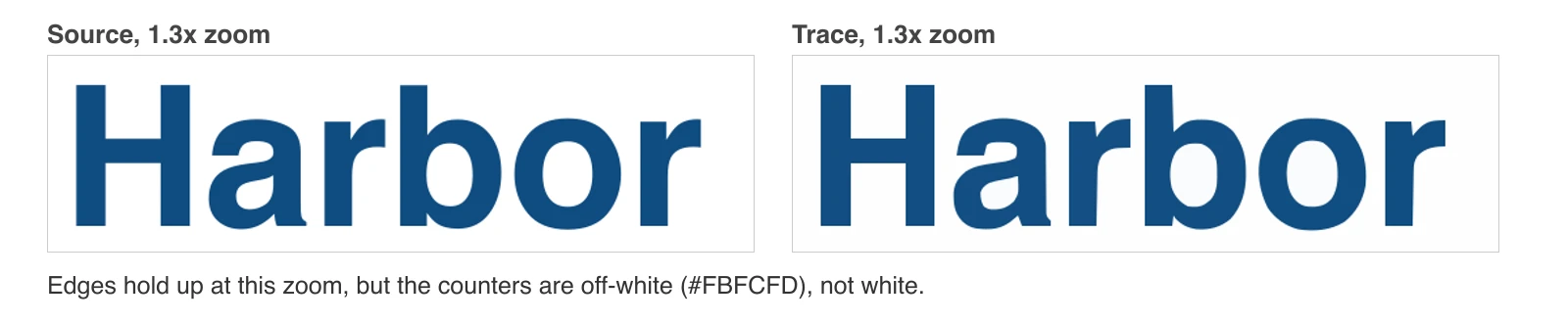
Look at the counters, the holes inside letters such as a, b and o, for the same problem. In the Harbor trace the holes inside the letters were filled with a near-white (#FBFCFD) rather than being true holes or pure white. On a coloured background they will show as pale patches.
4. Is small text still there?
Compare every small element with the original: taglines, addresses, trademark signs, thin serifs and the dots on i and j. Lettering with few pixels per stroke is the first thing a tracer loses. Section Small print is where traces fail shows a real example.
5. Edges at high zoom
Zoom to 400% or more, because that is the size where logos get used on signs, banners and cutting machines. Look at curves, corners and the joins between shapes. A trace is smooth, but smooth is not the same as right: edges can wobble, corners can round off and thin parts can change thickness.
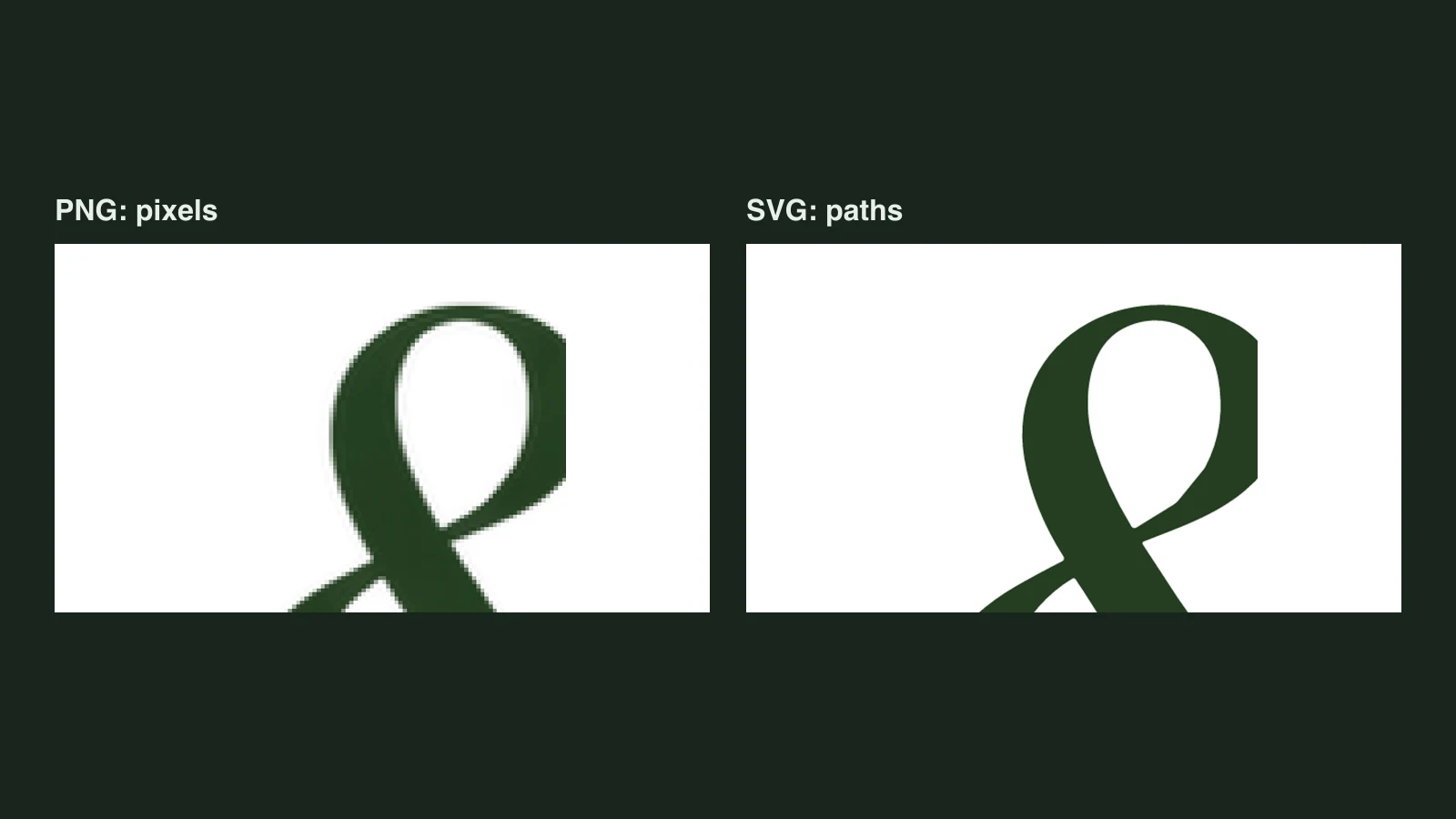
Here is the Harbor wordmark at 1.3 times zoom, source on the left and trace on the right.
What a good result looks like
A good trace has few shapes, the right number of colours, no hidden background box, all the small text present, and edges you are happy with at the largest size you will use. If one of the five fails, fix it by hand or try the other mode. If several fail, the logo may be a poor candidate for tracing, and the section on finding someone to redraw it applies.
Small print is where traces fail
The second sample is a stationery logo with a thin-line mark, serif letters, an italic tagline and a 20 px address line.

In our single measurement, the Linden & Co. logo at 1200 px wide came back as 162 paths with 95 distinct fill values, in a 44,857 byte file. Re-traced from a copy shrunk to 300 px wide it dropped to 49 paths and 43 fill values,. A smaller source did not give a cleaner file. It gave a file with less of the logo in it.
What to do with a logo like this:
- Start from the largest source you can find, since the address line here is only 20 px high.
- Try Advanced and run the five checks again. We did not measure Advanced on these logos, so we cannot say how much better it is for yours. Judge it by the check.
- Retype small text. Set the address line in a matching font and delete the traced fragments. This is often quicker than repairing broken letters.
- Find the original if it is a client or brand logo. The more fine detail a logo has, the better the case for asking for the vector file.
What gradients do to a trace
A tracer works with flat patches of colour. A smooth blend between two colours has no edge to follow, so the tracer cuts it into steps or squashes it into one colour. The third sample is a gradient app-style logo.
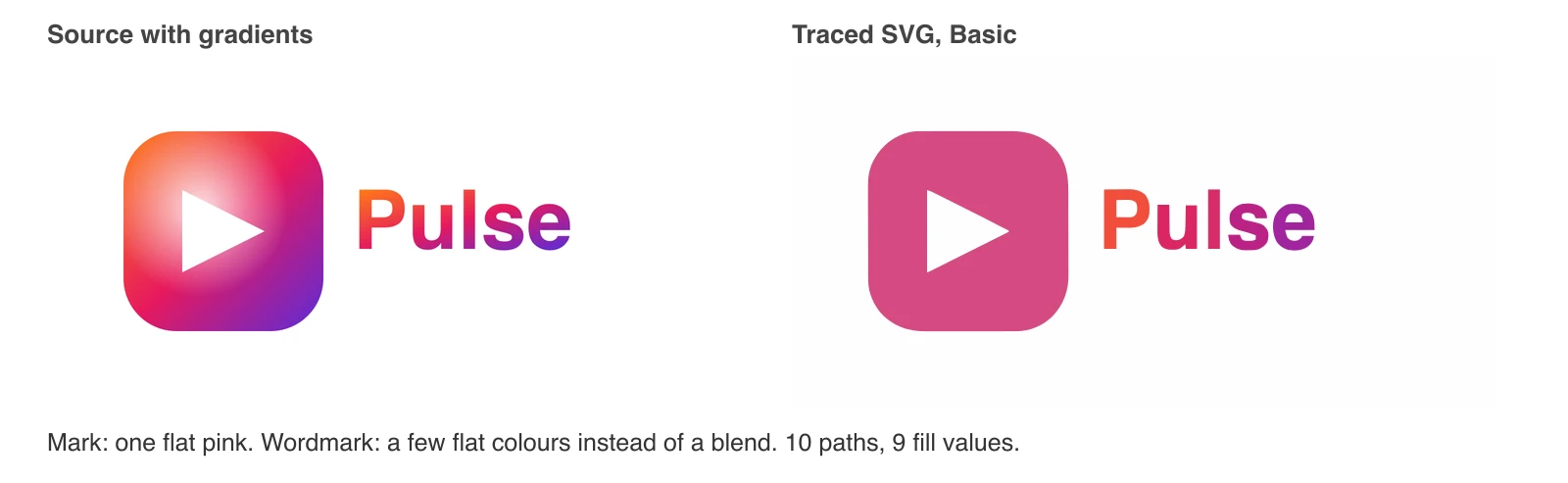
The Pulse trace at 1200 px wide had only 10 paths and 9 fill values, in a 5,729 byte file, which looks tidy on paper and is wrong: it is small because the gradient was thrown away. Traced from a 300 px copy it came back with 34 paths and 34 fill values, so it split into more flat colour steps. Neither version has a gradient in it.
This is also why you should not trust the path count alone. A low count can mean a clean logo or a logo that lost its detail. Compare the picture, not just the number.
Your options for a gradient logo:
- Redraw the gradient as a real vector gradient in an editor: trace the shape, then fill it with a gradient you set yourself.
- Accept a flat version. Many brands keep a one-colour or flat-colour version of the logo for exactly this reason.
- Ask for the original, which has the gradient defined properly.
When Basic is not clean enough
Basic is a good first pass because it is free and the image stays in your browser. Move to Advanced when Basic leaves a notch in a letter, many fragments, or messy fine lines. Advanced costs 1 credit, shown on the button, and you are charged only for a file that is delivered. Each person gets free Advanced conversions to start: 1 as a guest, then 1 more after signing in, or 2 when signing in directly. See How to Convert PNG to SVG for a side-by-side of Basic and Advanced on a real two-colour logo, with path counts. Whichever mode you use, the five checks above still apply.
When to ask someone to redraw it
Some logos are poor candidates for any automatic trace: lots of small text, detailed line art, gradients, or a logo that is going on a sign where every curve will be seen. For those, a person redrawing the logo can be the better route. Sticker Mule, for example, has a Redraw service: according to its Redraw page, you upload your logo in any format, get a proof within hours, and can request free edits until you are happy with it. We have not used it and the page does not list a price, so we cannot say what it costs. Unraster is not affiliated with Sticker Mule.
A freelance designer or your original agency is another option, and one worth trying first if the logo is the core of a brand.
What Unraster can't do
- It does not turn text into a font. Letters become filled outlines. You cannot retype them, and the original font is not recovered. To change words, set them again in a font and delete the traced letters.
- It does not recover the designer's original file. A trace is a new drawing made from pixels. Curves, colour values, layers and names from the source file are gone and cannot be guessed back.
- It does not keep gradients. They become flat colour areas, as the Pulse sample shows.
- It does not guarantee small text. Fine lettering can drop out or break, as in the Linden & Co. sample.
- It does not promise an exact copy. Never expect a pixel-perfect or 100% match. Compare the SVG with your original at the size you will use it, and fix or redraw what differs.
- It has no online editor. You download the SVG and clean it in your own vector software.
Before you use the file
- Run the 5-point check: paths, colours, background box, small text, edges at 400%.
- Delete the canvas-size background shape if you need transparency.
- Merge near-duplicate colours into your real brand colours.
- Retype any small text you lost, and keep the outlined letters only where they look right.
- Place the SVG on both a light and a dark background, then on the real item: website, print layout or cutting software.
- Save the original PNG and the traced SVG together, and note that the SVG is a trace, so nobody later mistakes it for the master file.
Bottom line: if the original vector file exists, get it. If it does not, start from the biggest clean PNG you have, trace it free with Unraster in Basic mode, and run the five checks before you use it: paths, colours, background box, small text and edges. Flat logos trace well; gradients and small print do not, and for those a redraw is safer. For other ways to convert, read How to Convert PNG to SVG.