Quick answer: an SVG made from a PNG has to be traced: software redraws the picture as vector paths. Use Inkscape's Trace Bitmap (free) or Illustrator's Image Trace if you already work in those apps, or an in-browser converter for a quick result. Then open the file and check it is real paths, not your PNG wrapped in an SVG.
A PNG is a grid of coloured pixels. An SVG is a text file that describes shapes. That is why an SVG stays sharp at any size, while a PNG turns into visible squares when you enlarge it. Going from one to the other is not a format change like PNG to JPG. Something has to look at the pixels and draw new shapes that follow them.
This guide shows what a real conversion looks like up close, how four methods compare, and the two-minute check that catches fake SVGs.
What a conversion actually looks like
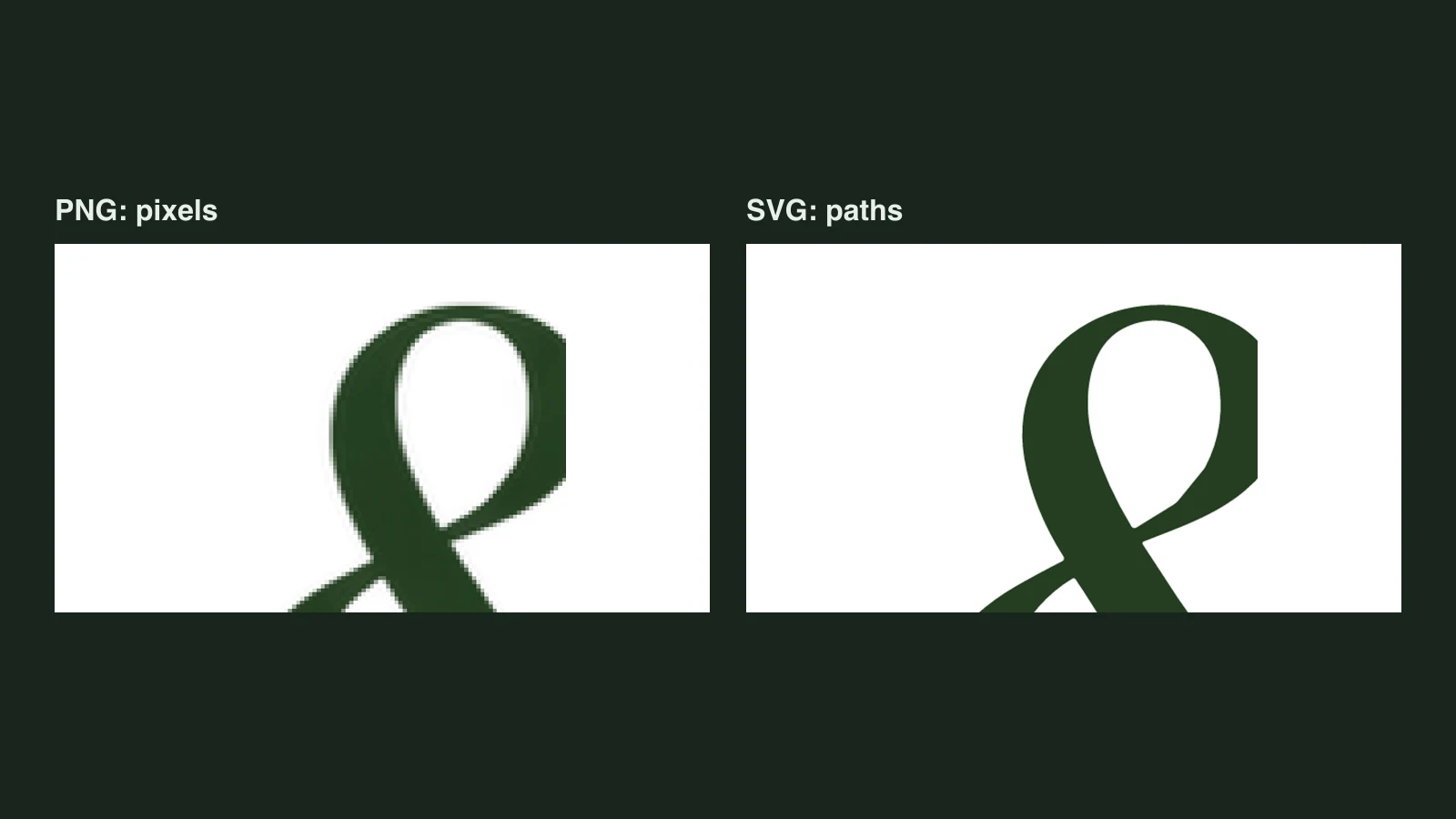
Here is the same logo, zoomed in on the ampersand: the original PNG and two SVGs made from it with Unraster, all cropped from the real files at the same spot.
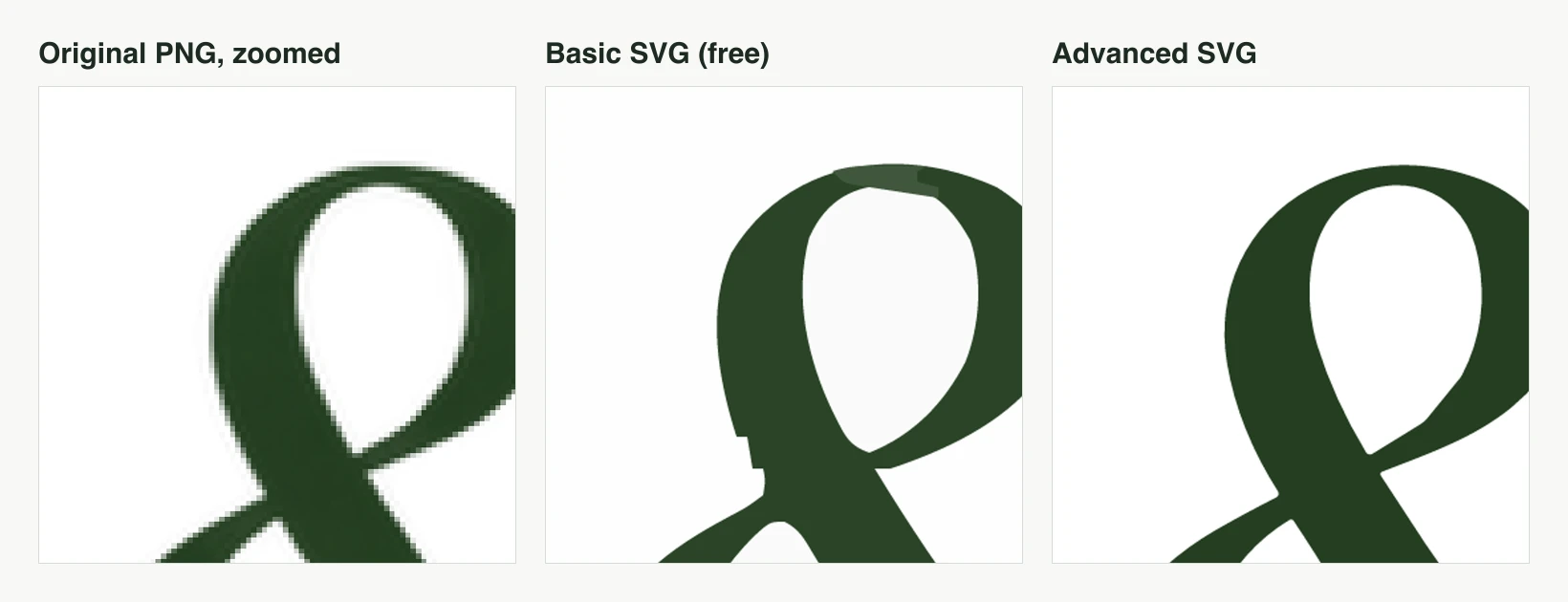
Three things to take from this:
- The SVG is a redraw. Both SVGs are smooth at any zoom, but neither is the original. Tracing decides where each edge goes, and it can decide wrong.
- Errors hide at normal size. At 100% all three look identical. Problems show up at 400% or more, which is exactly where vector artwork gets used: large prints, signs and cutting machines.
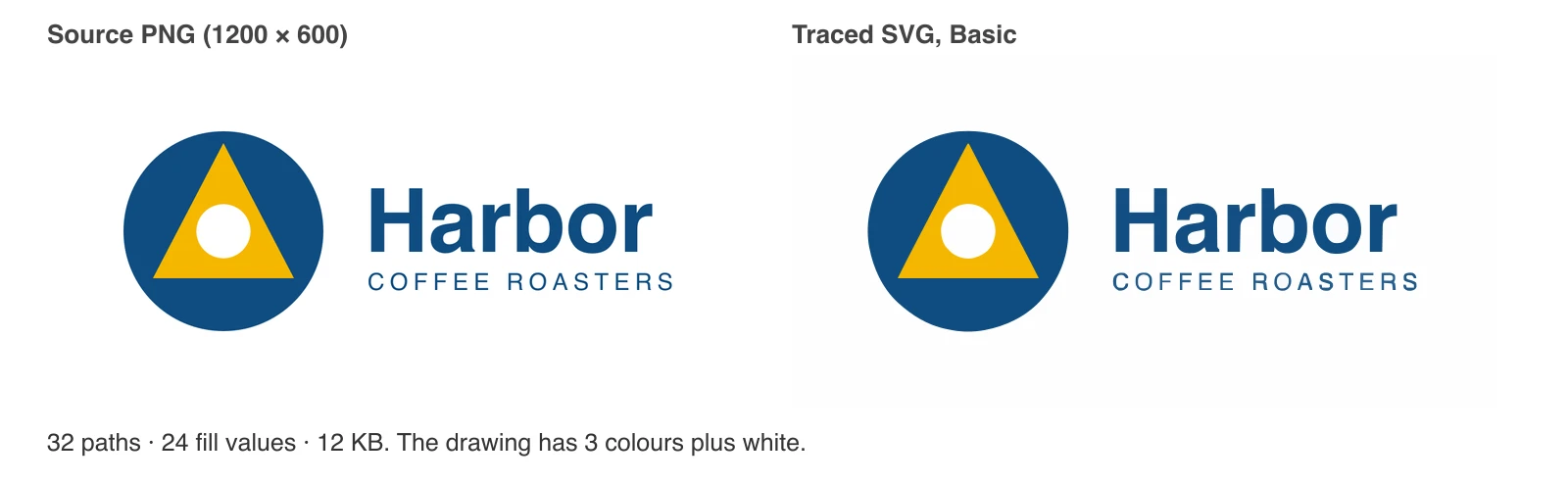
- Path count is not quality. This Basic SVG has 83 paths and the Advanced one has 23. Fewer, cleaner shapes are usually easier to edit.
Tracing versus wrapping: check what you got
Two very different things get sold as "PNG to SVG":
- Tracing (vectorizing). The software finds edges and colour areas and draws paths along them. The result scales cleanly and you can edit each shape.
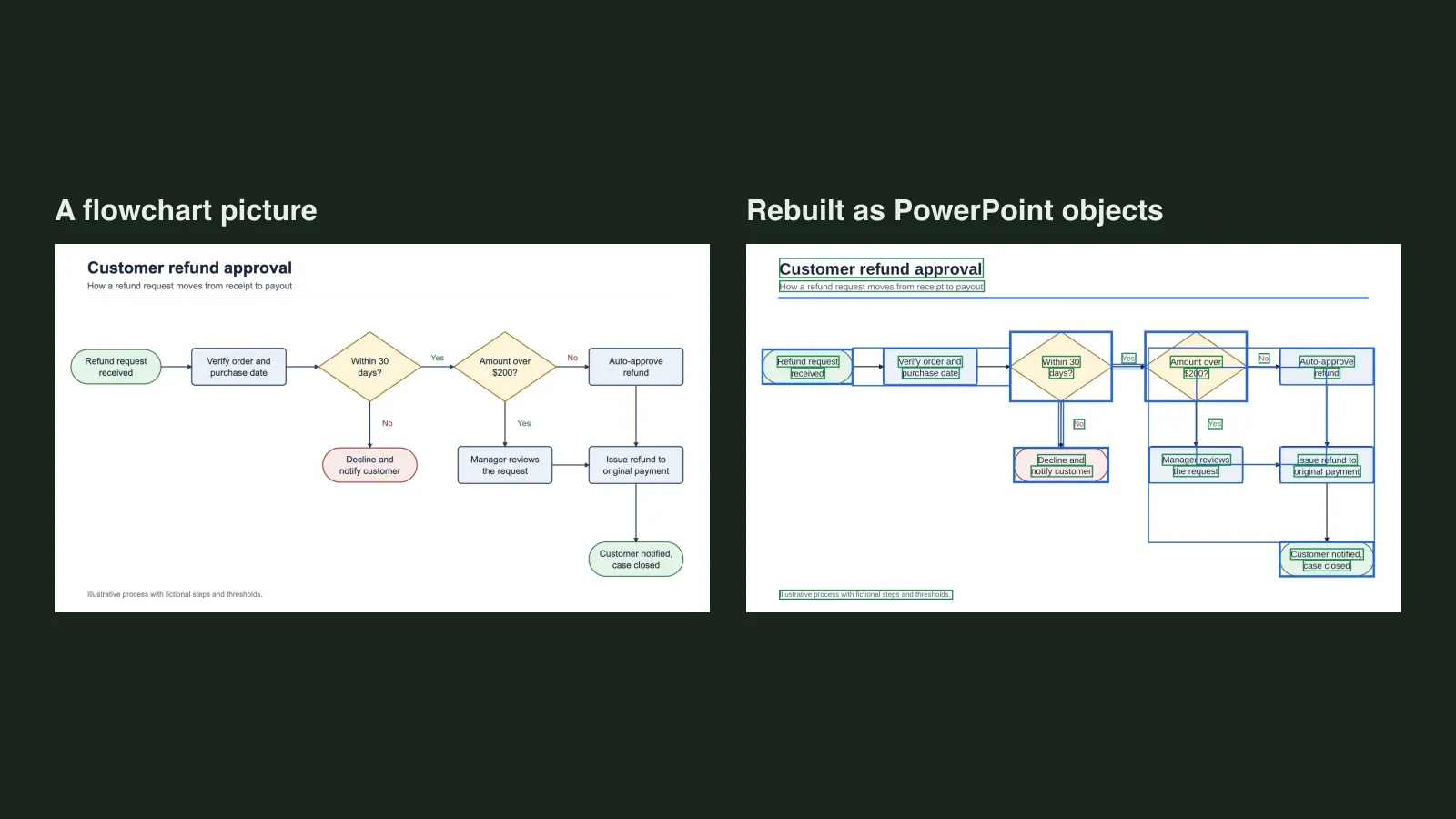
- Wrapping. The tool puts your PNG inside an SVG file unchanged. It has an .svg extension and opens in vector apps, but it is still pixels and blurs exactly like the PNG.
To tell them apart, open the SVG in any text editor. A wrapped file looks like this, with one huge line of base64 text:
<svg xmlns="http://www.w3.org/2000/svg" width="1254" height="1254">
  <image href="data:image/png;base64,iVBORw0KGgoAAAANSUhEUgAA..." />
</svg>
A traced file is a list of shapes. These are the first lines of the Advanced SVG from the logo above, shortened:
<svg xmlns="http://www.w3.org/2000/svg" width="1254" height="1254" viewBox="0 0 1254 1254">
<path id="shape-0" fill="#ffffff" d="M 1254 0 L 1254 1254 L 0 1254 L 0 0 L 1254 0 Z"/>
<path id="shape-1" fill="#5e7544" d="M 414.8 463.31 C 414.8 460.25 414.12 454.89 409.55 456.79 Q 417.06 448.52 422 438.7 ..."/>
Two more quick checks: zoom the SVG to 400% in a browser (wrapped files go blocky), and click it in a vector editor (a traced file breaks into many shapes, a wrapped one selects as a single rectangle).
Which method to use
| Your situation | Best fit |
|---|---|
| You want free, desktop software and some control | Inkscape, Trace Bitmap |
| You already use Illustrator | Image Trace |
| One quick conversion, no install | An in-browser or online converter |
| A logo or icon you will reuse at large sizes | Any tracer, then check edges at 400% |
| A single-colour file for cutting or engraving | A black and white trace, or a dedicated tool |
| A photo | Usually keep it as a PNG or JPG; traced photos are huge and look posterised |
Method 1: Inkscape (free)
Inkscape is a free, open-source vector editor for Windows, macOS and Linux with a built-in tracer. The steps follow the Inkscape manual; menu wording can differ slightly between versions.
- Open or import your PNG in Inkscape.
- Select the image with the Selector tool.
- Choose Path > Trace Bitmap (the manual lists Shift+Alt+B).
- On the Single scan tab, pick a mode:
- Brightness cutoff gives a one-colour silhouette. The manual calls it the most frequently used mode; it suits logos and line art.
- Edge detection traces only the outlines of shapes.
- Color quantization traces along the borders between colours.
- Centerline tracing reduces strokes to single open paths, useful for line drawings and plotters.
- For colour artwork, switch to Multiple scans. You get more detail, but one object per scan, and keeping colours creates one object for each colour.
- Click Update to preview, then Apply. The trace is placed exactly on top of your PNG.
- Move the trace aside or delete the original PNG, so you know which one you are saving. Then save as SVG.
Inkscape is the best free choice when you want to tweak the result afterwards, because the traced paths are ready to edit in the same app.
Method 2: Illustrator Image Trace
If you have Illustrator, Image Trace is the most configurable option:
- File > Place the image, then open Window > Image Trace.
- Pick a preset: Black and White for one-colour art, a limited colour preset for logos, a photo preset for photos.
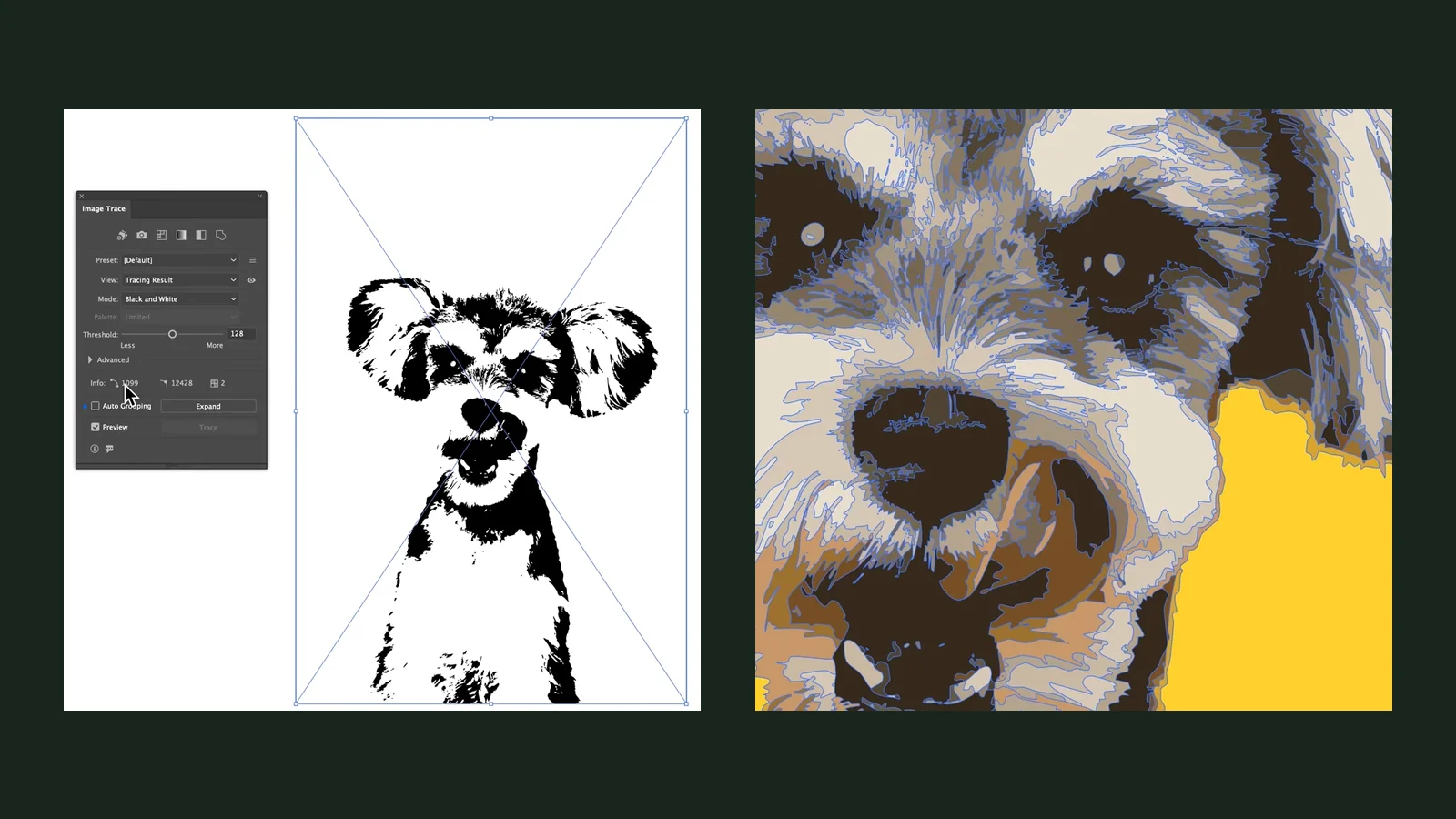
- Adjust Threshold or Colors, Paths, Corners and Noise while watching the Info line, which counts paths, anchors and colours.
- Click Expand to turn the live trace into editable paths, then save as SVG (svg).
Each preset and setting, with screenshots of a real session, is covered in How to Trace an Image in Illustrator.
Method 3: An online converter
Online converters all follow the same pattern: upload a PNG, wait, download an SVG. Adobe Express, for example, offers a free PNG to SVG page that accepts JPEG, JPG or PNG files up to 40 MB. Unraster is not affiliated with Adobe or Inkscape.
Before you trust one, check three things:
- Tracing or wrapping? Run the text-editor test above on the downloaded file.
- Where does the image go? Most online tools upload your file to their servers. For unreleased logos or client work, read the privacy terms or use a tool that runs on your own computer.
- What do you get for free? Some sites limit size, add watermarks or require an account for the download. Find out before you upload.
Method 4: Unraster
Unraster converts PNG, JPG and WebP images to SVG on its home page, with the original and the result side by side so you can compare them before downloading.
- Basic SVG is free and runs entirely in your browser, so the image is never uploaded. It is a good first try for logos, icons and flat artwork.
- Advanced SVG is for images where Basic is not clean enough, like the ampersand above. Your first Advanced conversion is free; after that it costs 1 credit, shown on the button, and charged only for a delivered file.
Here is what four real sample images turned into, measured from the actual files:
| Sample | PNG | Basic SVG | Advanced SVG |
|---|---|---|---|
| Two-colour logo | 295 KB | 36 KB, 83 paths | 41 KB, 23 paths |
| Technical camera drawing | 1.5 MB | 920 KB, 2,561 paths | 1.25 MB, 1,536 paths |
| Science infographic | 1.2 MB | 757 KB, 2,303 paths | 989 KB, 733 paths |
| Detailed bird illustration | 1.8 MB | 4.0 MB, 11,337 paths | 7.5 MB, 4,189 paths |
The pattern: Advanced uses far fewer paths, but each one carries more detail, so files can be larger. For a logo the SVG ends up much smaller than the PNG. For a detailed illustration it ends up bigger, which is normal for any tracer. These are single measurements on our samples, not guarantees for your image.
What Unraster does not do: it does not keep text as editable text, and it will not make a photo into a tidy vector. For single-colour cut files there are separate free tools that produce a clean black shape:
How to get a cleaner trace with any tool
- Use the largest, sharpest source you have. A tracer can only follow the pixels it is given. A small or heavily compressed PNG gives wobbly edges and speckles.
- Crop away empty space so the tracer spends its detail on the artwork.
- Flatten transparency onto white if your tool has no transparency option. In one of our tests, a logo on a transparent background picked up speckles that disappeared once it sat on white.
- Reduce colours first for logos. Four clean colours trace better than a logo with soft anti-aliased edges in dozens of shades.
- Check small text. Tiny lettering is where every tracer struggles first. Retype it in a vector editor if it matters.
Before you use the SVG
- Open it in a text editor and confirm it contains path elements, not a base64 image.
- Zoom to 400% and inspect edges, corners and small text against the original.
- Click into it in a vector editor and make sure the shapes separate the way you expect.
- Check the file size. If a simple logo is several megabytes, retrace with fewer colours.
- Test it where it will be used: on the website, in the cutting software or in the print layout.
Bottom line: converting PNG to SVG means tracing, and every tracer makes judgement calls you should check at high zoom. Inkscape is the best free desktop route, Illustrator gives the most control, and an in-browser converter like Unraster is fastest for a one-off. Whichever you use, confirm the file is real paths before you rely on it.