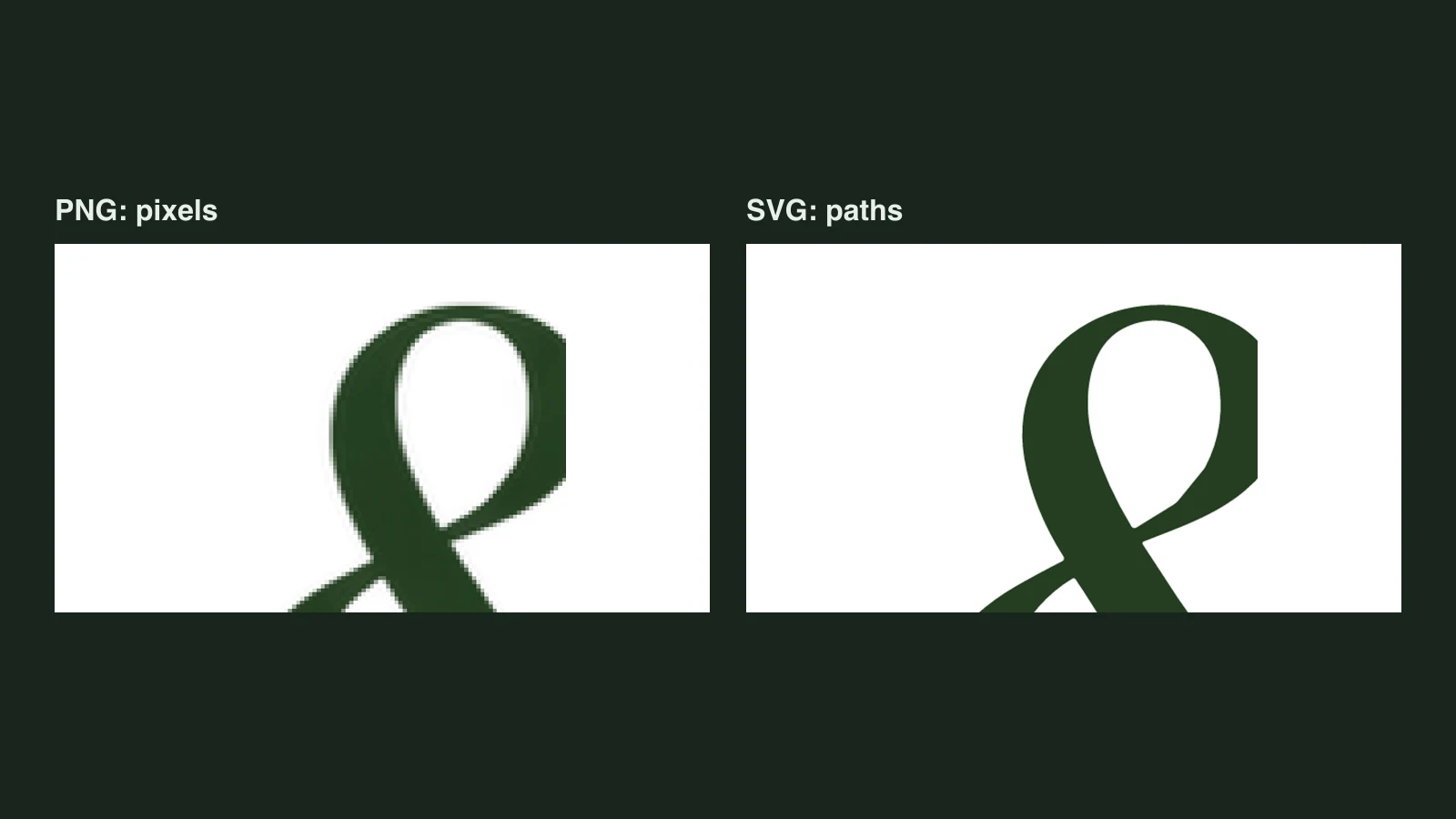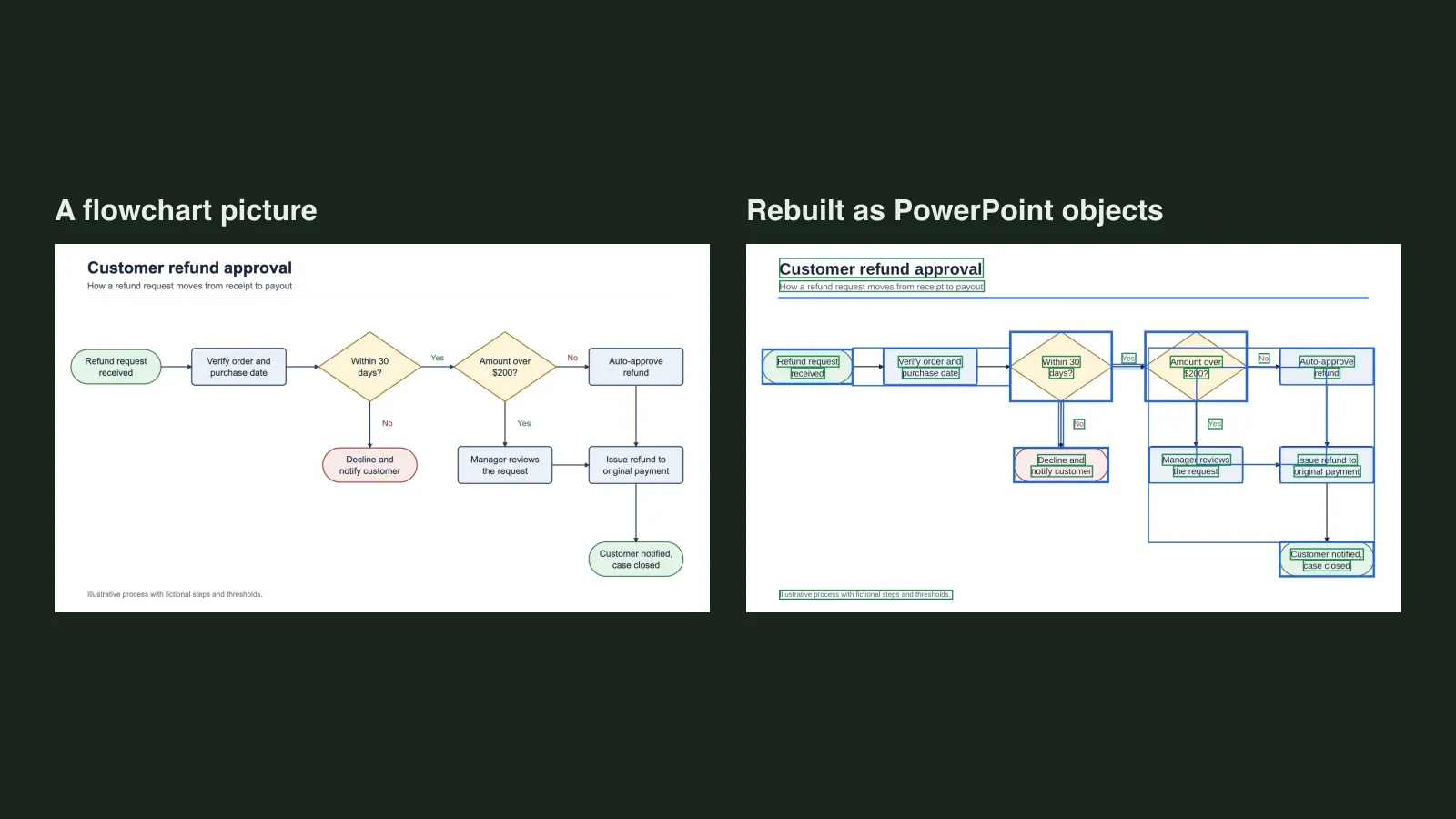
Quick answer: place the image, open Window > Image Trace, pick a preset (Black and White for one-colour art, a colour preset for logos and illustrations), adjust Threshold or Colors, Paths, Corners and Noise while watching the Info counts, then click Expand to turn the trace into editable paths and save as SVG.
Image Trace is Illustrator's built-in tool for turning a raster image (a PNG, JPG or scan) into vector paths. It is quick to start and easy to get wrong: the default settings can turn a simple logo into thousands of paths, and the result stays a live preview until you expand it.
This guide walks through the panel with screenshots from a real tracing session, explains the settings that change the result most, and covers the problems people hit most often. Menu names follow Adobe's Image Trace help; older versions may label things differently.
| What you are tracing | Start with | Then adjust |
|---|---|---|
| A one-colour logo, icon or signature | Black and White | Threshold, then Noise |
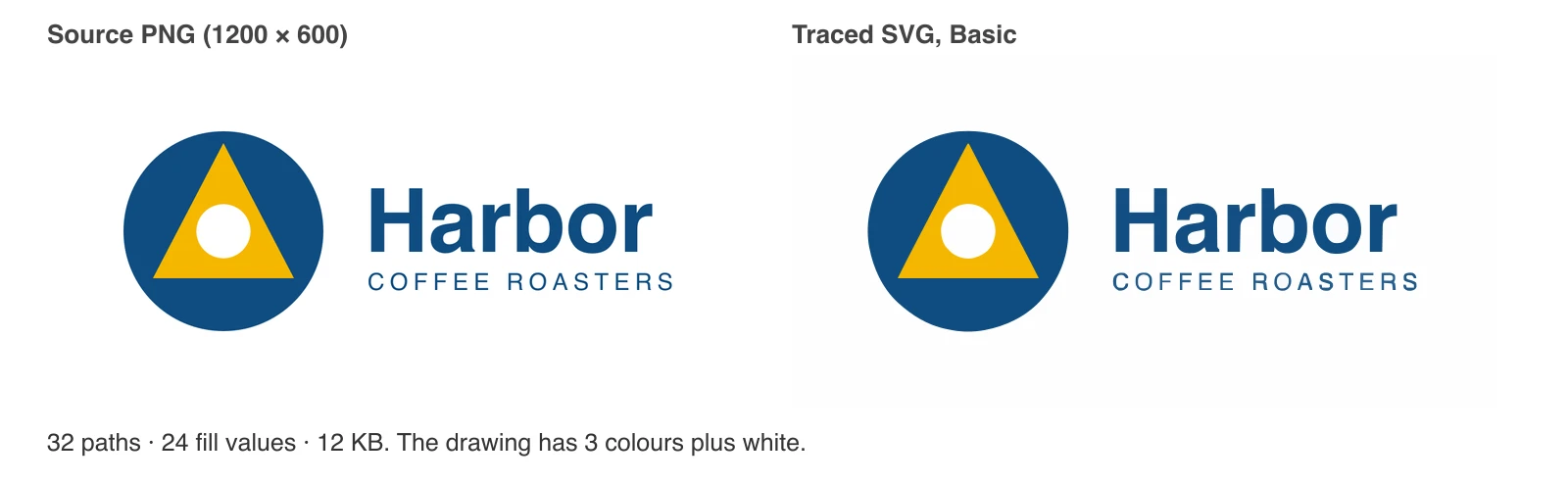
| A flat colour logo | 3 Colors or 6 Colors | Colors, Paths, Corners |
| A cartoon or flat illustration | 16 Colors or Low Fidelity Photo | Colors, Noise |
| A photo you want posterised | High Fidelity Photo or 16 Colors | Colors; expect a heavy file |
| A sketch or line drawing | Line Art or Sketched Art | Threshold |
| A technical drawing | Technical Drawing | Paths, Snap Curves To Lines |
Watch it first
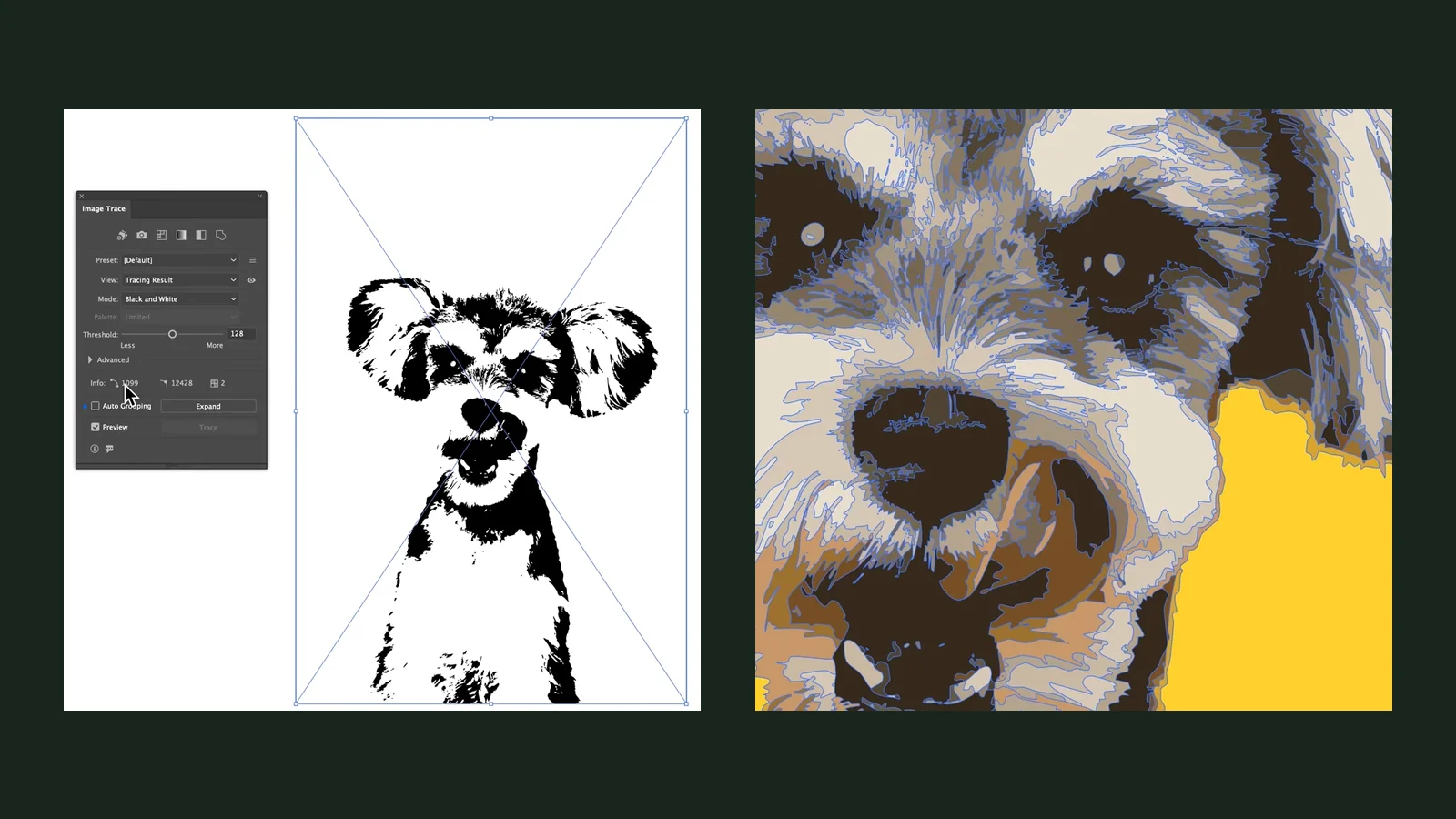
This short tutorial by Design With Kellie shows the whole workflow on a photo, from the first trace to saving the file. The screenshots in this guide are taken from it.
Trace an image, step by step
- Choose File > Place, select your image, and click on the artboard to place it.
- Open Window > Image Trace. With the image selected, the panel becomes active.
- Pick a preset from the Preset menu or the row of icons at the top of the panel. The trace runs and replaces the image on the artboard with a preview of the result.
- Adjust the settings (below) until the result looks right. With Preview ticked, every change re-traces automatically.
- Click Expand to convert the trace into editable paths.
- Save or export as SVG.
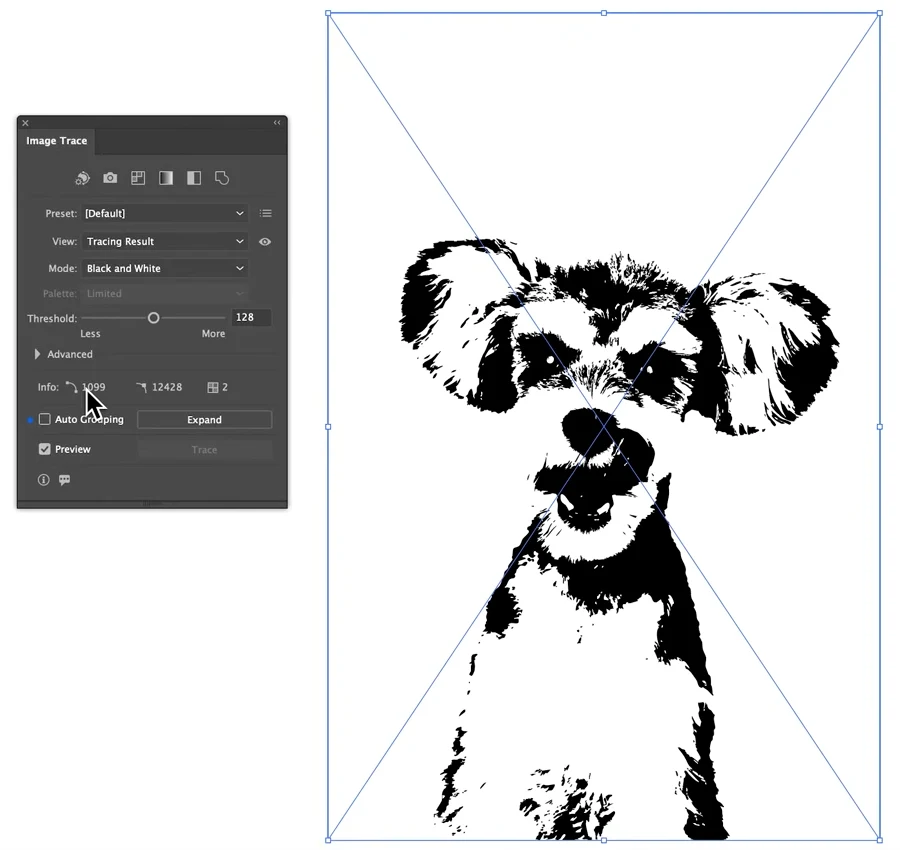
If you only need a quick result, select the image and click Image Trace in the Properties panel or the Contextual Task Bar to run a preset without opening the panel. You can refine it in the panel afterwards.
Presets: where to start
The preset menu lists the legacy presets: [Default], High Fidelity Photo, Low Fidelity Photo, 3 Colors, 6 Colors, 16 Colors, Shades of Gray, Black and White Logo, Sketched Art, Silhouettes, Line Art and Technical Drawing. In recent versions an Enhanced Presets switch sits at the bottom of the same menu. Adobe says the enhanced presets build in support for gradients, shapes, transparency and auto grouping, depending on the preset, while with legacy presets you switch those on yourself.
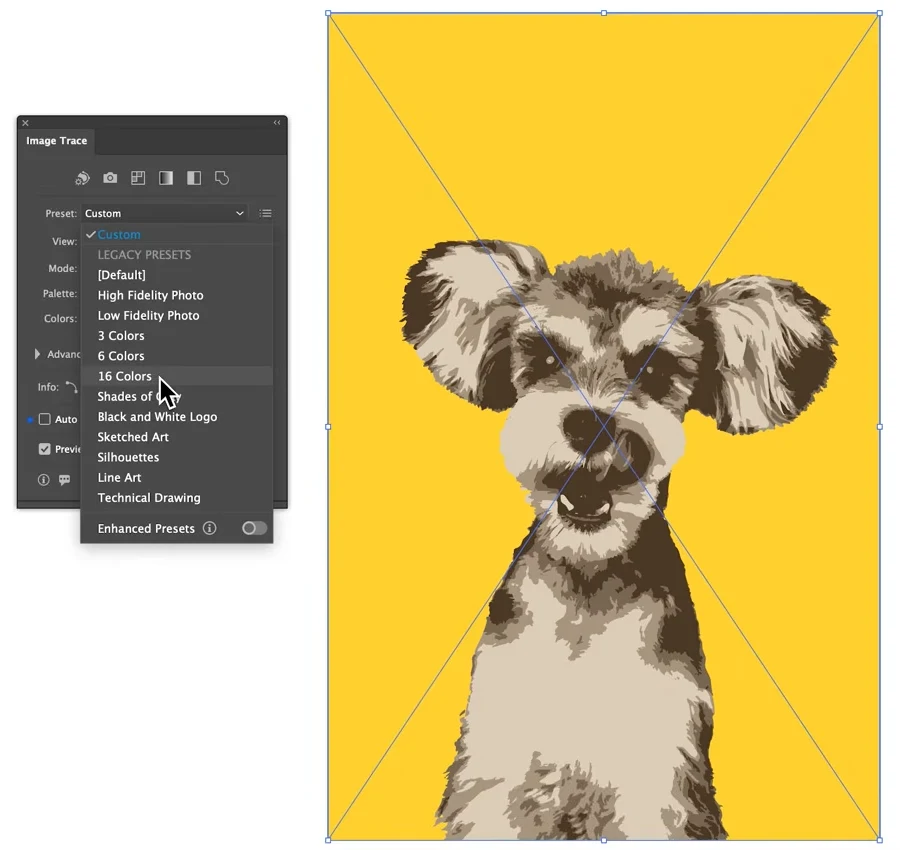
The icons across the top of the panel are one-click shortcuts. Adobe describes them as Auto-Color (a posterised image from a photo or artwork), High Color (high-fidelity photorealistic artwork), Low Color (simplified photorealistic artwork), Grayscale, Black and White, and Outline (black outlines only).
The settings that change the result most
Click the arrow next to Advanced to see every option. These are the ones worth touching:
| Setting | What it does | When to change it |
|---|---|---|
| Threshold (Black and White) | Pixels darker than this value turn black | Raise it if thin parts vanish, lower it if dark areas merge |
| Colors (Color mode) | How many colours the trace may use | Lower it for logos and smaller files |
| Paths | How tightly paths follow the pixels | Raise for a tighter fit when shapes look blobby |
| Corners | How likely a bend becomes a sharp corner | Raise when corners come out rounded |
| Noise | Ignores areas smaller than this many pixels | Adobe suggests 20 to 50 for high-resolution images, 1 to 10 for low-resolution ones |
| Method | Abutting creates cut-out shapes whose edges meet; Overlapping stacks shapes that slightly overlap | Leave the default unless you plan to rearrange the shapes |
| Snap Curves To Lines | Straightens nearly straight edges | Turn on for geometric logos |
| Transparency | Stops a transparent background being traced as white | Turn on for PNGs with transparency |
| Ignore Color | Skips one colour while tracing | Use it to drop a white background |
Watch the Info line at the bottom of the panel as you change settings. It shows how many paths, anchors and colours the trace has, which is the quickest way to tell whether a file will be light or heavy.
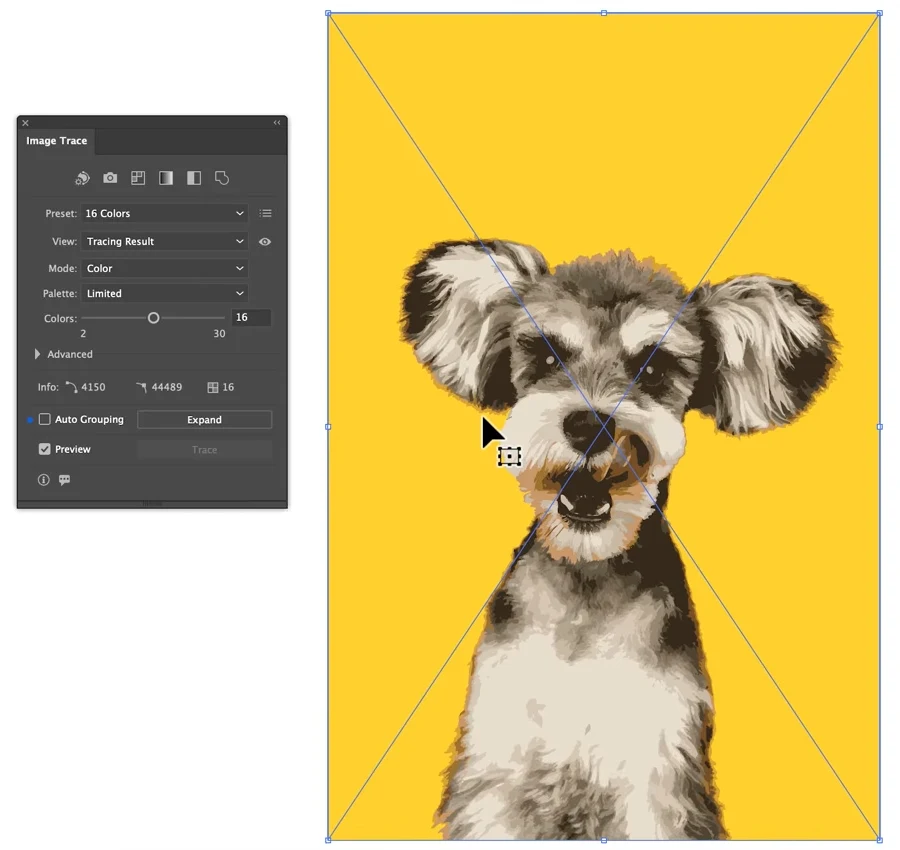
A flat logo should need far fewer paths than a photo. If the Info line shows thousands for a simple mark, lower Colors, raise Noise, and look again before you expand.
Expand: turn the trace into paths
Right after tracing, the result is a live trace. It looks like vector art, but you cannot select individual shapes yet, and the trace settings can still change it.
- Select the trace result with the Selection tool.
- Click Expand in the panel, or choose Object > Expand.
- Double-click the resulting group to edit inside it, or ungroup it to work on each path separately.
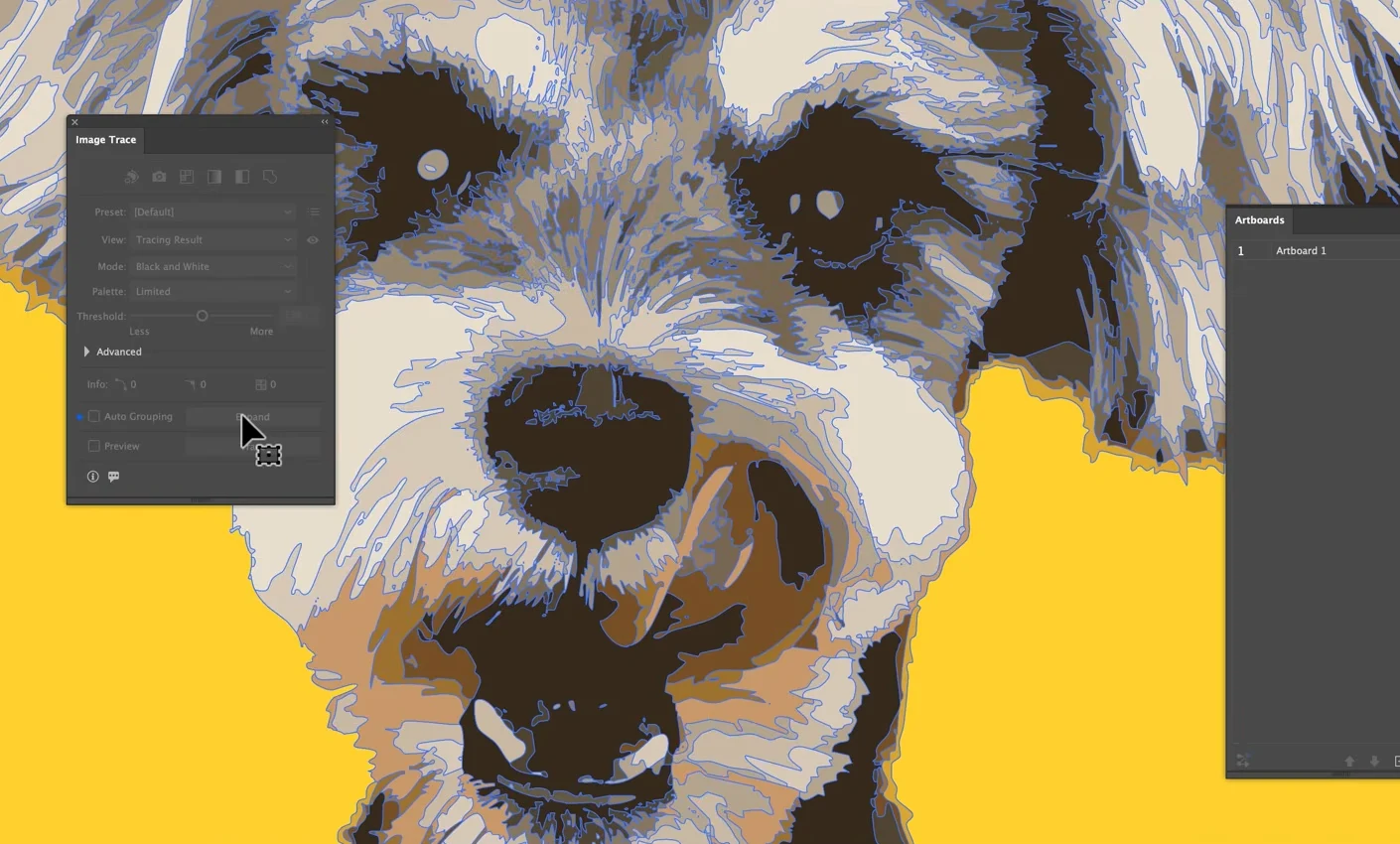
Two follow-ups from Adobe's help are worth knowing: Object > Path > Simplify removes surplus anchor points, and Object > Live Paint > Make turns the paths into a Live Paint group, which makes recolouring regions easier.
To throw the trace away and get the original image back, choose Object > Image Trace > Release. That only works before you expand.
Save as SVG
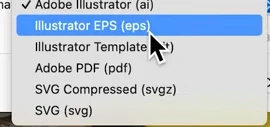
Use File > Save As and choose SVG (svg) in the Format menu, or File > Export > Export As and pick SVG. SVG Compressed (svgz) is the same format gzipped, which not every app or website accepts, so plain SVG is the safer choice.
Common problems and fixes
- Speckles and tiny stray shapes. Raise Noise (20 to 50 for a high-resolution image) or lower the colour count.
- The result looks blobby or too loose. Raise Paths for a tighter fit, and Corners if sharp corners are being rounded off.
- A transparent background turned white. Turn on Transparency, or use Ignore Color to drop one background colour.
- Straight edges look wobbly. Turn on Snap Curves To Lines.
- Thin lines disappear in Black and White. Raise Threshold so lighter strokes count as black.
- Too many paths and a heavy file. Check Info, lower Colors, raise Noise, and try Object > Path > Simplify after expanding.
- Text came out lumpy. Tracing turns letters into shapes. Retype the text with the Type tool.
- A small or blurry source. Tracing can only follow the pixels it is given. A larger, sharper source almost always traces better.
Without Illustrator
Illustrator gives you the most control, but it is a subscription app. If you only need an SVG now and then, two free routes cover most cases: Inkscape's Path > Trace Bitmap, covered in our PNG to SVG guide, and an in-browser converter.
Unraster converts PNG, JPG and WebP images to SVG in the browser, with the original and the result side by side. Basic SVG is free and runs on your own computer, so the image is not uploaded; Advanced SVG gives cleaner edges on harder images, with your first conversion free and 1 credit after that. It has no sliders like Image Trace, so for fine control over a specific look, Illustrator is still the better tool.
For single-colour files meant for cutting machines, the free image to silhouette tool gives a clean black shape with the gaps filled.
Before you use the trace
- Zoom to 400% and compare edges, corners and small details with the original.
- Check the Info counts. A simple logo should not need thousands of paths.
- Make sure you clicked Expand, so the file contains paths rather than a live trace.
- Save as plain SVG and open it in a browser to confirm it displays correctly.
- Test it where it will be used: on the website, in the cutting software or in print.
Bottom line: pick the preset by the kind of image, watch the Info line while you adjust Threshold or Colors, Paths and Noise, and always Expand before you save. If you do not have Illustrator, the PNG to SVG guide covers free alternatives, and Unraster makes an SVG in your browser.