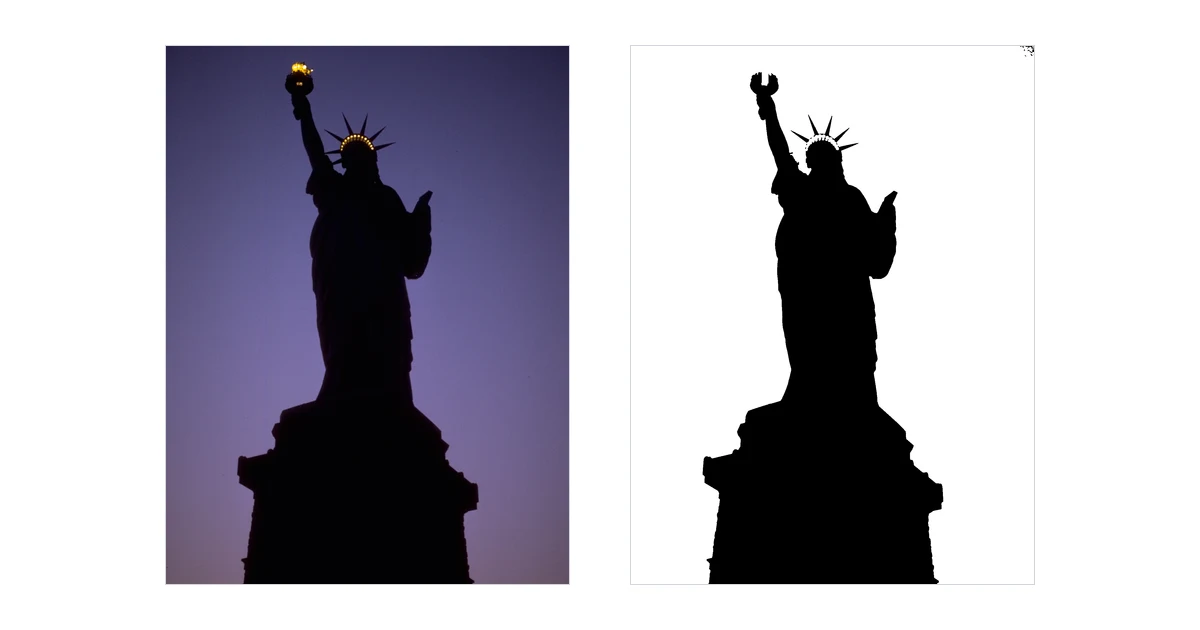
Quick answer: a photo makes a good stencil only if the subject and background differ clearly in brightness, like a silhouette against a plain sky. Crop out dark borders first, check the Invert setting, then adjust the Threshold until the subject is whole and the background is gone, and let the tool add bridges. Busy photos do not work. We show one that works, one that is hard, and one that fails.
The top guides for this search are mostly Photoshop walk-throughs: apply a Threshold, connect the loose parts with a brush, done. They skip the questions that decide whether it works at all. Is this photo a good candidate? Why are there dark blocks in the corners? Which way should the picture go? How many loose pieces will you have to deal with?
This guide answers those with real runs on three public-domain photos, then shows the steps in a free tool that runs in your browser. We say plainly where it fails, because with photos it often does. Unraster's own tool page puts it the same way: photos and busy images do not make good stencils, and the result is a one-colour approximation.
Which photo will work?
Pick the row that matches your photo.
| Your photo | What to do |
|---|---|
| A silhouette or a bold shape against a plain, evenly lit background | Crop it and make a stencil |
| A photo with a dark frame, vignette or darker sky at the top | Crop first |
| A light subject on a dark background | Check Invert |
| A detailed subject such as an animal's face | Expect many bridges and simplify it |
| Subject and background of similar brightness, or sparkling or textured backgrounds | Choose a different photo |
| You want a solid shape, not a stencil | Use Image to silhouette |
| Lettering or a logo, not a photo | See the stencil section of the Cricut guide |
How a photo becomes a stencil
A stencil is two-tone. Unraster's Image to stencil tool takes your photo, turns every pixel into black or white depending on a brightness threshold, and then works out which pieces would fall out. In the result, black is the part that is cut away and white is the material that stays.
That last part is the catch with a photo. A photo has smooth gradients and a lot of small detail. Reducing it to two tones throws most of that away and keeps only the shapes that survive the threshold. If the shapes that survive are the ones you wanted, you have a stencil. If they are not, you have noise.
The tool is free, needs no sign-in, and your image stays in your browser. Images are worked at up to 3 megapixels, and anything larger is scaled down first. There is no background removal, so everything in the frame takes part in the threshold.
Step by step: from photo to stencil
- Prepare the photo before you upload it. Crop out any dark frame, border or vignette, and trim a darker patch of sky or wall if there is one. The next section shows why the threshold alone could not fix this in our test.
- Choose your image. Pick, drop or paste a PNG, JPG or WebP. A sharp photo with a clear subject gives the cleanest result.
- Check Invert. When a photo loads, the tool looks at the border and switches Invert on if most of it is dark. Look at the preview and decide whether the part you want cut away is black. If it is not, flip the checkbox.
- Set the threshold. It starts on automatic. Drag the Threshold slider to take control, and press Auto to return to the automatic value. Stop where the subject is whole and the background is gone.
- Tune smoothing and clean-up. Smoothing blurs the photo slightly before the threshold, which softens edges and merges tiny speckle. Noise clean-up removes small specks. The defaults are 1 and 2.
- Set the width and the bridges. Enter the finished Width (mm) (the default is 100). Choose a Bridge width (mm) (default 2), Bridges per island (1 or 2) and the Bridge direction (Vertical or Horizontal).
- Keep Highlight islands and bridges on. It is on by default and tints the enclosed pieces and the bridges so you can see what the tool found.
- Download. Take the SVG, DXF (in millimetres) or PNG, and test a cut on scrap before the real material.
Crop first: the dark border problem
None of the top guides we read mention this. We used a public-domain National Park Service photo of the Statue of Liberty against a dusk sky. The statue is dark against a lighter sky, which is close to the best case for a stencil. The whole photo, however, has dark frame edges and a darker sky at the top.
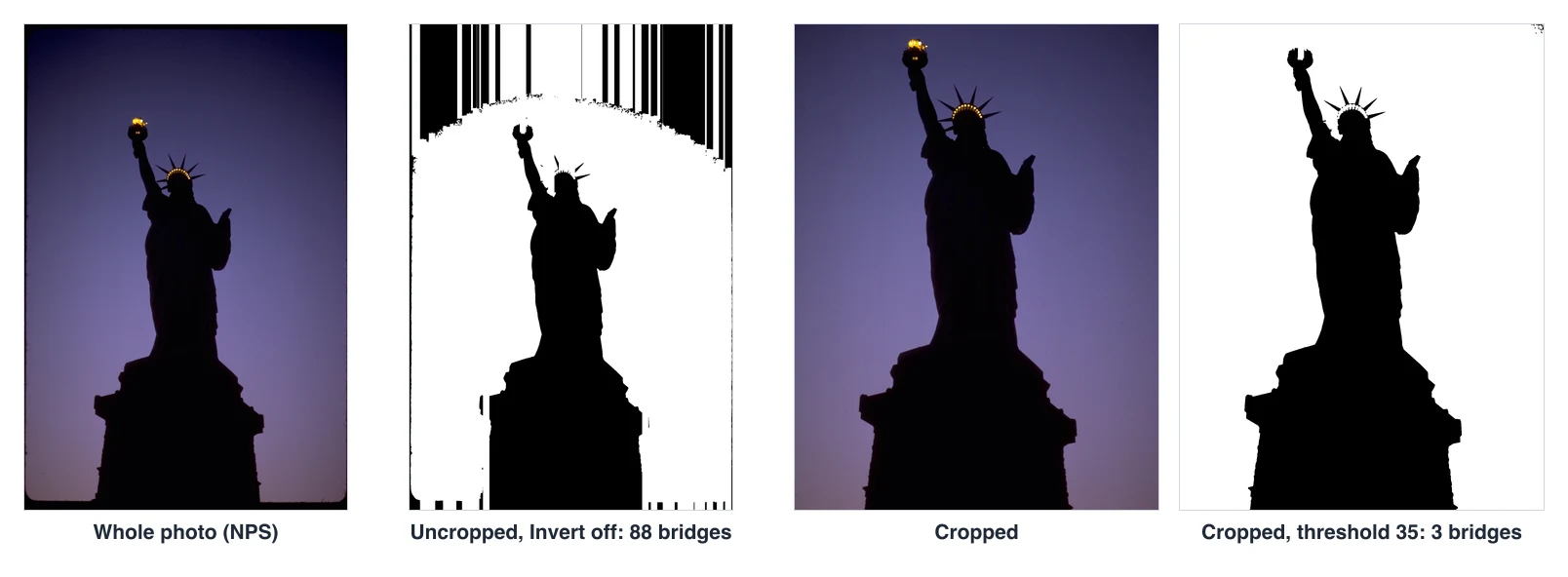
On the whole photo with Invert off, the automatic threshold was 53. The dark frame edges and the darker sky at the top were caught as cut areas. The result had 88 enclosed pieces, so 88 bridges, and 117 paths. With Invert on, which is what the tool suggested for this photo, it was 92 bridges. Neither is usable.
After cropping the frame away and trimming the top of the sky, the tool chose Invert off by itself. The automatic threshold was 48, and that was still not enough: the top corners of the sky were still dark, and the result had 56 bridges. Dark corners are not always a frame. The sky itself can be darker at the top.
To separate the two effects, we also tried the lower threshold on the uncropped photo.
| Photo | Threshold | Bridges |
|---|---|---|
| Whole photo | Automatic (53) | 88 |
| Whole photo | 35, set by hand | 100 |
| Cropped | Automatic (48) | 56 |
| Cropped | 35, set by hand | 3 |
Neither change worked on its own. Lowering the threshold could not remove a dark frame, and cropping could not fix a threshold that still caught the darker sky. Together they turned an unusable result into a clean one.
The numbers above are single runs, one per setting, using the same engine as the browser tool.
The Invert decision
A photo has no built-in "subject colour", so the tool has to guess which side should be cut away. It looks at the border: if most of it is dark, it assumes the background is dark and switches Invert on, so the light subject becomes the opening.
In our tests it did this for the uncropped Statue of Liberty photo, the eagle and the heron. It did not for the cropped Liberty photo. For the uncropped Liberty photo the guess was wrong: the statue is the dark subject, but the dark frame made the tool assume a dark background. Treat the automatic choice as a guess. Ask yourself one question: in the preview, is the black part the part I want cut out?
- Dark subject on a light background (the cropped Liberty): Invert off. The statue is black, so it is cut out and the sky stays as material.
- Light subject on a dark background (the eagle's white head against dark foliage): Invert on. The head is the opening.
If the answer is no, change Invert. It costs nothing, and the preview updates at once. Invert only decides which brightness counts as the part you remove.
Threshold: the trade-off you control
The threshold is the brightness level that splits the picture into black and white. Move it one way and the background creeps in; move it the other way and parts of the subject drop out. Which direction does which depends on Invert. A photo with a detailed subject shows the trade-off clearly. We used a public-domain bald eagle photo from the US Fish and Wildlife Service, with Invert on (the tool's own choice).
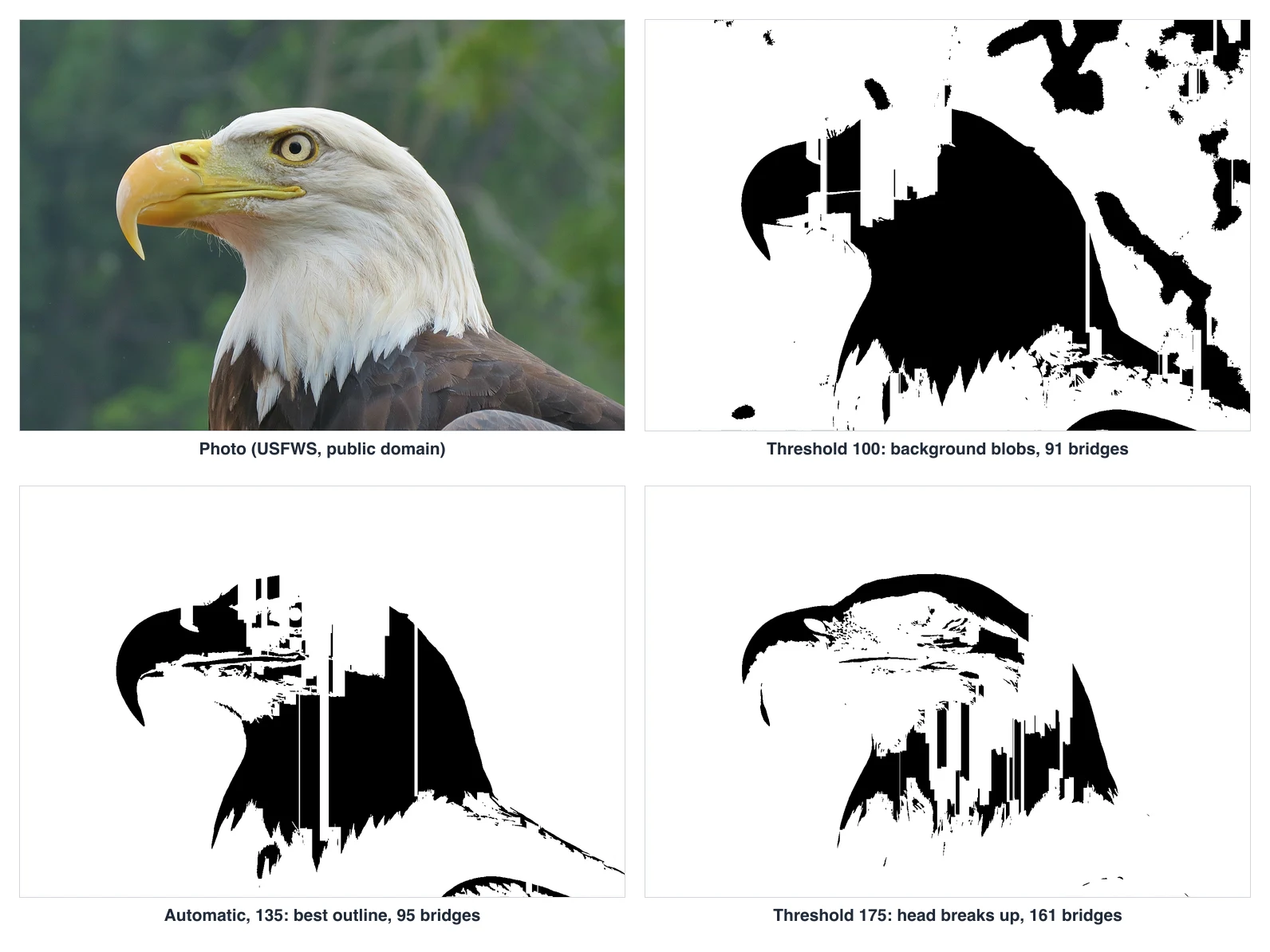
| Setting | What happened | Bridges | Paths |
|---|---|---|---|
| Threshold 100 | Background foliage comes in as blobs | 91 | 224 |
| Automatic (135) | Best outline of the three | 95 | 125 |
| Threshold 175 | The head breaks up | 161 | 214 |
Two lessons. First, the automatic value is a good starting point, but it is not always the best one. On the cropped Liberty photo the automatic 48 left 56 bridges, and a hand-set 35 gave 3. Second, look at the bridge count. The best eagle outline still needed 95 bridges, because the detail inside the head (the eye, the beak line, the feather shading) forms enclosed pieces, and every enclosed piece costs a bridge. A subject like this needs simplifying before it becomes a clean stencil, for example by painting out the detail in an image editor.
Enclosed pieces and bridges
An enclosed piece (the tool calls it an island) is a part of the white material that is completely surrounded by cut-away black. Cut a stencil like that and the piece has nothing holding it, so it falls out. A bridge is a small bar of material that connects it to the rest.
The cropped Liberty photo at threshold 35 is a clean example. It has exactly 3 enclosed pieces, so 3 bridges: one in the torch flame, and two across the gap between the raised arm and the head. The result has 19 paths.
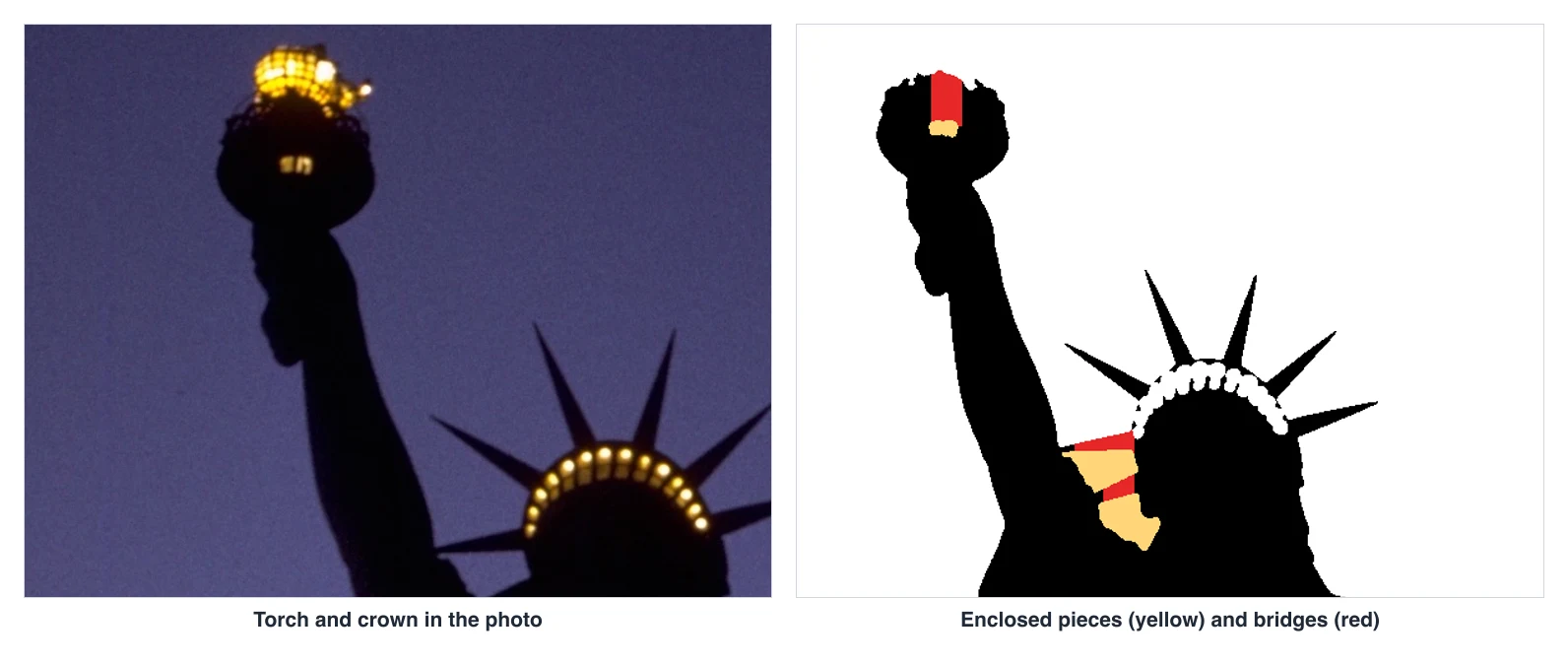
Bridges are placed automatically, where the cut-away band around the piece is thinnest along the direction you chose, preferring the middle of the piece. You can choose the width, one or two per piece, and vertical or horizontal. You cannot place them by hand. If a bridge lands somewhere ugly, switching Bridge direction between Vertical and Horizontal gives a different placement to compare.
Wider bridges are stronger and look heavier. Narrower ones are less visible and tear more easily. Treat the 2 mm default, at a width of 100 mm, as a starting point and test it on your material.
What to check in the result
Before you download, look for these. They come straight from our runs.
- Stray specks. Even our best Liberty result left small specks in the top-right corner. Specks become real cut shapes. Raise Noise clean-up, adjust the threshold or crop closer.
- Dark edges. Any dark band along a border will be cut away. If you see one, crop again.
- The bridge count. A clean silhouette has a handful. Dozens or hundreds mean the photo has too much internal detail for a stencil.
- Enclosed pieces. With the highlight on, every highlighted enclosed piece should have a bridge across it.
- Whole subject. Look for parts of the subject that dropped out at a high threshold.
- Small features. Thin strokes and tiny details may tear or clog, so check them against your material.
When it fails: a photo no setting can fix
Not every photo can be rescued. Our third test was a public-domain photo of a great blue heron standing in sparkling water. The heron and the water are close in brightness, and the water is full of bright points.
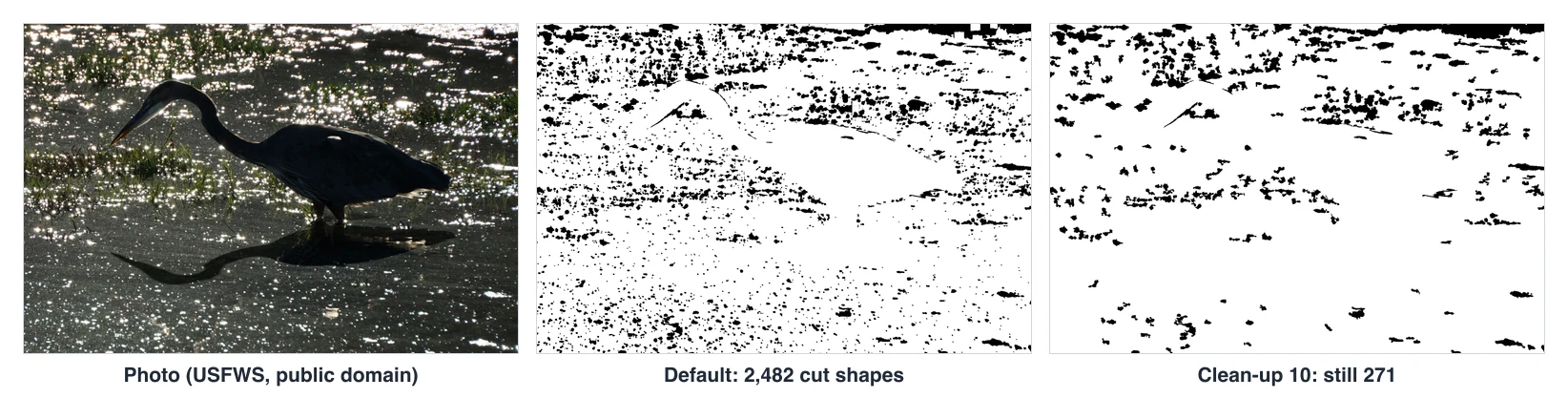
At the tool's defaults (Invert on, automatic threshold 127), every sparkle in the water became its own hole, giving 2,482 separate cut shapes, and the heron itself disappeared into the material. Raising Noise clean-up to its maximum of 10 still left 271 shapes, and the heron was still missing. With Invert off, there were 2,365 enclosed pieces, so 2,365 bridges.
When the subject and the background are not separated by brightness, no setting fixes it. Choose a different photo, ideally one taken against a plain sky, wall or sheet, or edit the photo so the subject stands out first.
A quick route in Photoshop
If you already own Photoshop, the black and white step is documented by Adobe in its help article Apply special color effects in Photoshop, under "Create a two-valued black and white image". The page was marked "Last updated on May 24, 2023" when we read it, so check it if your version looks different. Unraster is not affiliated with Adobe.
Adobe describes the Threshold adjustment this way: it converts grayscale or colour images to high-contrast, black and white images, and all pixels lighter than the threshold become white while all pixels darker become black. To use it:
- Click the Threshold icon in the Adjustments panel, or choose Layer > New Adjustment Layer > Threshold and click OK in the New Layer dialog.
- In the Properties panel, drag the slider below the histogram. The image updates as you drag.
Adobe notes that Image > Adjustments > Threshold also works, but it adjusts the layer directly and discards image information. That is why the adjustment layer is the safer choice.
This gives you the same kind of black and white picture as the tool's preview. Photoshop does not add bridges for you, so you paint the connections in yourself with a white brush. The browser tool's advantage is that it finds the enclosed pieces, counts them and places bridges, and exports an SVG or DXF at a size in millimetres.
What Unraster can't do
- No background removal. The tool makes a shape from a brightness threshold. A busy background becomes part of the stencil.
- Photos become a one-colour approximation. Fine gradients and small detail are lost, and some photos cannot be rescued, as the heron shows.
- No hand-placed bridges. You choose the width, the number per piece and the direction. The tool picks the position.
- No exact match. A stencil is a redraw in two tones. It is not an exact copy of your photo, so compare it with the original.
- No multi-layer stencils. The result is a single piece of material with cut-outs. Layered stencils for several colours are not supported.
- No guarantee a cut will behave. Thin strokes and tiny details may tear or clog. Material and tool matter, so test first.
Before you cut
- Read the preview as a cutter would. Black is cut away. Every black shape will be an opening.
- Check the size. Set the Width (mm) you want and check the width and height after you open the file in your cutting or design software. Import behaviour differs between programs.
- Count the bridges. If there are dozens, decide whether you want that many bars across the design.
- Test on scrap. Cut a small copy in cheap material first, especially for thin bridges and fine details. A bridge width that works in one material can tear in another.
- Pick the right file. SVG suits design software and many cutters that import it. DXF is sized in millimetres and suits laser and CNC software. PNG is a plain black and white picture.
If what you want is a solid shape to use as a decal rather than a stencil, use Image to silhouette, which keeps one filled shape without bridges.
If you need a DXF without bridges for laser or CNC, try the DXF tool below.
Bottom line: choose a photo with a clear brightness split, crop out dark borders before uploading, check Invert, and tune the threshold by eye, not just by the automatic value. Expect a handful of bridges from a good silhouette and many from a detailed subject. Try it free with Image to stencil, and read the Cricut guide if your design is lettering.

.jpg)
.jpg)