Quick answer: if your picture is one simple colour on a plain background, Design Space's own free Single Layer upload may be all you need, with no SVG step. Make an SVG when you want a reusable cut file, multiple colour layers without a Cricut Access subscription, or a cleaner shape before you cut. For a one-colour decal, use a one-colour tracer with enclosed holes kept open, and keep the file under Cricut's documented limit of 5,000 paths.
Most guides to this topic jump straight to a converter. The more useful questions come first: do you need an SVG at all, what does Design Space already do with a PNG, and what goes wrong when a traced file reaches your machine? This guide covers those, then shows the steps with real results from a test design.
Unraster is not affiliated with Cricut. Facts about Design Space below come from Cricut's help article How to upload images into Design Space, which was marked "Edited: March 30, 2026" when we read it. Features and limits can change, so check that page if something looks different on your screen.
Do you need an SVG at all?
Pick the row that matches your project.
| Your project | What to use |
|---|---|
| One simple colour on a plain background, one-off cut | Design Space Basic upload, Single Layer |
| A name, quote or decal where letter holes must stay open | A one-colour SVG with Fill holes off |
| A cut file you want to reuse, resize or edit elsewhere | A one-colour SVG |
| Several colour layers and no Cricut Access subscription | One-colour SVGs, one per colour, if each colour exists as separate artwork |
| A full-colour picture for Print Then Cut | Flat Graphic upload, or a traced SVG |
| A paint or etch stencil where centres must not fall out | A stencil with bridges |
| A photograph | Keep it as an image; it will not become a clean cut file |
How Design Space treats PNG, JPG and SVG
Cricut's help page describes two kinds of upload.
- Basic images are .jpg, .bmp, .png and .gif files. The upload steps also list .heic. They arrive as a single layer, and you can edit them during the upload.
- Vector images are .svg and .dxf files. They upload "as designed", and files designed with layers are separated into layers after upload. DXF is not supported in Design Space for iOS and Android "at this time".
So a PNG or JPG is not rejected. It is treated as a flat picture and you decide how to turn it into something cuttable. An SVG already contains the shapes. In our view, the practical reason to convert is control: you make the shape decisions yourself, on a preview you can inspect, instead of during the upload.
Upload a PNG or JPG directly: no SVG needed
For a simple one-colour image, try this first. It costs nothing and takes a minute. The flow below follows Cricut's help page; button names can differ between the desktop and mobile apps.
- Open the image upload screen in Design Space and choose your PNG or JPG. It is treated as a Basic image.
- Clean the image with the editing tools. Cricut lists Select, Erase and Restore tools, a Reduce colors dropdown, Color Tolerance, and Crop.
- Continue to Preview Single Layer.
- Choose the upload type. Single Layer is described as "a simple one-colored image or silhouette", which is what a cut file usually is.
- Save it and insert it on your canvas.
The other two choices on that screen are worth knowing:
- Flat Graphic keeps a single layer in full colour, for Print Then Cut.
- Multiple Layers (called Convert to Layers) is exclusive to Cricut Access subscribers, although anyone can preview it. Cricut says it makes up to 9 layers, in two output styles: Stacked, with a solid base layer, suited to iron-on, paper and vinyl, and Sliced, which makes puzzle-piece layers with no overlap and suits Infusible Ink. It requires Design Space for Desktop v8.28 or later, iOS v5.56.0 or later, or Android v5.49 or later, and Cricut notes it works best on clipart, while photos vary.
One more detail that matters for background clean-up: the Automatic Background Remover is for Cricut Access subscribers on Design Space for Desktop v6.14 or later. The manual tools are available to everyone.
If the Single Layer preview looks right (clean edges, the right pieces solid, letter centres open), you can stop here. Move on only if you hit one of the situations below.
When an SVG is the better route
- You want a file, not a one-time upload. An SVG opens in other design tools and cutting software, and you can resize and re-use it without repeating the editing steps.
- You want layers without a subscription. If you have each colour as separate artwork (for example, a design you drew in layers and exported one colour at a time), you can make one SVG per colour and stack them on the canvas without Convert to Layers. A one-colour tracer cannot pull a single colour out of a multi-colour picture for you.
- The automatic result is wrong. If Reduce colors and Color Tolerance cannot separate the shape from the background, tracing with a threshold you control can be easier to tune. You can also fix a bad SVG afterwards in a vector editor, which you cannot do to an upload that has already been flattened.
- You want to see the outline first. A tracer shows the exact shape before you download it.
Make a one-colour SVG for Cricut
For a cut file, a single solid colour is almost always what you want, because the machine cuts outlines, not colours. Unraster's Image to silhouette tool does this in your browser. It is free, needs no sign-in, and your image is not uploaded.
- Choose your image. Drop or paste a PNG, JPG or WebP. Black artwork on a plain white background gives the cleanest result. The tool has no automatic background removal, so a busy background will end up as part of the shape.
- Set the threshold. The preview shows the shape. Move the threshold until every part of your artwork is solid and the background is gone. Turn on Invert if your artwork is lighter than its background.
- Decide on Fill holes. This checkbox is on by default. It closes gaps completely enclosed by the shape. Leave it on for a solid silhouette, such as a cat or a tree. Turn it off for lettering and decals so the centres of letters stay open (more on this in the next section).
- Pick a fill colour. The colour is only for the preview and the file. What matters for the cut is the outline. Cricut notes, in its Convert to Layers section, that layer colours can be changed on the Canvas; for an SVG, check the Layers panel after upload.
- Download the SVG. The tool can also save a transparent PNG or a DXF, but the SVG is the one to use with Cricut.
The same steps work for a JPG. Just make sure the source is sharp, because JPG compression noise near edges becomes small bumps in the trace.
Why letter holes get filled
The most common failure with a traced cut file is not the outline. It is the holes. Letters like B, O, A, D, P and R have a closed gap inside them, and a decal with a flower has gaps between its petals. Those are enclosed areas. If the tracer fills them, the letter becomes a blob and your cut file is useless as lettering.
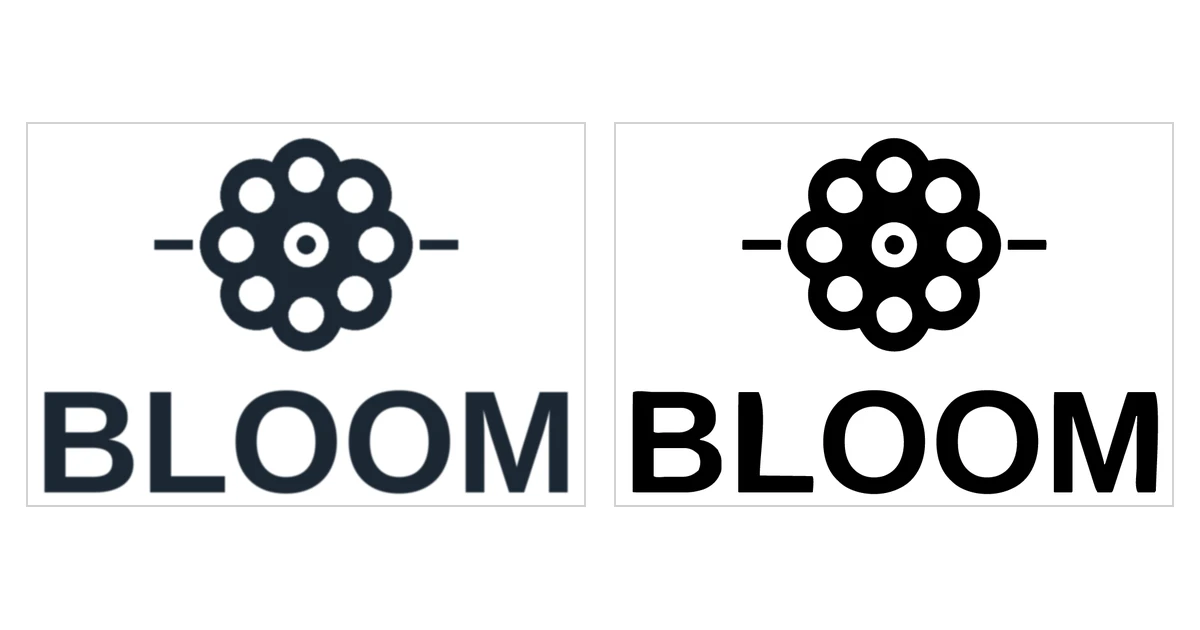
We tested this with a self-drawn "BLOOM" decal containing a flower, traced with the same engine as the tool above at its default settings (automatic threshold 150, smoothing 1, clean-up 2). There are 13 enclosed holes in the design: 8 petal holes, the flower centre, 2 in the B, and 1 in each of the two O letters.
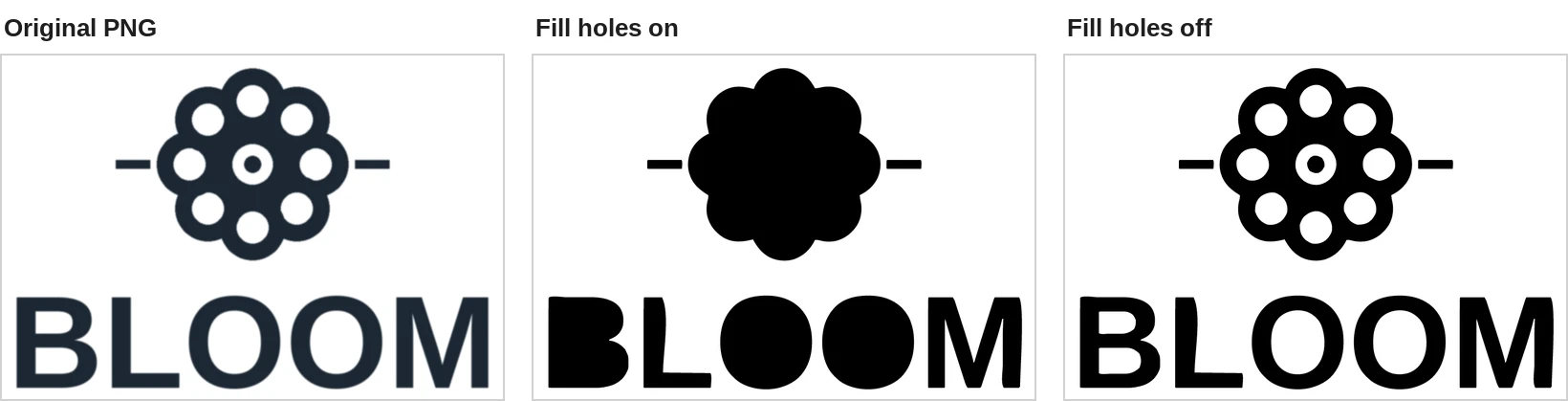
The count of 22 closed outlines is useful. It means the file is made of separate outlines (the outer edge of each shape plus each hole), which is what a cutter needs. A cutter follows each outline as a cut line, so the vinyl inside each hole comes away with the background when you weed.
What to check in our own result: straight strokes came back slightly bent in this run, for example the top of the L stem and the right leg of the M. These are single results on one design, not a general rule, but they show why you should zoom in. If you need perfectly straight text, retype the words with a font in Design Space and use the traced file only for the artwork.
Upload the SVG to Design Space
- Open the upload screen in Design Space and choose your .svg file. SVG is a Vector image type, so it uploads as designed.
- If the file was designed with layers, Design Space separates them into layers after upload. Check the Layers panel to see how your file arrived.
- On the canvas, a layered vector image appears as a grouped image. Ungroup it if you want to move or size the layers separately.
- Check the size. Import behaviour differs between apps and between files, so look at the width and height shown after the file opens and set the exact size you need before you cut. Do not assume the size you saw in a browser or in the tracing tool carried over.
- Select the shapes and confirm the pieces you expect to be separate are separate.
If the upload fails with "File Too Large. To upload, reduce size, then try again.", the likely cause is the path limit explained next.
Full-colour images and the 5,000-path limit
Cricut's help page states: "SVGs are restricted to 5000 paths; more than 5000 will cause an upload error." The error message is "File Too Large. To upload, reduce size, then try again."
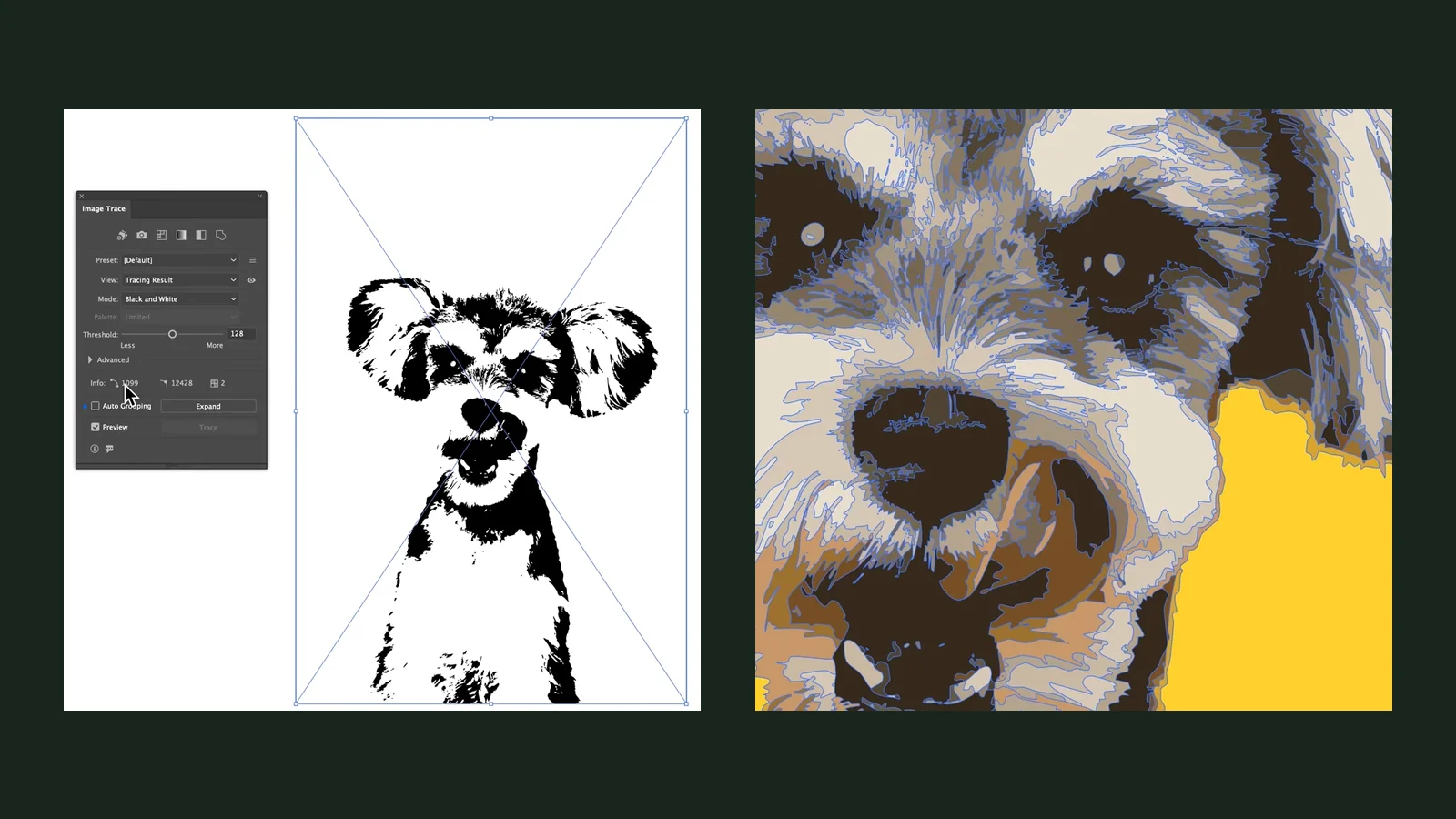
Here a path means one <path> element in the SVG file. Cricut does not say whether it counts each closed outline inside a path separately, so leave generous headroom. A one-colour logo might be a handful. A full-colour tracer, though, creates shapes for every colour area, and a detailed picture has a huge number of them. To see how far this can go, we looked at a detailed kingfisher illustration from our own examples.
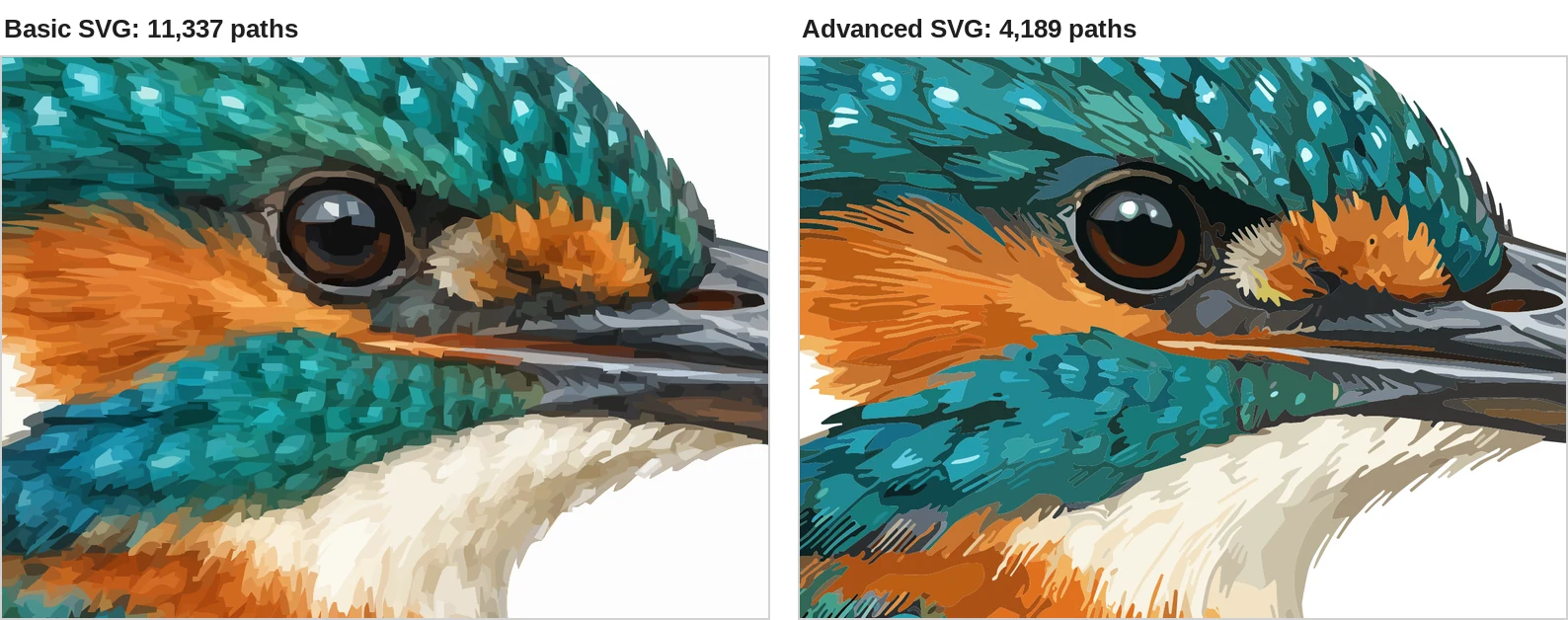
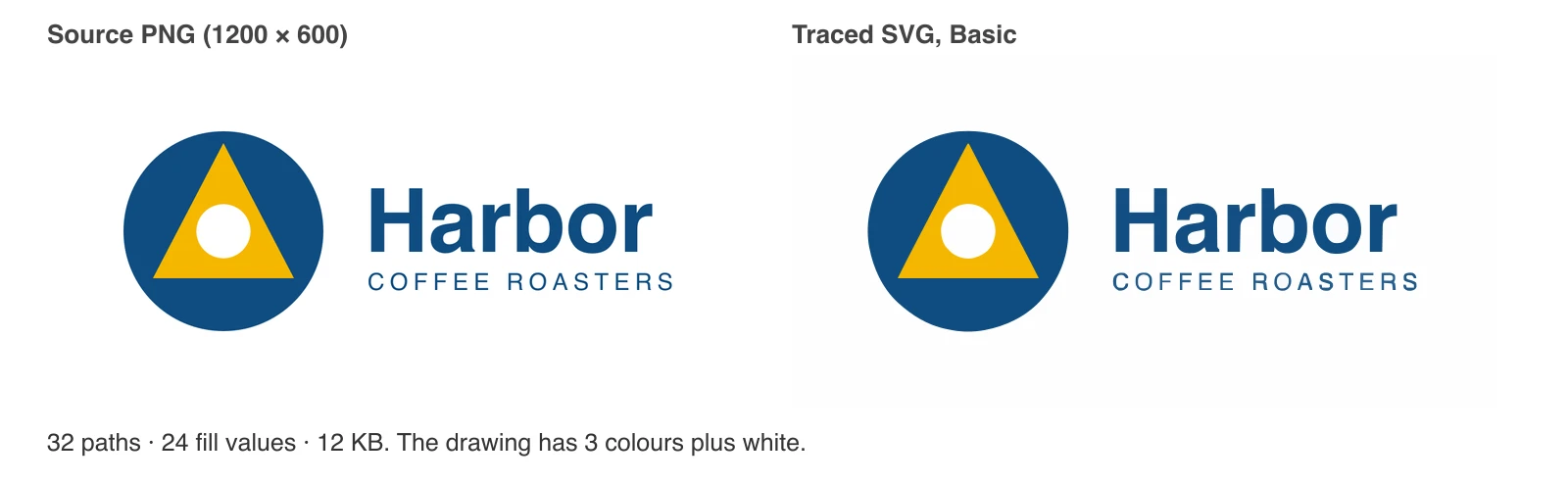
Be careful how you read this. These are single measurements on one sample. We did not upload these files to Design Space ourselves; the 5,000-path limit is Cricut's documented rule, and we are applying it to our counts. For contrast, our simple logo sample came out at 83 paths with Basic SVG and 23 with Advanced SVG, far below the limit. The path count depends on your image, not on a fixed property of the tool.
So what should you do with a colourful image?
- If you want a printed image that Cricut cuts around, use Print Then Cut. Cricut's Flat Graphic upload type is made for that: a single layer in full colour. An SVG is not required.
- If you want separate coloured vinyl layers, a full-colour trace is the wrong tool. Even under 5,000 paths, thousands of tiny shapes in dozens of colours are not practical to cut and weed. Either use Cricut's Convert to Layers if you have Cricut Access (up to 9 layers), or build the design from a few simple one-colour shapes, one SVG per colour, and stack them.
- If you still want a full-colour SVG, you can try Unraster's Image to SVG on the home page. Basic SVG is free and runs in your browser. On our detailed samples, Advanced SVG produced far fewer paths than Basic, as in the measurement above, and your first Advanced conversion is free, then it costs 1 credit, shown on the button and charged only for a delivered file. Check the path count either way.
To check a path count yourself, open the SVG in a text editor and search for <path, or look at the object count in a vector editor. A simple cut file should be in the tens, not the thousands.
Stencils: when you want bridges
A stencil has the opposite problem from a decal. If you cut a B or an O as a stencil, the centre is a separate piece with nothing holding it, and it falls out. The fix is bridges: small bars of material that connect each enclosed piece to the rest.
Unraster's Image to stencil tool adds them automatically. By default the bridge is 2 mm wide, one per enclosed piece, in a vertical direction, and you can change these. We ran the same BLOOM design through it at default settings.
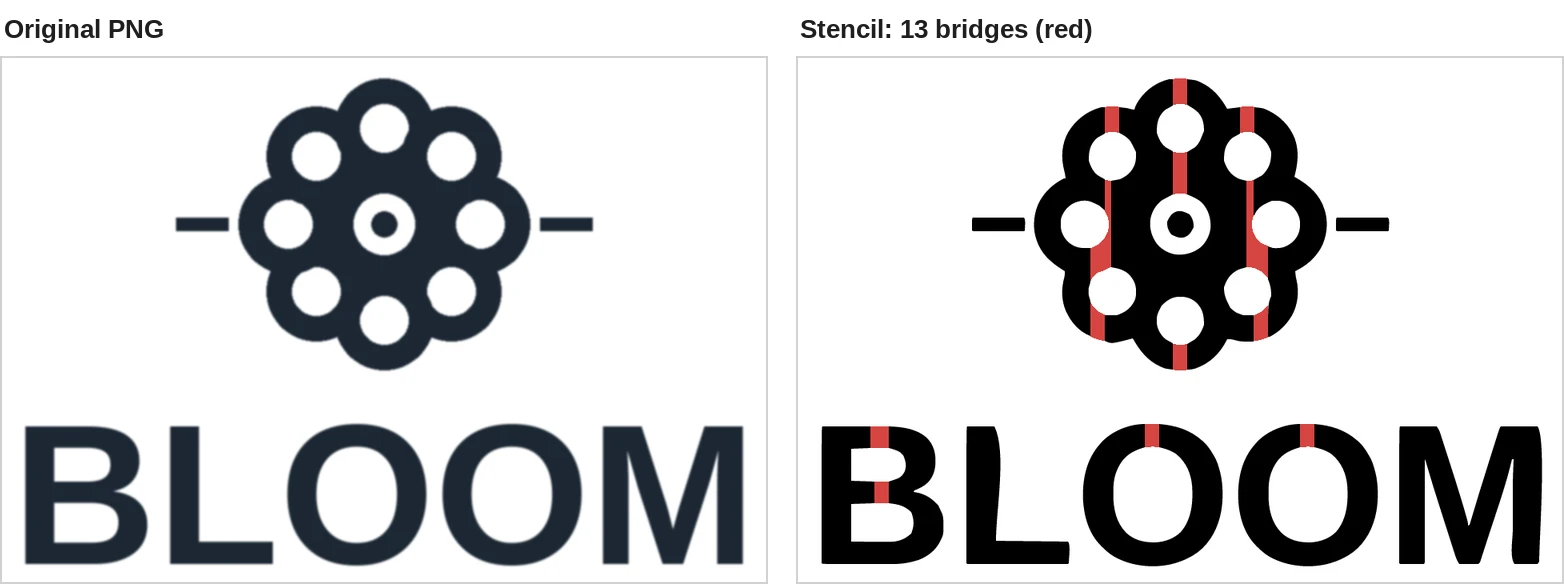
That last point matters. If you are cutting vinyl for a decal, the bridges would add cut lines and bars you do not want. Use the silhouette tool with Fill holes off instead. If you are cutting a reusable stencil to spray or etch through, use bridges, and test a cut on scrap first.
What to check before you cut
A short checklist that catches most wasted vinyl:
- Holes. Are the centres of B, O, A, D, P, R and any petals or windows open? If they are filled, go back and turn Fill holes off.
- Straight edges. Zoom in to 400% or more on strokes that should be straight, such as the stems of L, I, T and E. Tracing can bend them slightly, as it did on the L and M in our test.
- Stray specks. Small dots from JPG noise or a textured background become real cut shapes. Raise the clean-up or threshold, or fix the source image.
- Path count. Keep well under 5,000. A simple one-colour decal is usually in the tens; our BLOOM design had 9
<path>elements (22 closed outlines). - Size after import. Check the width and height once the file is open in Design Space, and set the exact size. Import behaviour differs between apps.
- Pieces that fall out. For stencils, confirm no enclosed piece is left without a bridge.
- A test cut. Cut a small copy on scrap first, especially for thin strokes and tiny details.
What Unraster can't do
Being clear about the limits saves you time.
- No background removal in the silhouette tool. It makes a shape from a threshold. If the background is not a plain contrasting colour, remove it first (Design Space's manual Erase tools are available to everyone; the automatic remover is for Cricut Access subscribers).
- No automatic split into up to nine vinyl layers. Unraster does not do what Cricut's Convert to Layers does. Its free tools produce one colour, and the home page tracer produces a full-colour trace, not a set of tidy cut layers.
- Photos do not become clean cut files. A one-colour trace of a photograph is a rough approximation, and a full-colour trace of one is huge.
- Traced text is shapes, not fonts. You cannot edit the words afterwards, and strokes can come back slightly bent. Retype lettering with a font where you can.
- No guarantee of an exact match. A trace is a redraw. It is never pixel-perfect, so compare it with your original.
Bottom line: try Design Space's free Single Layer upload first for a simple one-colour image. When you need a reusable cut file, make a one-colour SVG with Image to silhouette, turn Fill holes off for lettering, and keep the path count far below 5,000. For full-colour pictures, Image to SVG can trace them, but Print Then Cut is usually the better fit for a cut.